
Flight Search
What Is the Flight Search Options
Page?
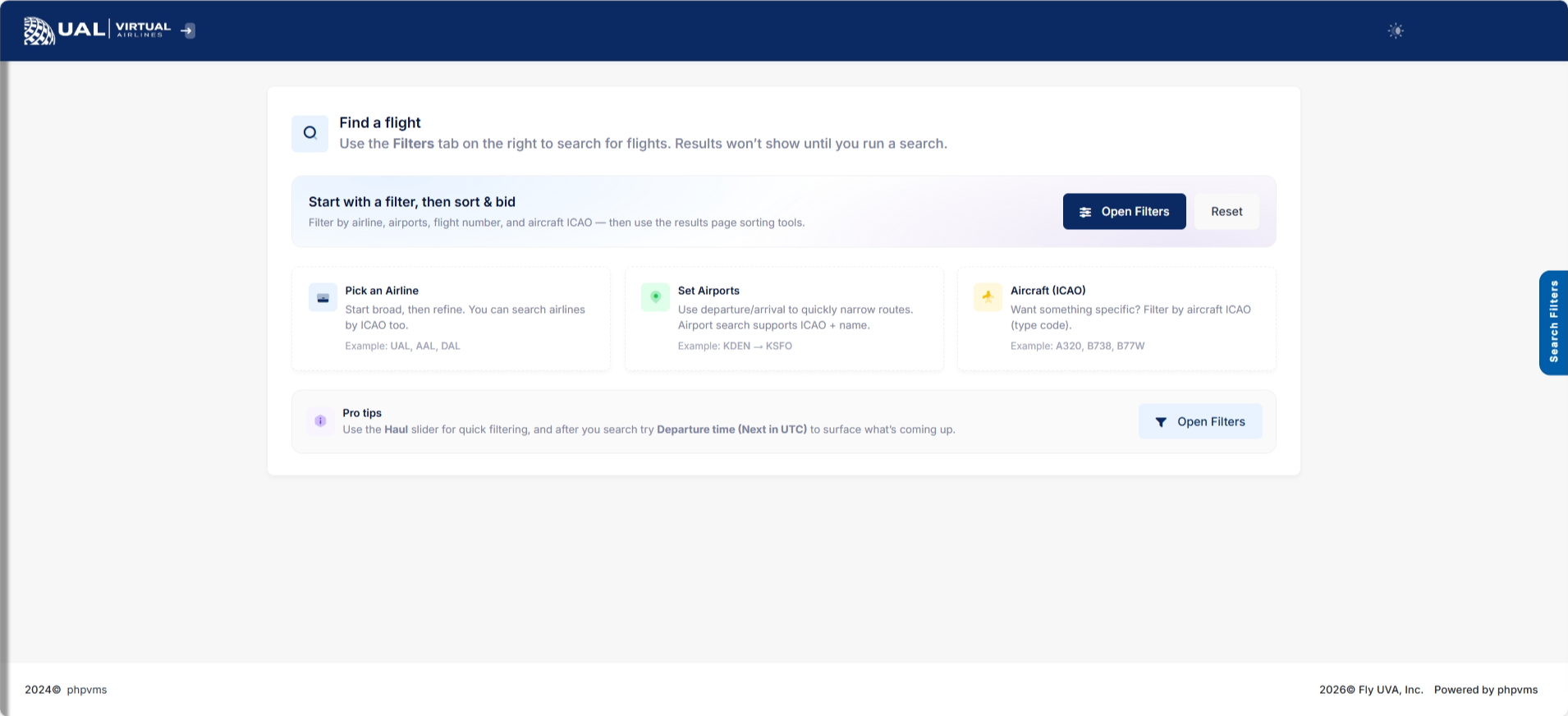
ScheduleThe Flight Search Optionspage allows you to browse and Randomfilter UVA’s published schedules.
This is where you select your next operational flight.
All scheduled flights listed here are part of the official UVA route structure.
Using the Search Filters
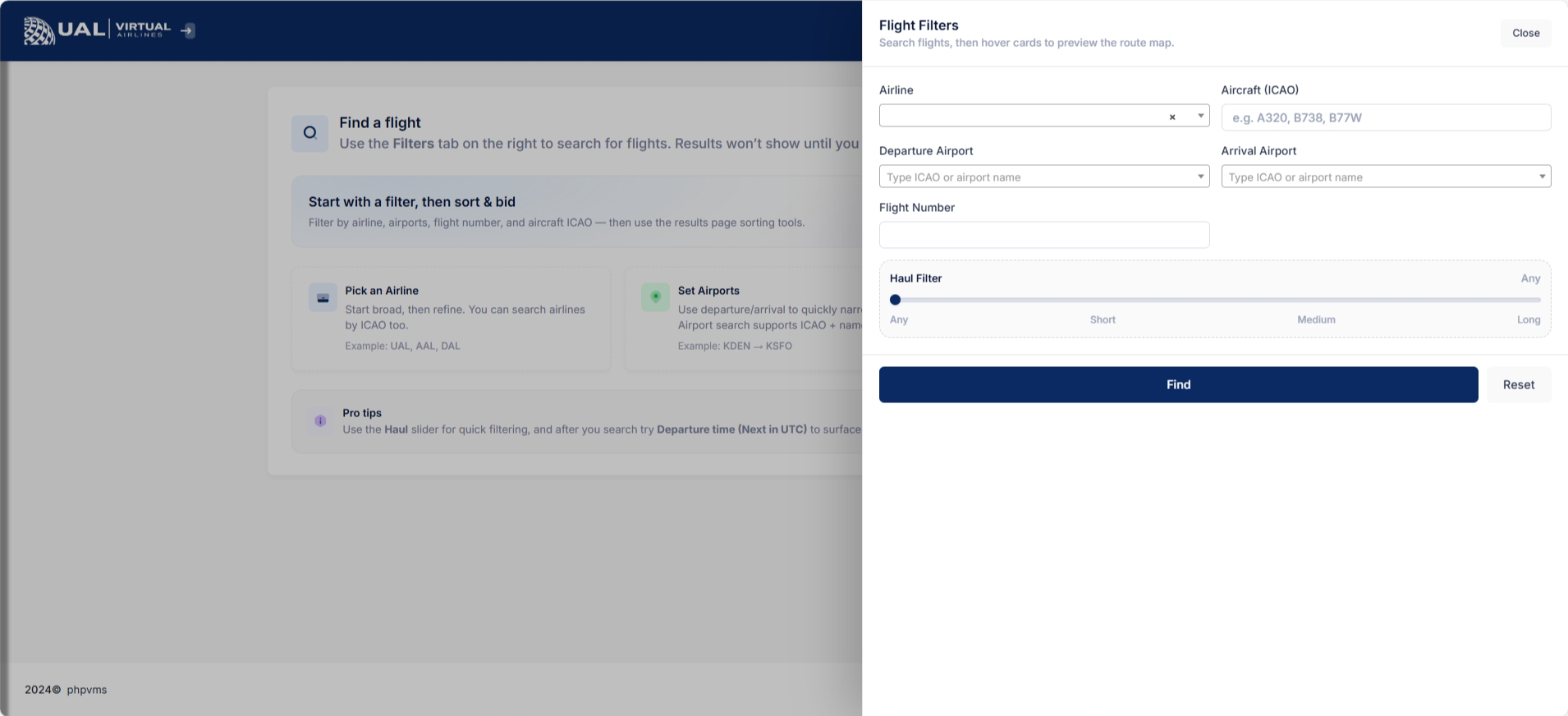
At the top of the page, you can narrow down results using search filters such as:
-
Airline
-
Aircraft / Subfleet
-
Departure Airport
-
Arrival Airport
-
Flight Number
-
Additional operational filters (if applicable)
Filters allow you to quickly locate routes that match your aircraft, hub, or preference.
You may use one or multiple filters at the same time.
Understanding the Results Table
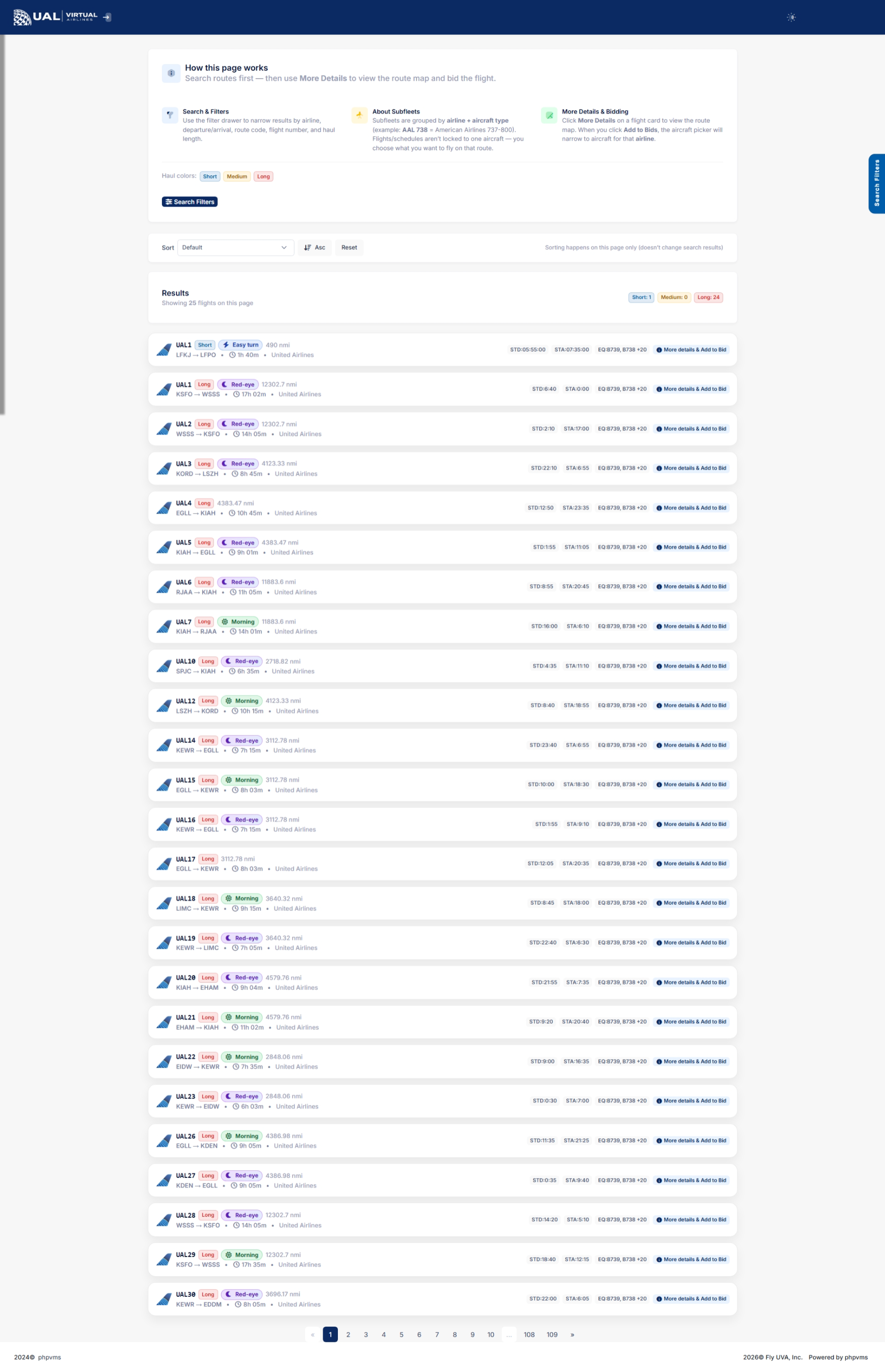
Search results display scheduled flights in a structured table.
Each row typically includes:
-
Airline
-
Flight Number
-
Departure Airport
-
Arrival Airport
-
Scheduled Departure / Arrival Time
-
Aircraft Type
-
Flight Time / Block Time
-
Additional operational details
These are real UVA schedule entries — not dynamically generated routes.
Viewing Flight GeneratorDetails
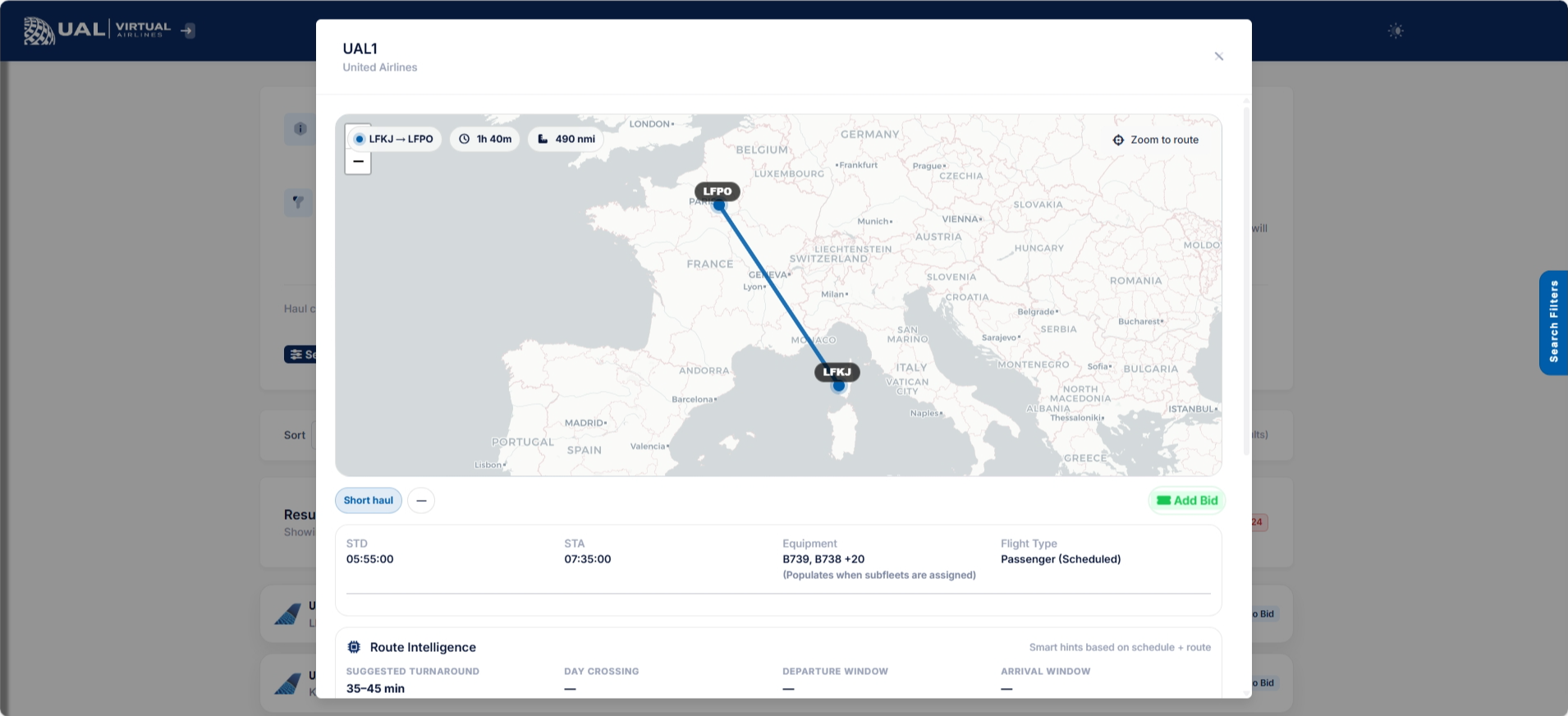
Selecting a flight opens the detailed Flight page.
On the mainFlight Details page, you will see:
-
Full route information
-
Aircraft assignment
-
Departure and arrival airports
-
Operational notes (if applicable)
-
Route map visualization
-
Dispatch options
This page confirms exactly what you are bidding.
Bidding a Flight
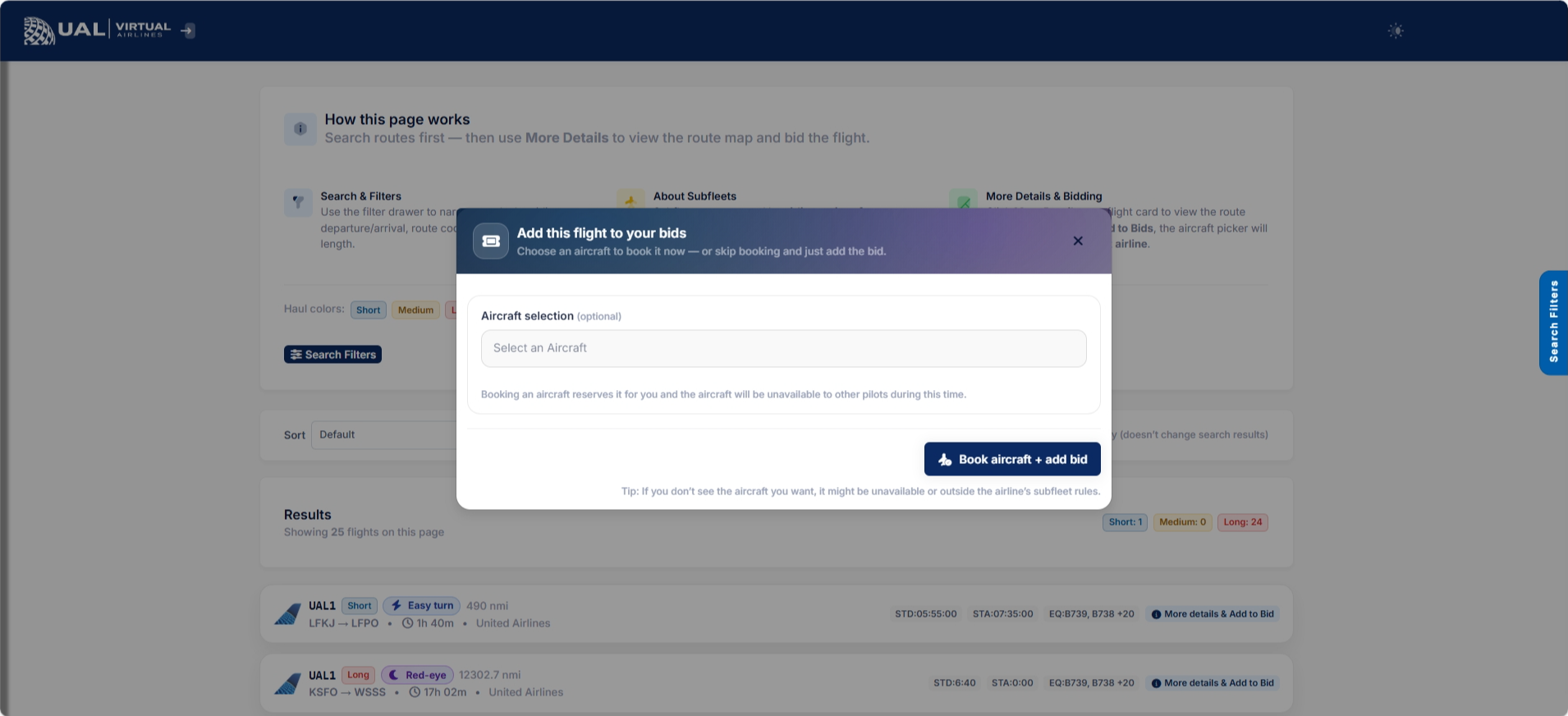
When you select a flight:
-
You may add it to your bids.
-
It becomes your active flight.
-
You cannot add another bid until the current one is completed or removed.
UVA enforces a one-active-bid policy.
If you already have a bid, you must remove it before selecting a new flight.
Route Map
The schedule system includes route mapping.
Maps display:
-
Departure airport
-
Arrival airport
-
Route visualization
This provides a visual overview of the Scheduleflight Search,before you'lldispatch.
Operational Expectations
When selecting a versatilescheduled setflight:
-
options.Ensure you are flying the correct aircraft/subfleet.
-
Follow realistic routing procedures.
-
Comply with all AutoPIREP standards.
Scheduled flights are structured to reflect realistic airline operations.
After You can either use the default settings or tailor your search based on specific criteria. The available search parameters include Departure, Arrival, Aircraft, Airline, Duration, and Distance.Bid
Additionally, the Random Flight Generator, positioned below the search settings, provides the perfect solution for indecisive moments. It randomly selectsOnce a flight fromis our extensive database, offering not only a spontaneous adventure but also extra MileagePlus points for use in our store.added:

-
InitiatingItFlight SearchAfter configuring your search preferences, click on the 'Find Flights' button to trigger the search process. This action will promptly generate results tailored to your specified criteria, providing you with a comprehensive list of available flights basedappears on yourpreferences.My Bids page. -
You may dispatch and fly it.
-
Submit your PIREP through smartCARS.
-
AutoPIREP will evaluate your flight.
Upon acceptance, your bid clears automatically.
SearchScheduled Results
Flights vs Free Flights
ViewingScheduled Search ResultsFlights:
-
UponPartclickingof UVA’s official network. -
Structured, realistic routes.
-
Often tied to Tours, Events, and Career Mode.
Free Flights:
-
Custom-created routes.
-
Designed for flexibility.
-
Not part of the
'FindpublishedFlights'schedulebutton, the search results will be displayed, presenting you with a comprehensive list of flights that match your specified criteria. This list provides detailed information about each available flight, empowering you to make informed decisions based on your preferences and requirements.network.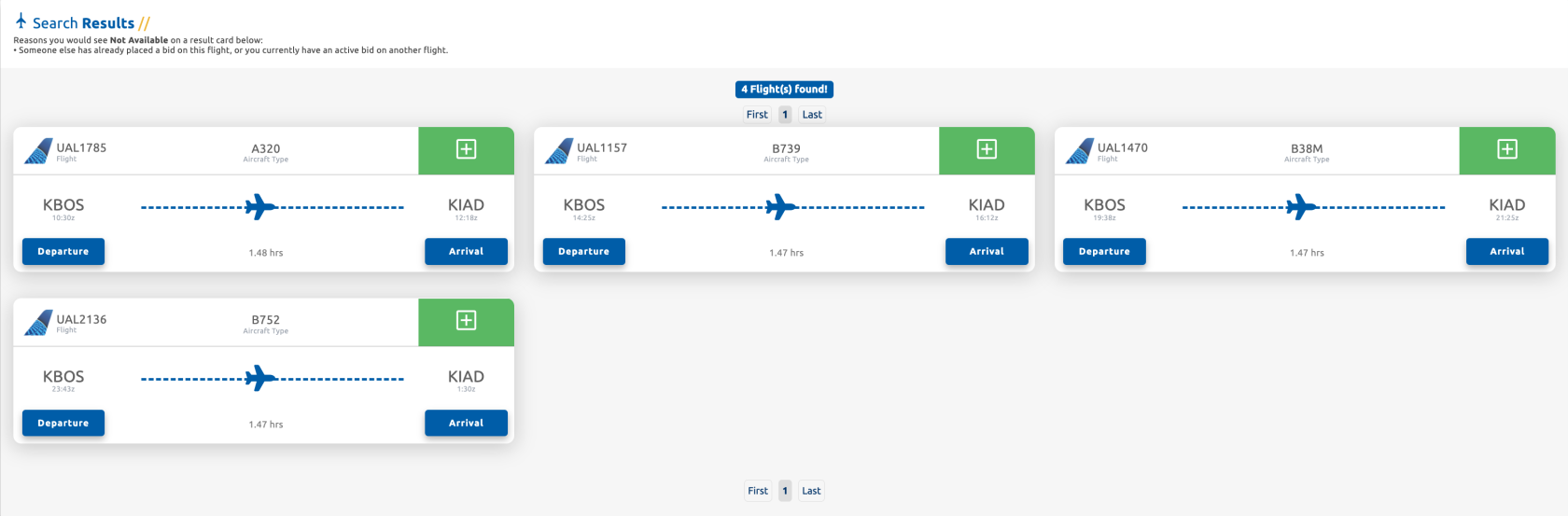
Interpreting Search Results
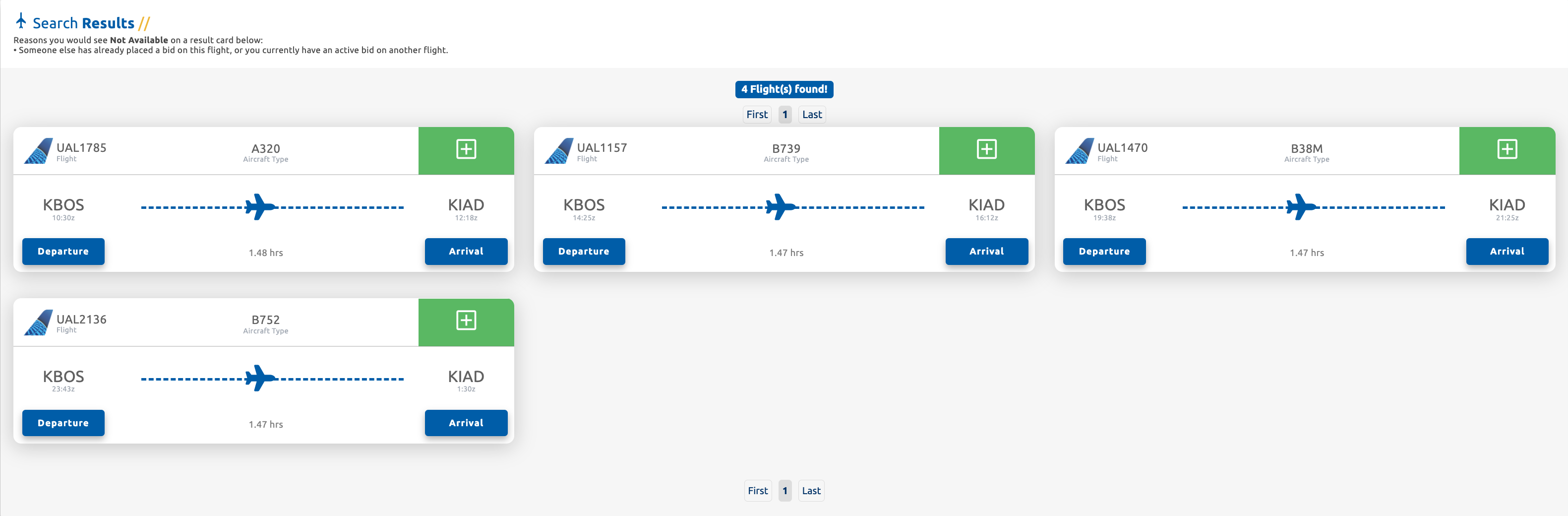
In the search results, flights marked with an Amber button indicate that someone else has already placed a bid on that specific flight.
Each search result is presented on a boarding pass, providing key details such as Departure/Arrival Times, Aircraft Type, Flight Time, Flight Number, and Airline Code. To bid on and select a flight for your journey, locate the green add button situated in the upper-right corner of each boarding pass and click on it. This streamlined process simplifies the selection of desired flights for your bidding and flying preferences.
Flight Booking Confirmation
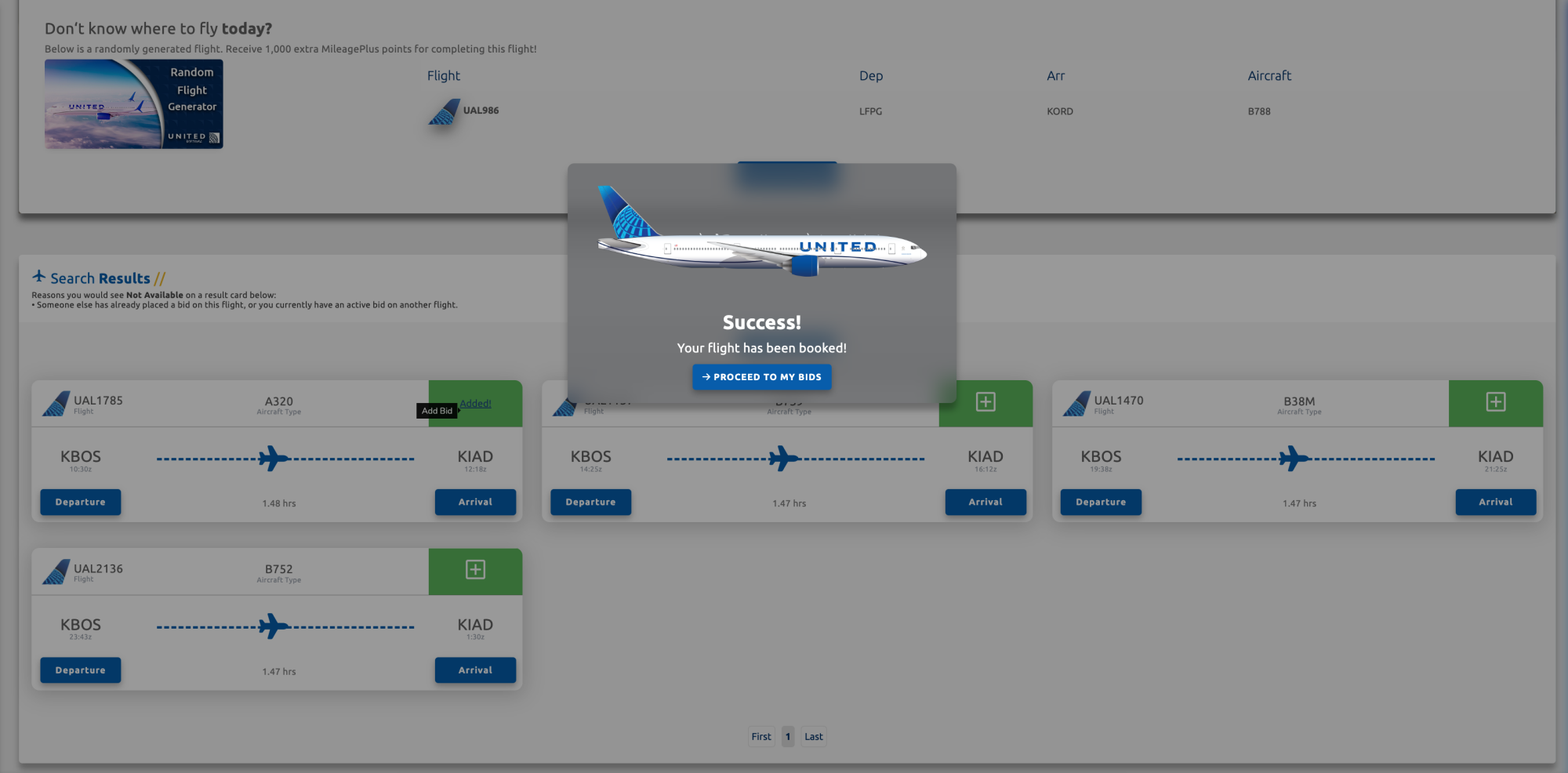
Following your successful bid, a pop-up window will appear, confirming that your flight has been successfully booked. You have the option to close the pop-up by clicking outside of it, or you can choose to proceed directly to the Dispatch page by clicking on the 'Proceed To My Bids' button. This flexibility allows for a seamless transition to the next steps in the flight preparation process.
Click here to continue onto the Dispatch help pages.