Flight Bids
My Bids
What Is a Bid?
UponA submittingbid is your reserved flight. When you bid on a schedule, you are telling the system:
“This is the flight I am planning to fly next.”
At UVA, pilots are limited to one active bid at a time, helping keep operations organized and realistic.
How This Page Works
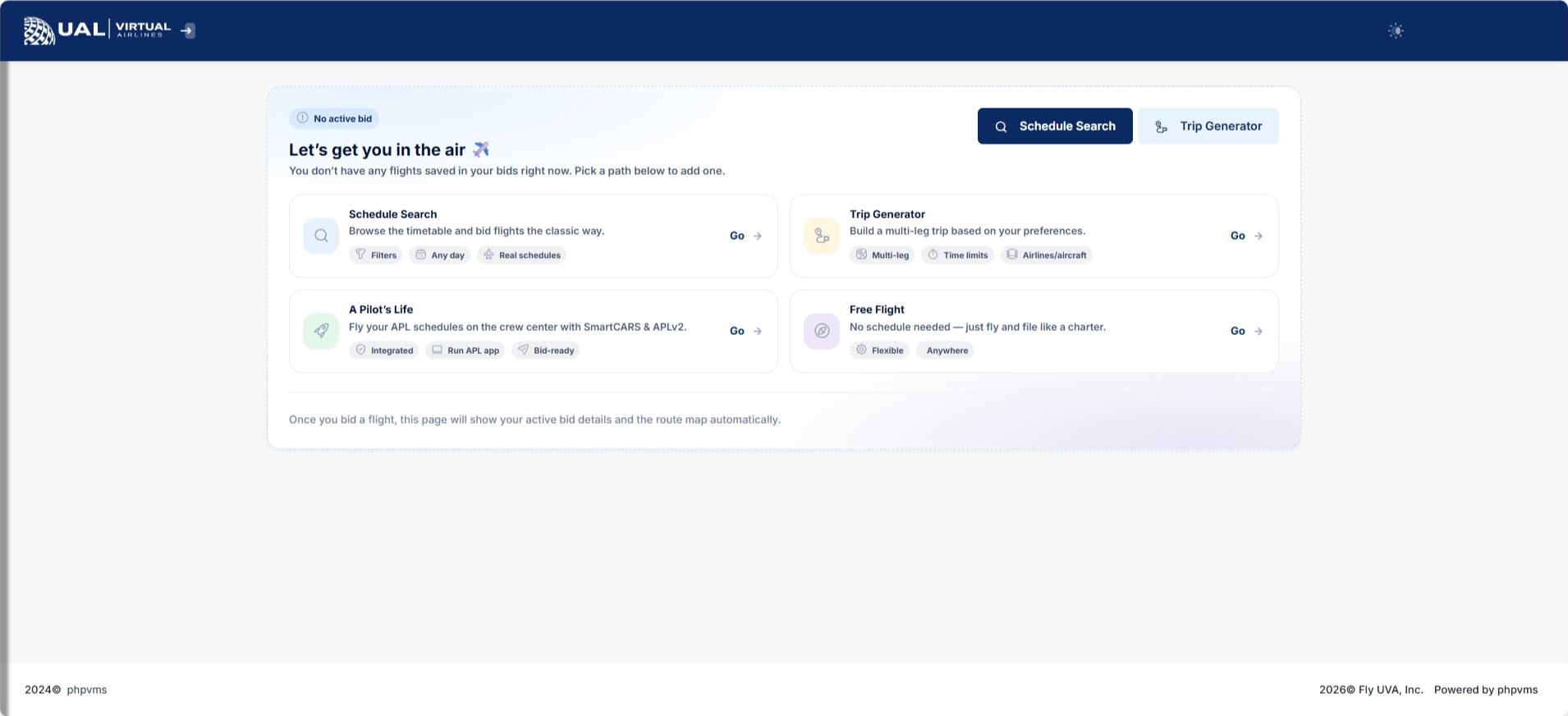
If You Have No Active Bid
You’ll see a “No Active Bid” screen with quick-access options to:
-
Browse schedules
-
Search for flights
-
Return to assignments
-
Select your next flight
You must add a bid forbefore ayou flightcan throughbegin ourflying.
If AssignedYou Flights,Have Tours,an orActive Charter systems, the assigned flights will be accessible in the 'My Bids' menu under 'Flight Ops'.Bid
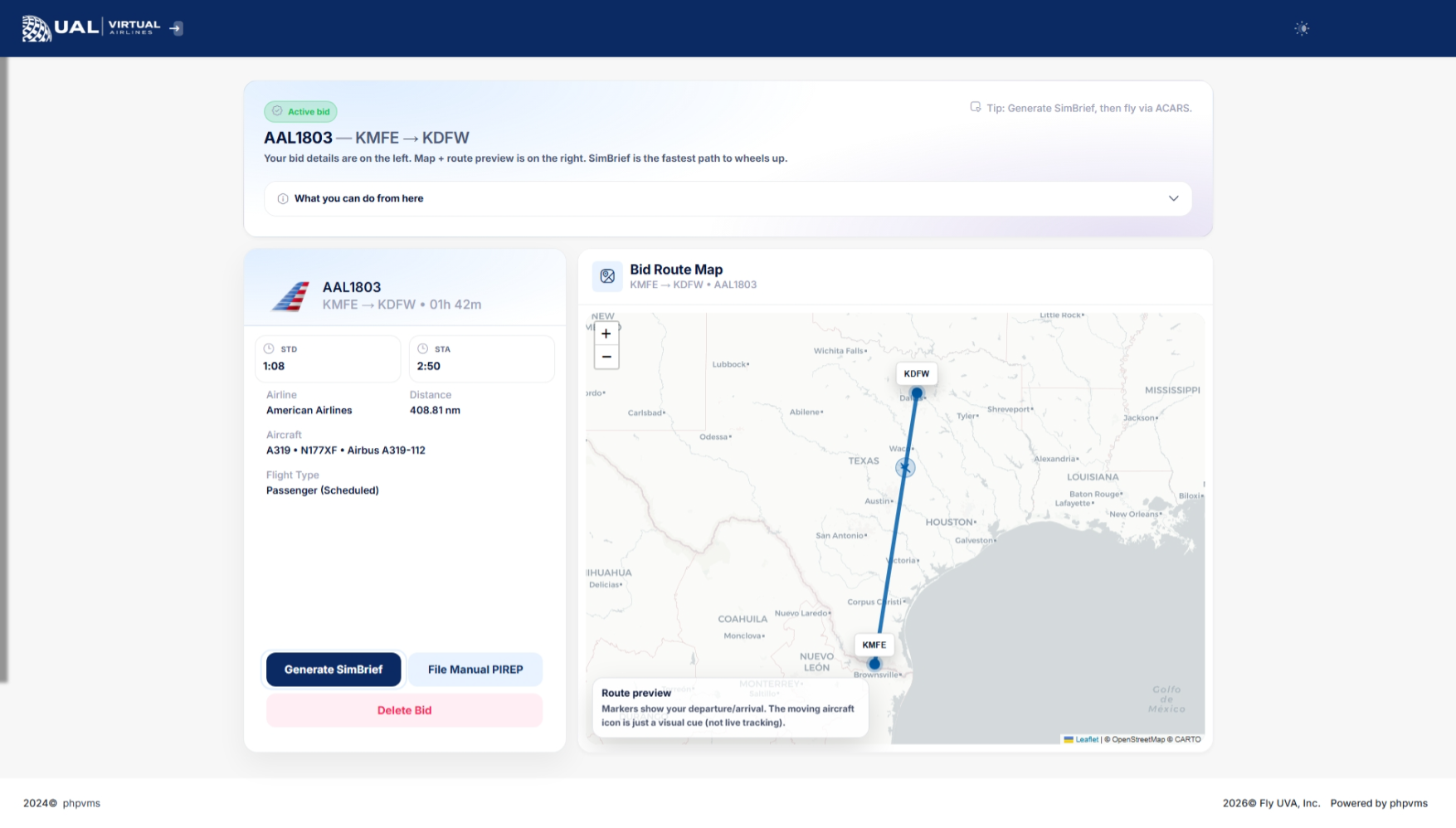
Once you've generated a simBrief for a specific flight, a purple button will be visible in your list of bids, allowingWhen you to review the already generated flight plan after leaving the simBrief flight plan page. This button exclusively appears next to flights that have a simBriefbid, this page becomes your flight planplanning already generated.center.
PilotsYou’ll have the flexibility to bid on multiple flights simultaneously. Each bid will be displayed on the 'My Bids' page in the order they were added. The options available to the right of each flight include Pilot Briefing, Manual PIREP, and Delete Bid.see:
-
ToFlightproceedNumberwith/your pilot briefing, click on the yellow button with a gear symbol.Ident -
Departure Airport -
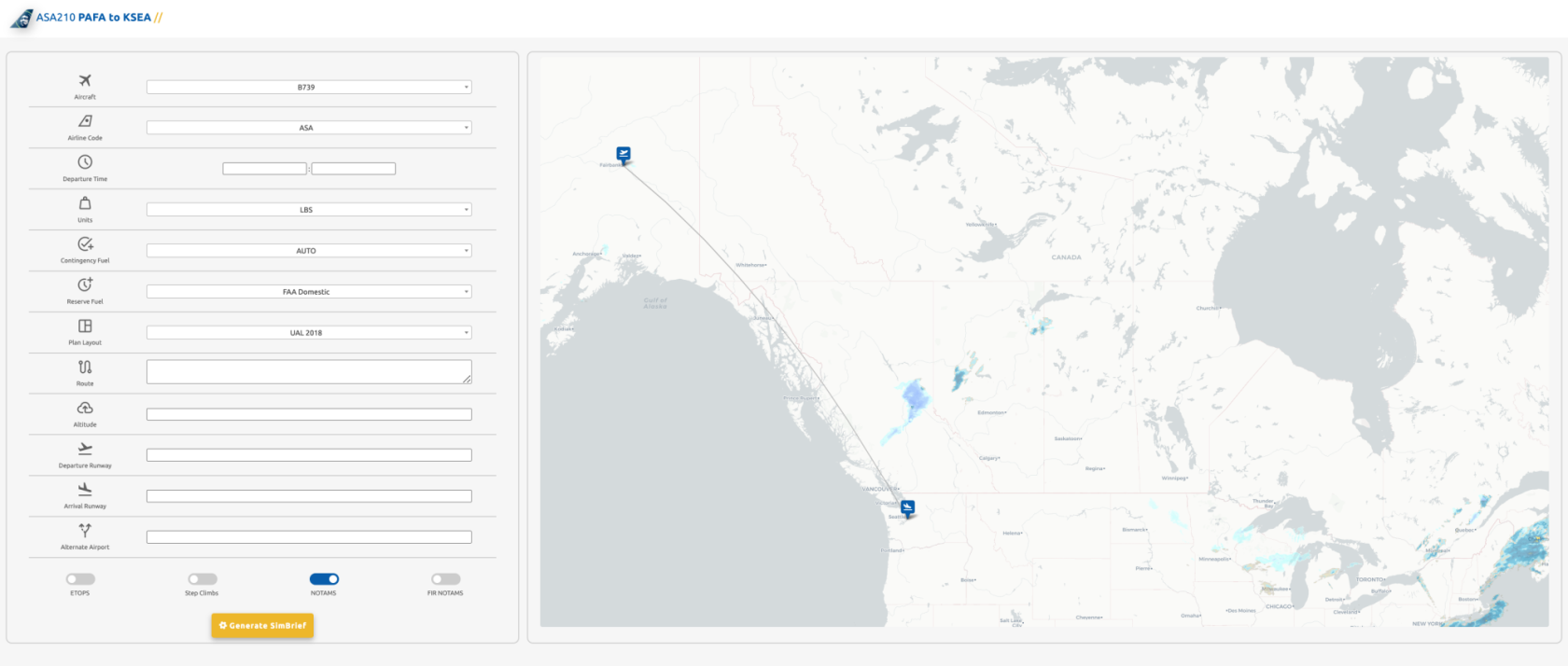
OnArrivalthis page, we are going to select our options that we want to be built into our simBrief flight plan.Airport -
DuringScheduledthisDepartureprocess,/youArrivalwillTimesselect(ifpreferences and options to be incorporated into your simBrief flight plan. While none of these options are mandatory, leaving them blank will still generate a simBrief flight plan for you.available) -
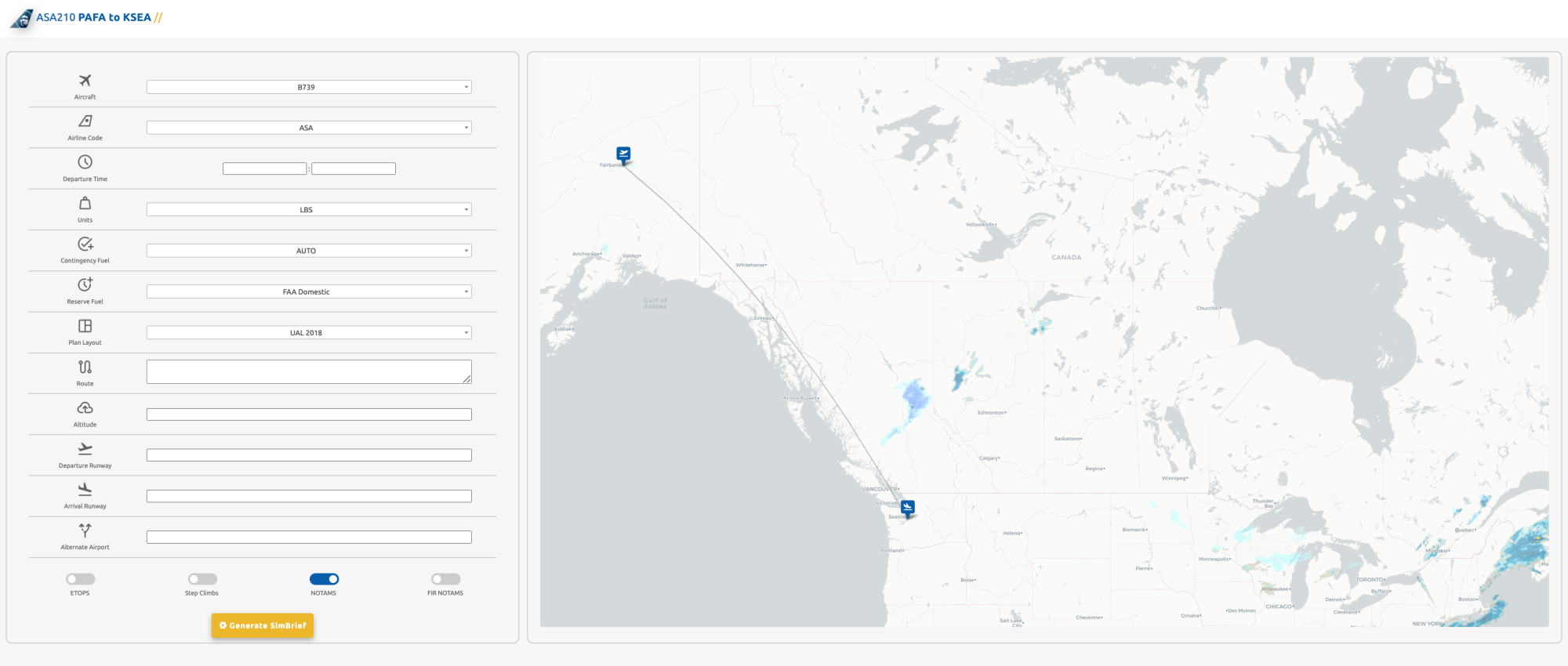
TheA live route mapprovides a visual representation ofshowing your departure andarrival airports, along with real-time weather conditions in the area.destination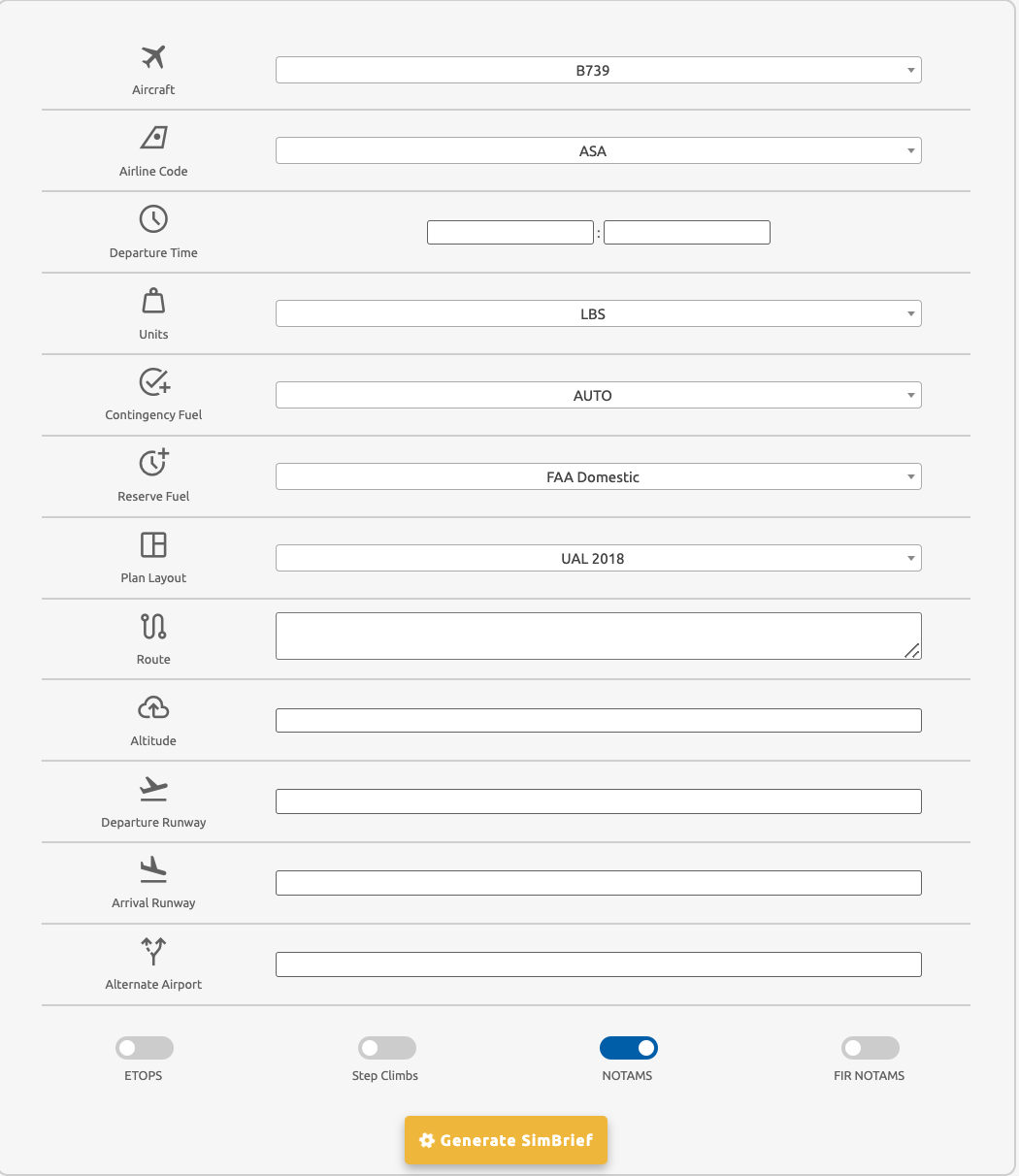
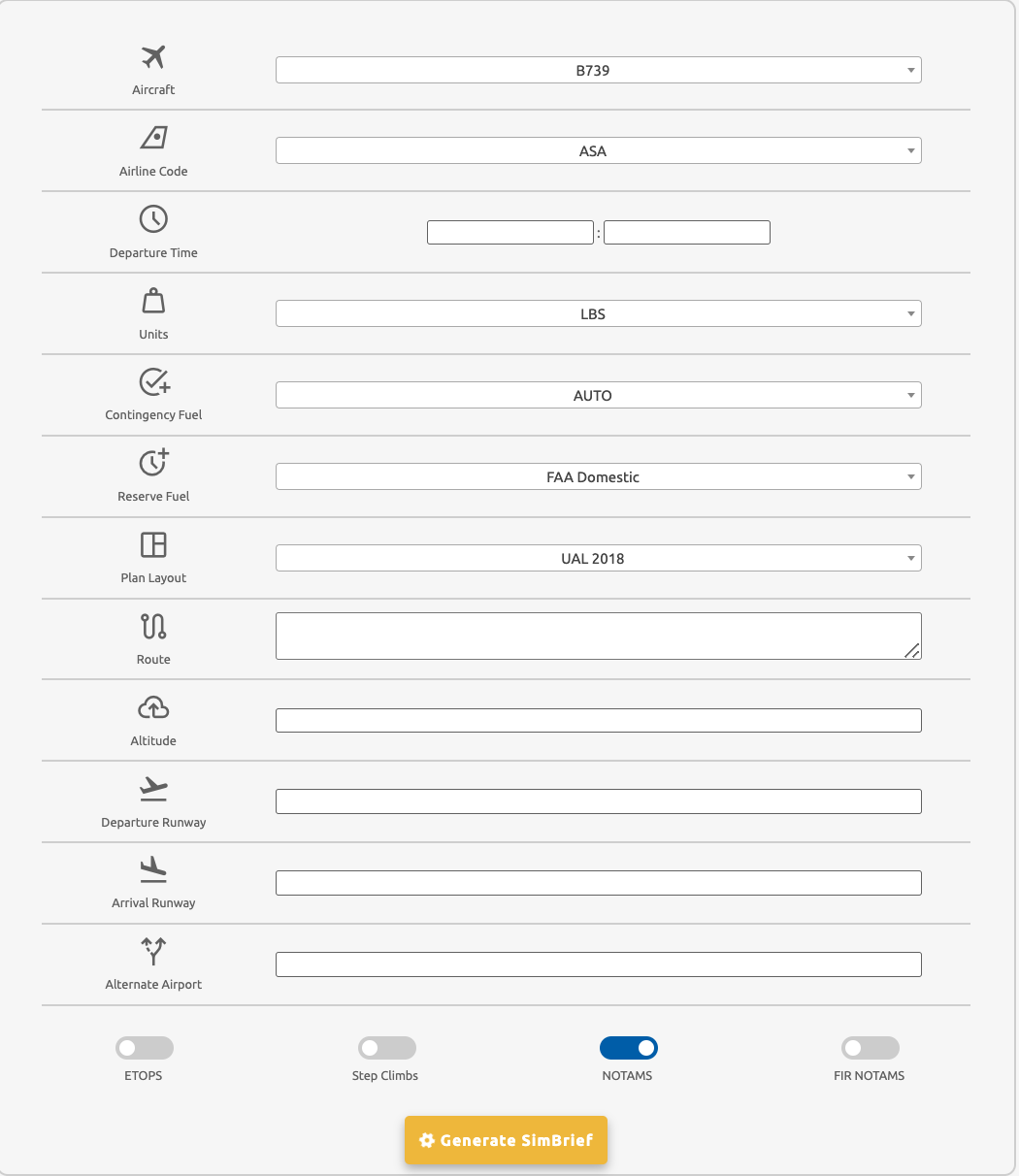
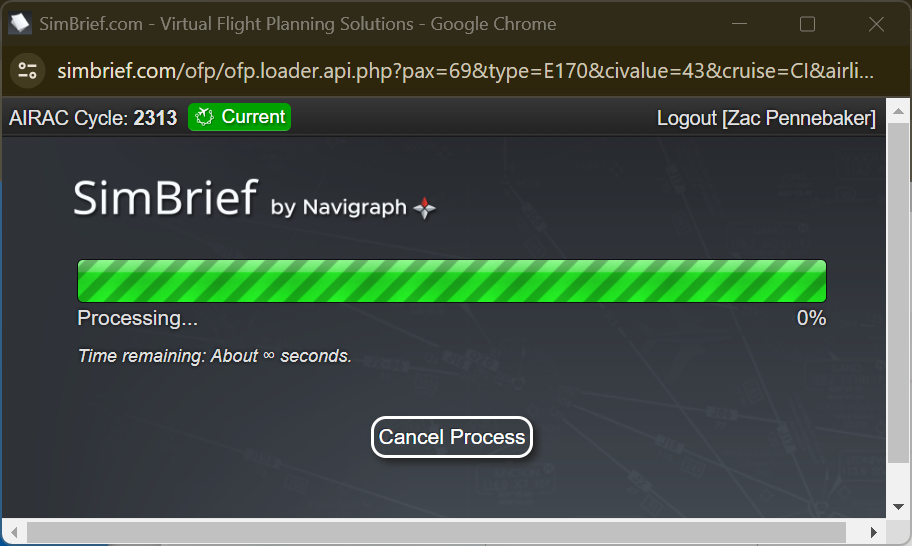
The options section will auto-fill your Aircraft and Airline Code. If necessary, you can customize these options by hovering over the information icons for additional details. Once all preferences are filled, click on the yellow gear icon button at the bottom.For manual PIREP filing, return to the 'My Bids' page and click on the manual PIREP button to the right of the table.To remove a bid, navigate to the previous 'My Bids' page and double-click on the X button to the right of the table.SimBrief Flight Plan GenerationAfter clicking the yellow generate button, a pop-up window will appear.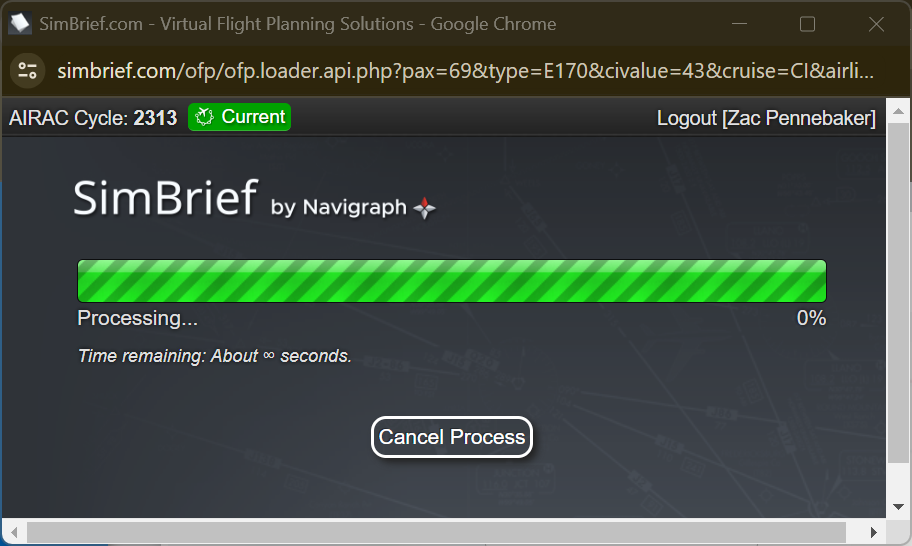
If not already logged into simBrief/Navigraph, it will prompt you to do so.The flight plan generation option is exclusive to those with a simBrief/Navigraph account, which can be created athttps://www.simbrief.com.Viewing Your Flight Plan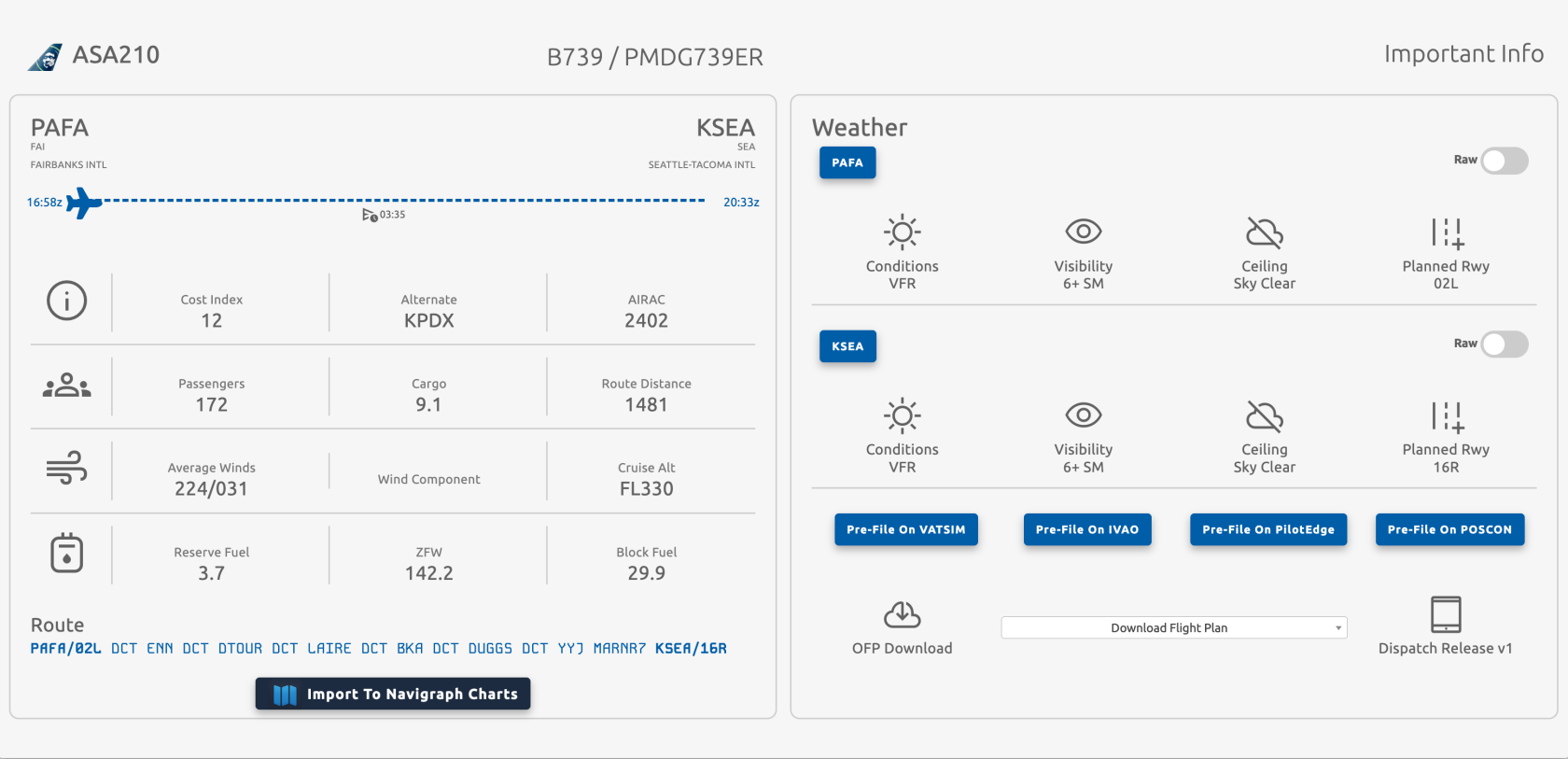
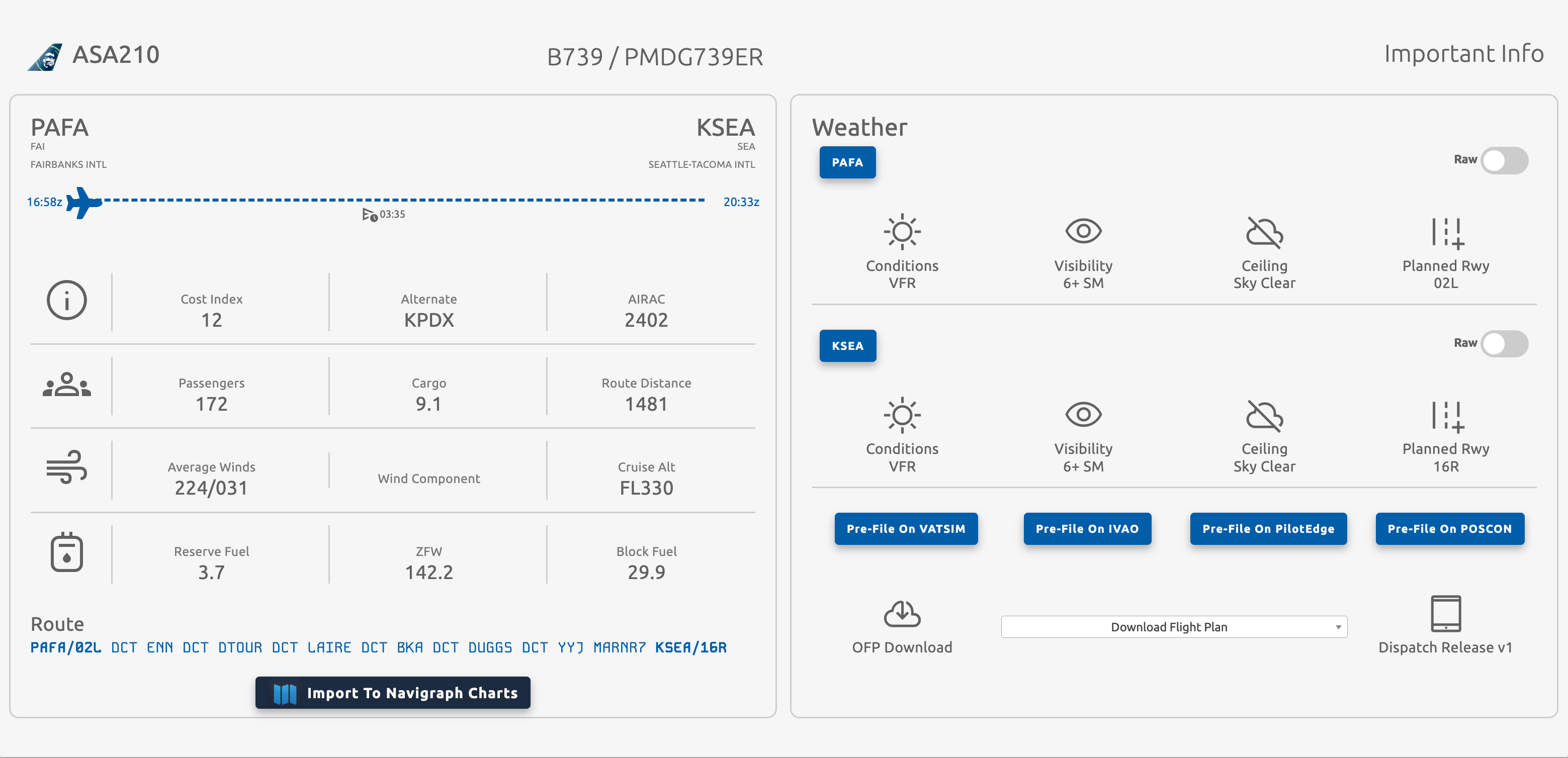
Following a successful flight plan generation, the crew website will automatically redirect you to a page detailing your entire flight plan.By The NumbersAnalytical Breakdown:Within this comprehensive segment on the left, you will find an intricate breakdown encompassing various critical metrics essential for your flight. This includes details such as your cruise altitude, zero fuel weight, block fuel, and more. Positioned prominently at the top of this section is the information regarding your planned alternate airport, serving as a contingency measure if diversion becomes necessary.Key Metrics:Departure Time:Scheduled time of departureArrival Time:Scheduled time of arrivalFlight Time:Estimated duration of the enroute phaseDistance:Nautical miles covered during the flightAltitude:Planned cruising altitudeAVG Cruise Winds:Average wind conditions at your cruising altitudeISA (International Standard Atmosphere):A model depicting static atmospheric variations in pressure, temperature, density, and viscosity across diverse altitudes or elevations.Cost Index/Mach Speed:Utilized to factor in the relationship between fuel-related costs and time-related costs. Faster flight speeds contribute to increased savings in time costs. (Speed represented in mach format)Block Fuel:The aggregate fuel required for the entire flight, comprising Taxi fuel, Trip fuel, Contingency fuel, Alternate fuel, Final Reserve fuel, Additional fuel, and any Extra fuel carried.FMS Reserve:Reserve fuel incorporated into the block fuel calculation.Min. Takeoff Fuel:The minimum required fuel before initiating takeoff.Zero Fuel Weight (ZFW):The total weight of the airplane and its contents, excluding usable fuel weight. Unusable fuel is considered in ZFW.Passengers:Total number of passengers on your flight.Cargo:Total cargo load for your flight.Takeoff Weight:Aircraft weight at the moment of takeoff.Landing Weight:Aircraft weight at the time of landing.
This
detailedpagebreakdownconfirmsequipsexactly what you’re scheduled to fly.
Important Rules
One Active Bid Policy
UVA allows one active bid per pilot.
If you
withalready have athoroughbid:understanding-
You cannot add another flight.
-
You must either fly and submit the
essentialPIREP
orparameters -
Remove your current bid before selecting a new one.
ofinfluencingThis keeps the operation clean and prevents “bid stacking.”
After You Fly
Once you complete your flight
anddynamics.Map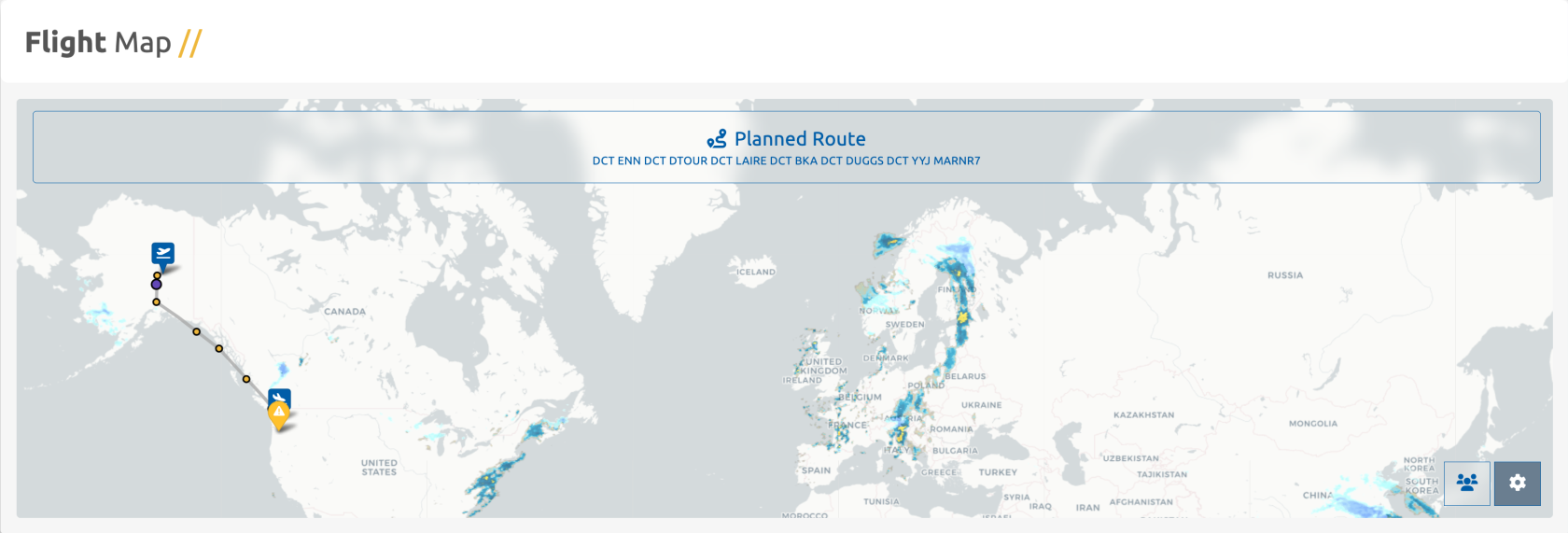
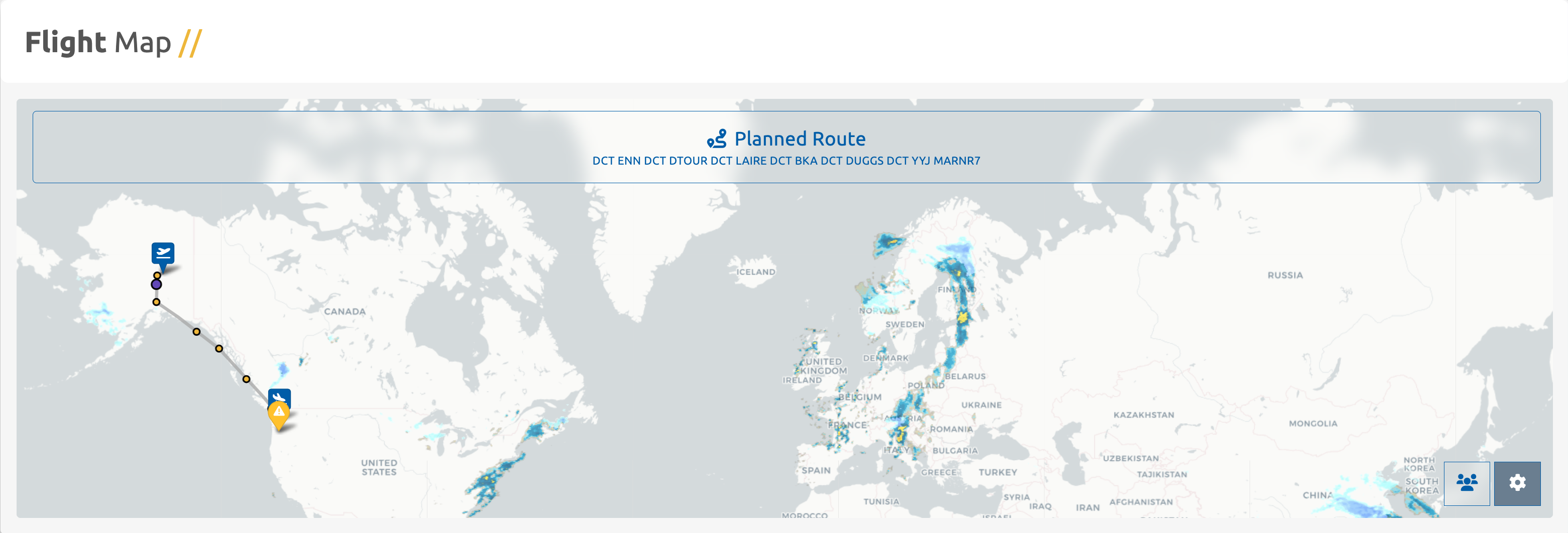
Upon accessing the map feature, a visual representation ofsubmit yourdesignated waypoints along the flight route unfolds. Yellow dots denote waypoints and fixes, while larger, purple dots signify key junctures such as Top of Climb (TOC) and Top of Descent (TOD).PIREP:-
It'sYourcrucialbid will clear automatically. -
You’ll be able to
acknowledge that the TOC and TOD indications on the map are approximations grounded inselect yourcurrentnextaltitudeflight.and
speedparameters.If
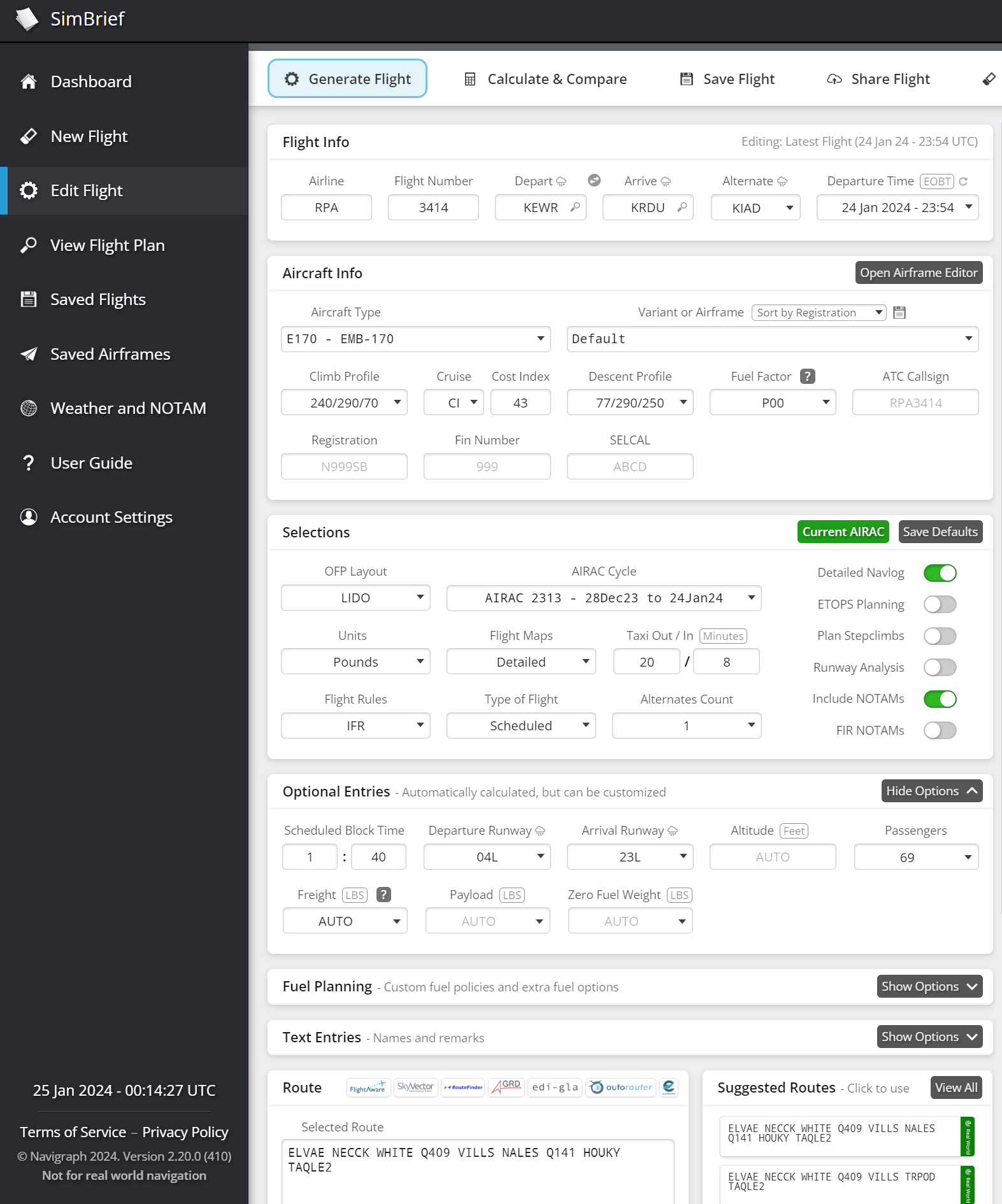
Foryourprecision,PIREP enters pending status (for AutoPIREP review), your bid will remain until it isrecommended to reference the Flight Management Computer (FMC) within your aircraft, ensuring exact TOC/TOD calculations.processed.Planned Route at a Glance:Located along the top of the map is your meticulously planned route. A user-friendly functionality allows you to effortlessly copy the route text to your clipboard by simply clicking on the route itself. This streamlined process facilitates easy integration with SmartCARS.Functional Options:Positioned strategically at the bottom-right corner of the map are essential buttons catering to Crew and Flight Plan Editing.Edit Flight Plan:This feature seamlessly directs you to the simBrief Operational Flight Plan (OFP) options page. Here, you possess the capability to introduce modifications to your flight plan as needed.
This strategic overview equips you with the insights and functionalities needed to navigate your flight plan efficiently and make real-time adjustments for optimal flight management.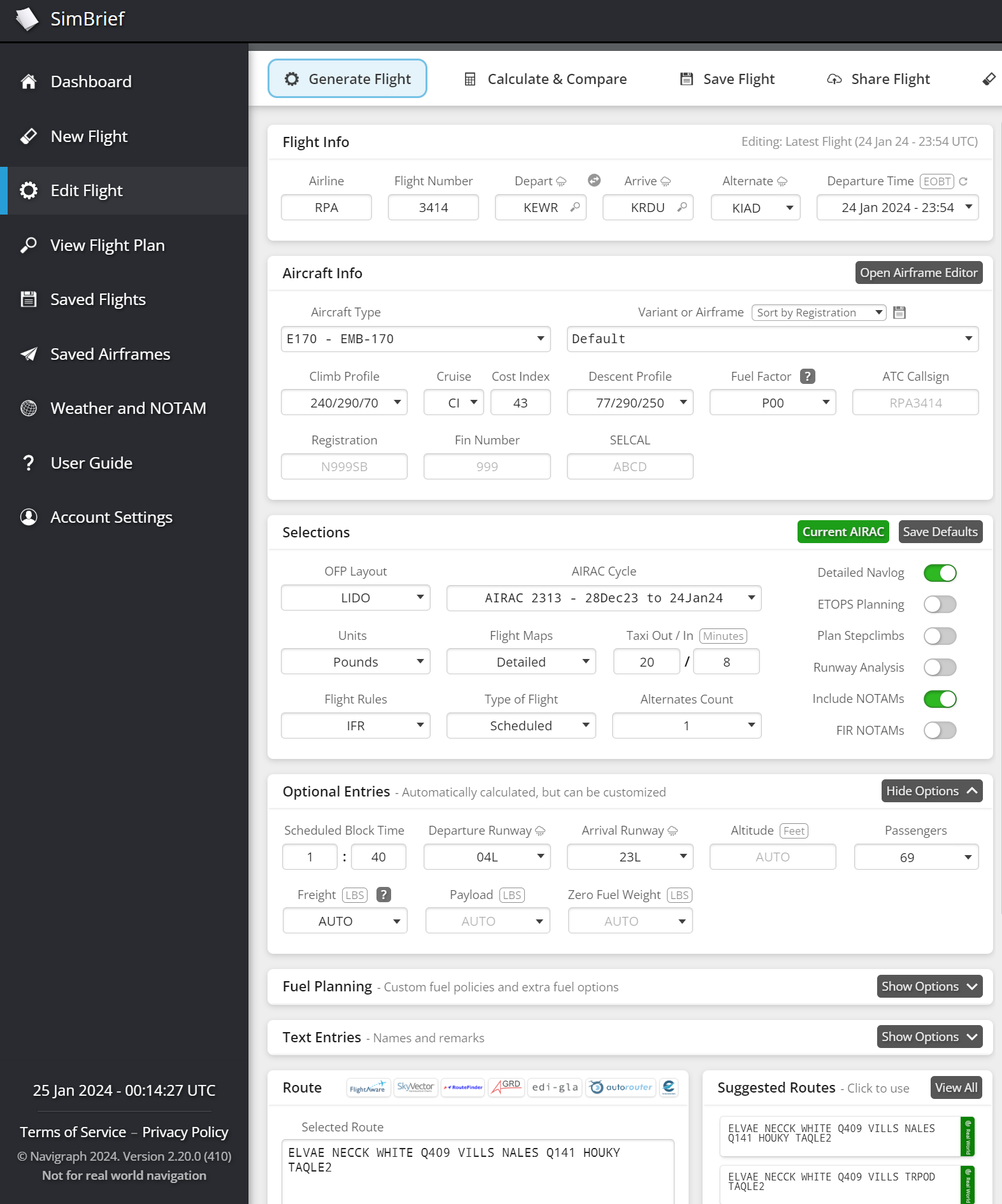
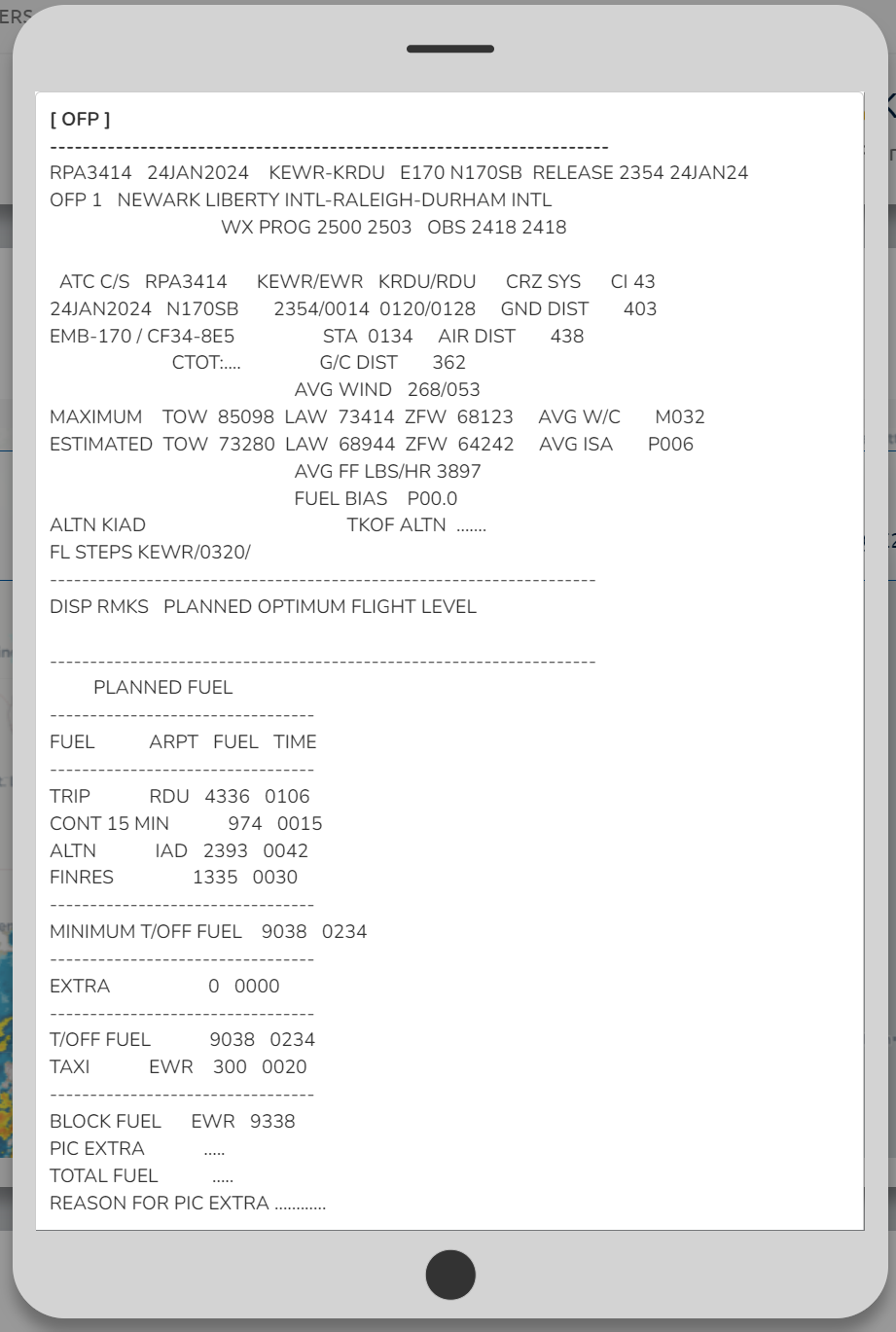
While utilizing the Edit Flight Plan option on this page, it's imperative to note that any alterations made will not automatically synchronize with your briefing on the United Virtual crew site.Dispatch Release- For a more detailed perspective, the Dispatch Release button proves instrumental. By selecting this option, a pop-up window unfolds, presenting a comprehensive text version of your flight plan. To retain this detailed breakdown for your records, utilize the download option situated at the bottom of the screen. Simply click outside the pop-up to seamlessly close it.This nuanced approach ensures that you have the flexibility to refine your flight plan details without affecting the briefing on the United Virtual crew site. The Dispatch Release feature further enhances your ability to access and save a comprehensive text version of your flight plan for thorough analysis and documentation.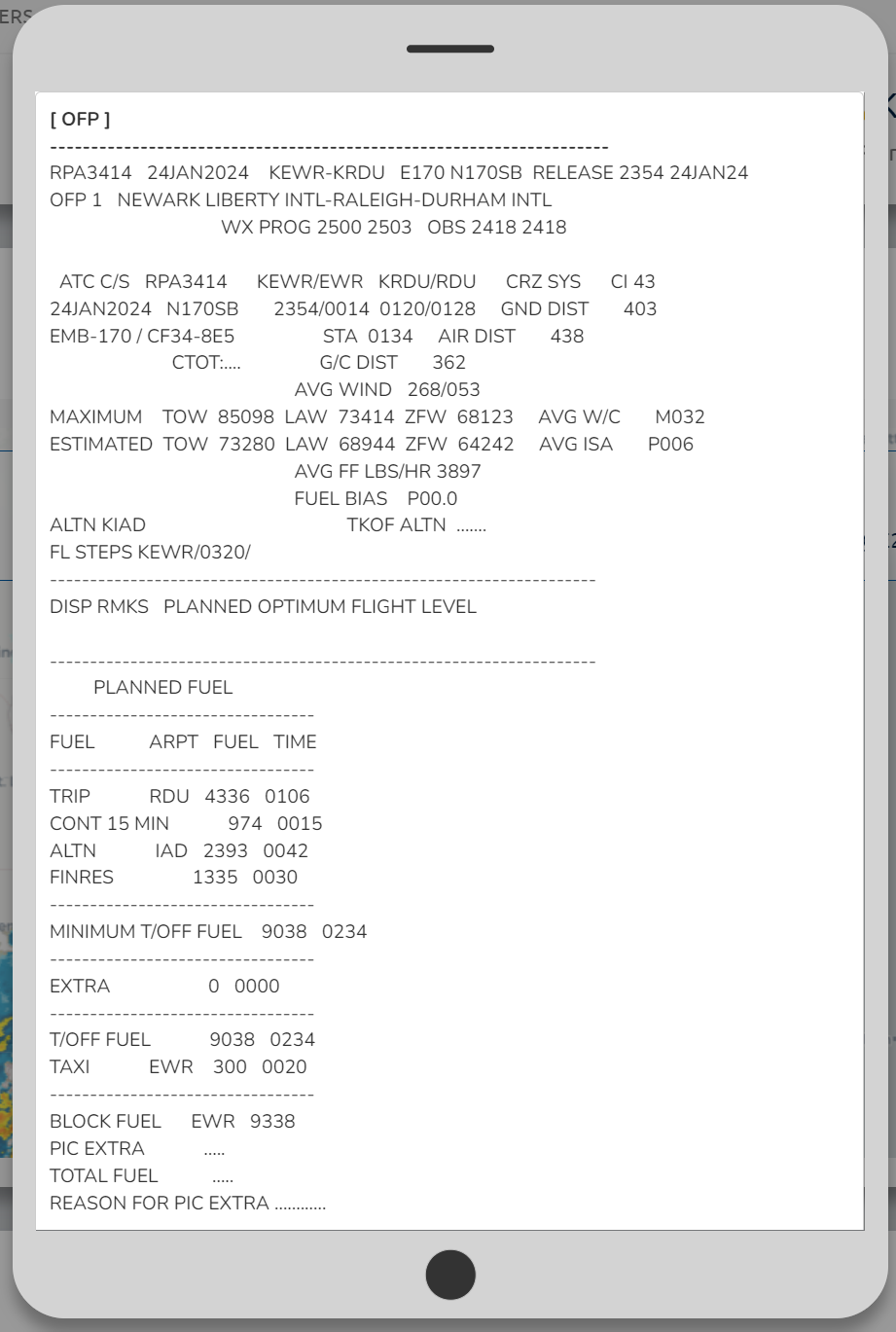
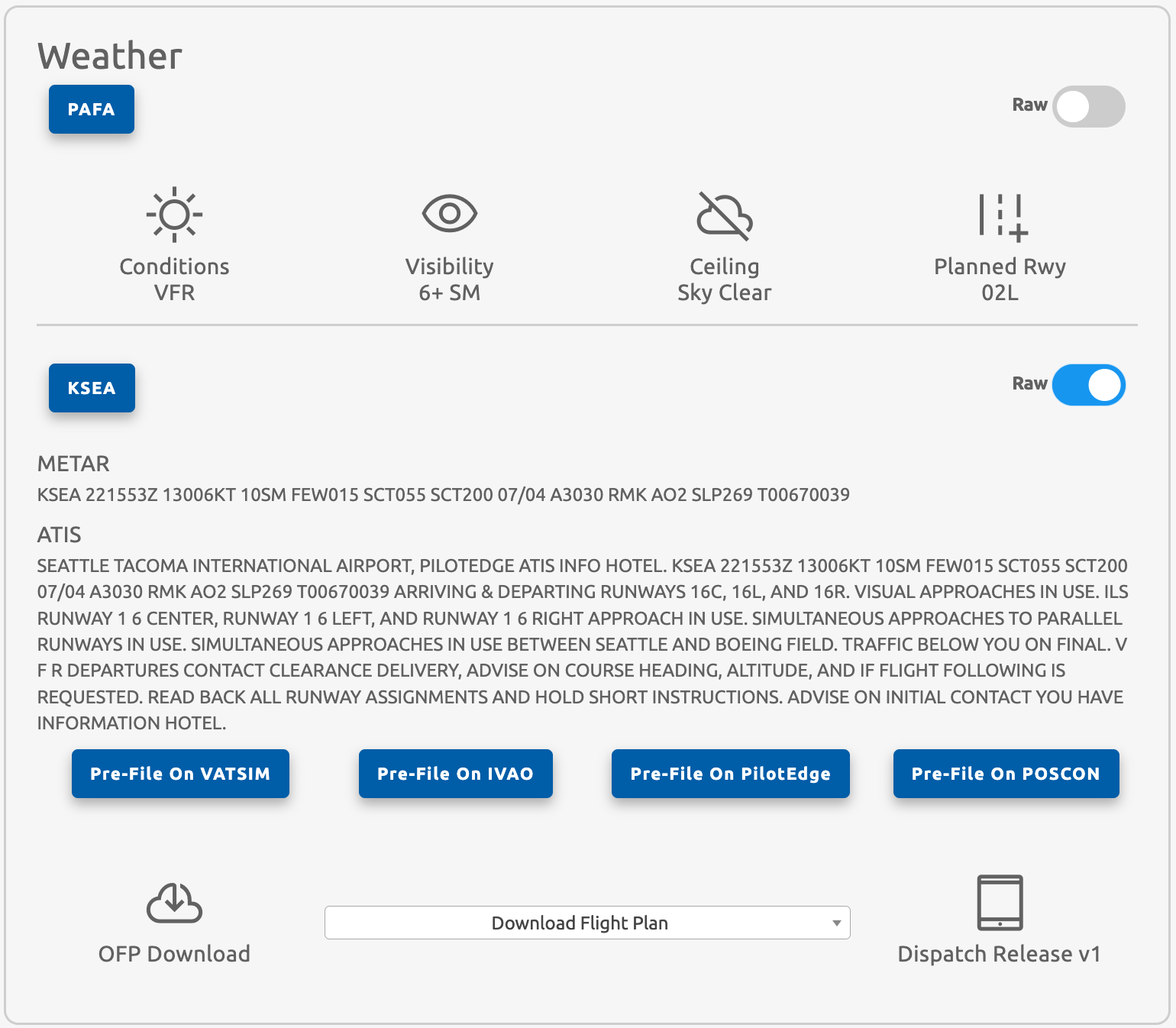
METAR Reports & Pre-File OptionsAdjacent to the flight plan details, the right side of this page encompasses vital features, namely METAR Reports and Pre-File Options.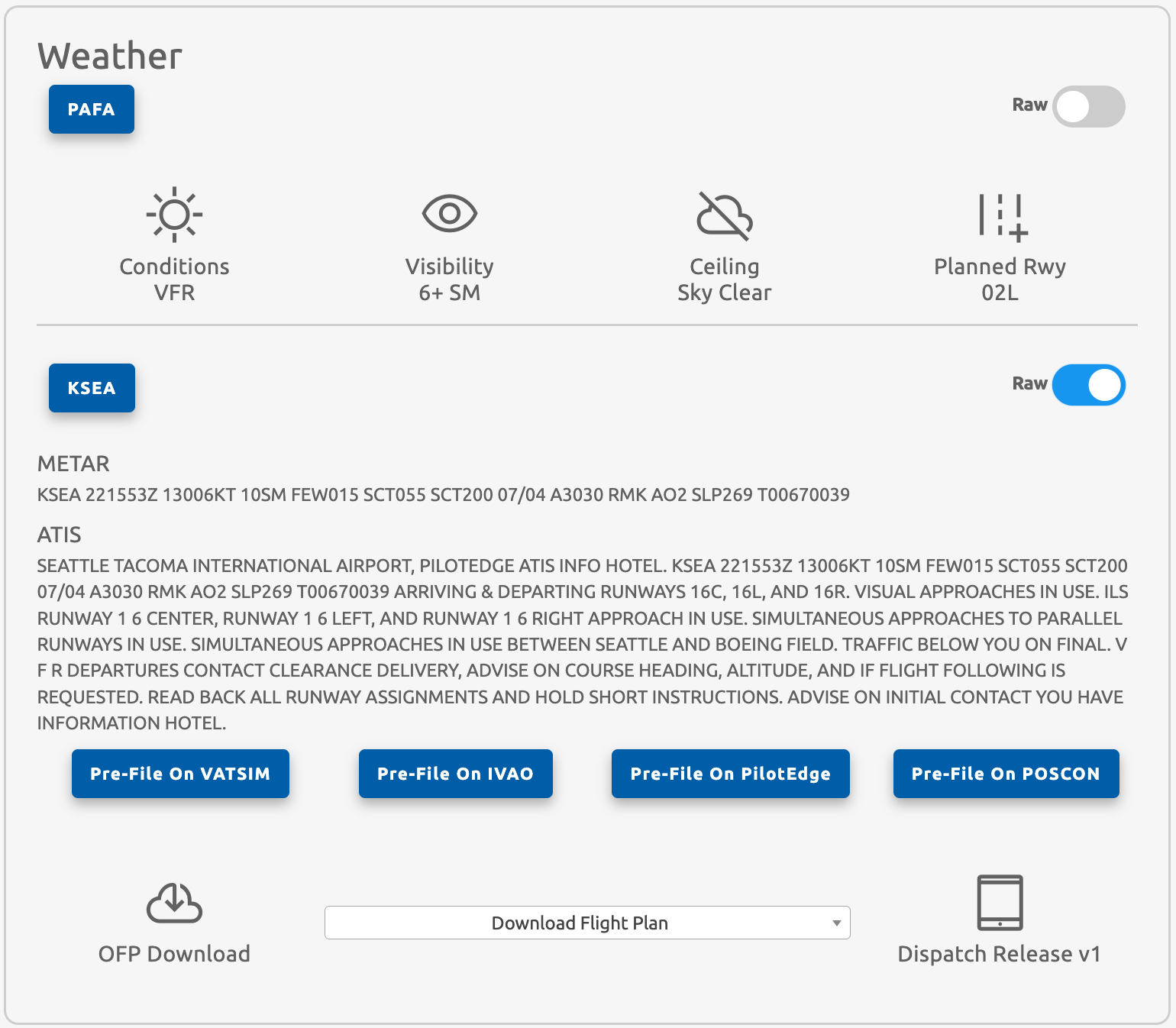
These reports offer real-time meteorological information (METAR/ATIS) at the moment of flight plan generation. It's essential to note that these reports do not undergo automatic updates. They stand as a snapshot of the weather conditions when your flight plan is created.Designed to streamline your pre-flight preparations, the Pre-File Options present an efficient approach to populating flight plans on various online ATC networks. By selecting the relevant button, you're seamlessly redirected to the respective organization's flight plan page. The system ensures a user-friendly experience, with most fields pre-filled for your convenience, minimizing manual input and expediting your prefiling process.