*Note:* Please consult the following resources for further information
However, it is not mandatory to create or log in with a TFDi account. Simply opt for the 'Skip TFDi Design Login' option. It is important to note that by choosing not to log in with your TFDi account, your presence will not be visible on their map within our virtual airline, and access to premium features acquired from TFDi may be restricted.
Upon selecting 'Skip TFDi Design Login,' proceed to choose United Virtual Airlines from the list of affiliated partners. [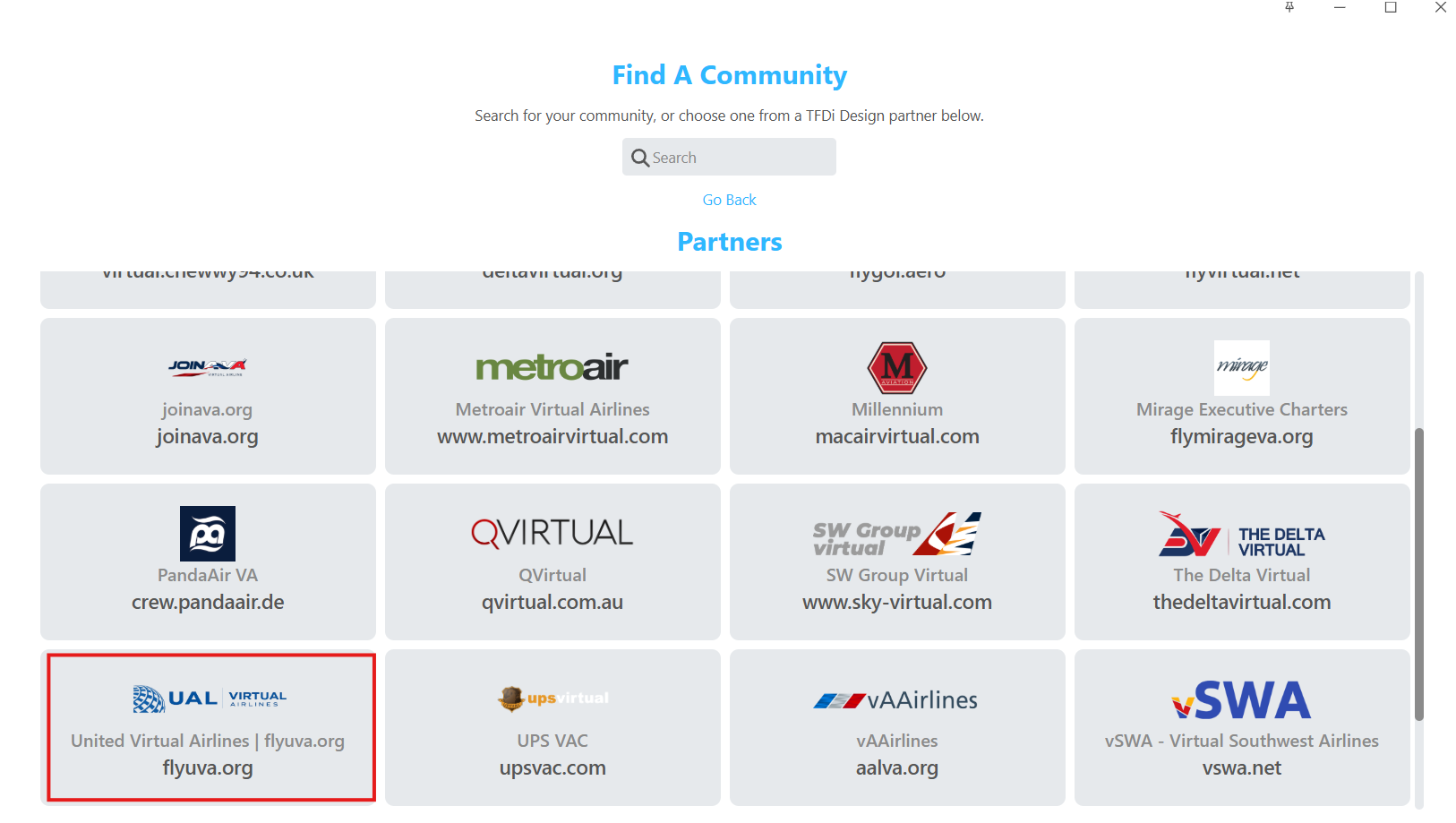](https://docs.flyuva.org/uploads/images/gallery/2024-01/TH9JzRpofnCh5Mqv-scpartners.png) **Accessing United Virtual Airlines in smartCARS 3** Following your selection of United Virtual Airlines, proceed to log in by entering either your email or pilot ID (excluding the UAL prefix). This login information mirrors the credentials you utilize to access our crew website.Should you encounter difficulty logging into smartCARS 3, we recommend attempting to log into our crew website. Successful access to our website confirms that your credentials are accurate. If issues persist, kindly review and ensure the accuracy of the information entered into smartCARS 3.
--- ### **Main Page** Greetings and welcome to the primary interface of your smartCARS 3 application. Within this section, you will find key personal details, including your name, pilot ID, and current rank, alongside a comprehensive overview of your individual statistics within our virtual airline. These statistics encompass cumulative flight hours, total completed flights, and an average landing rate. Should you opt to enable notifications in the settings page, relevant updates will be prominently displayed on this main screen for your convenience. [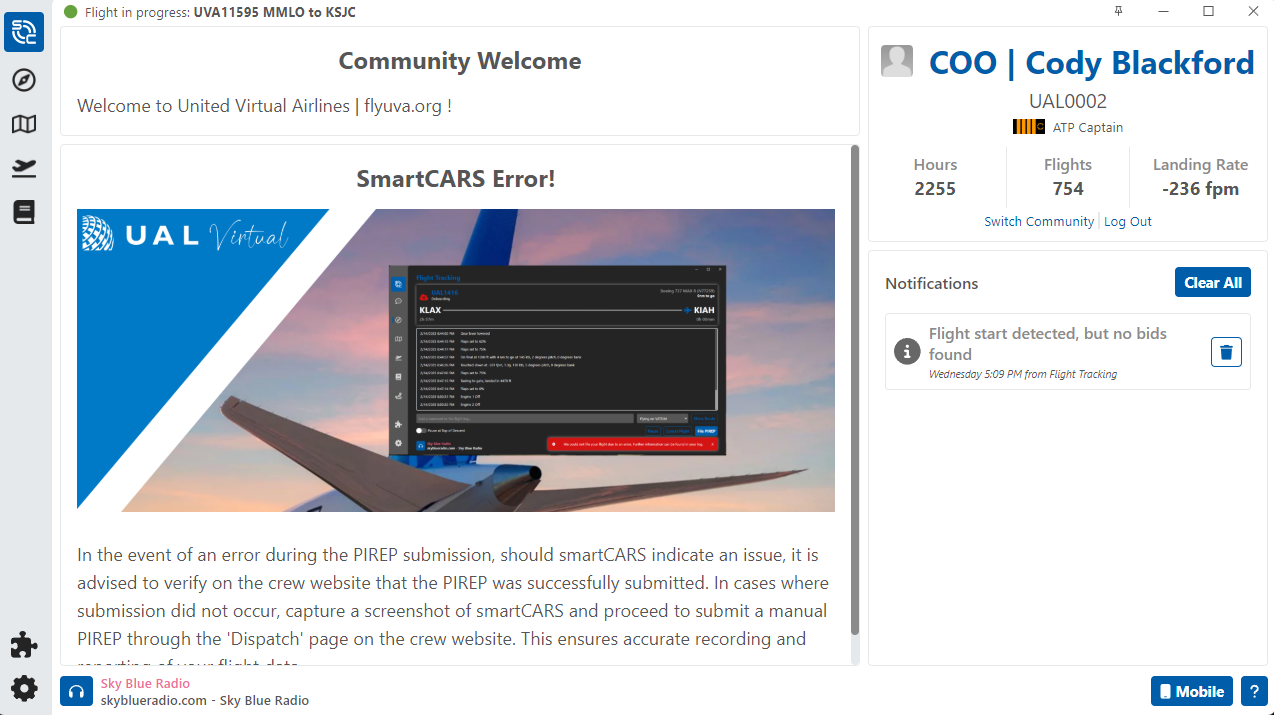](https://docs.flyuva.org/uploads/images/gallery/2025-03/zUk8NWN0dxqPHx1m-image.png) --- ### **My Flights** This section serves as the focal point where you can conveniently view the flight assignments you have selected through the crew site bidding process. [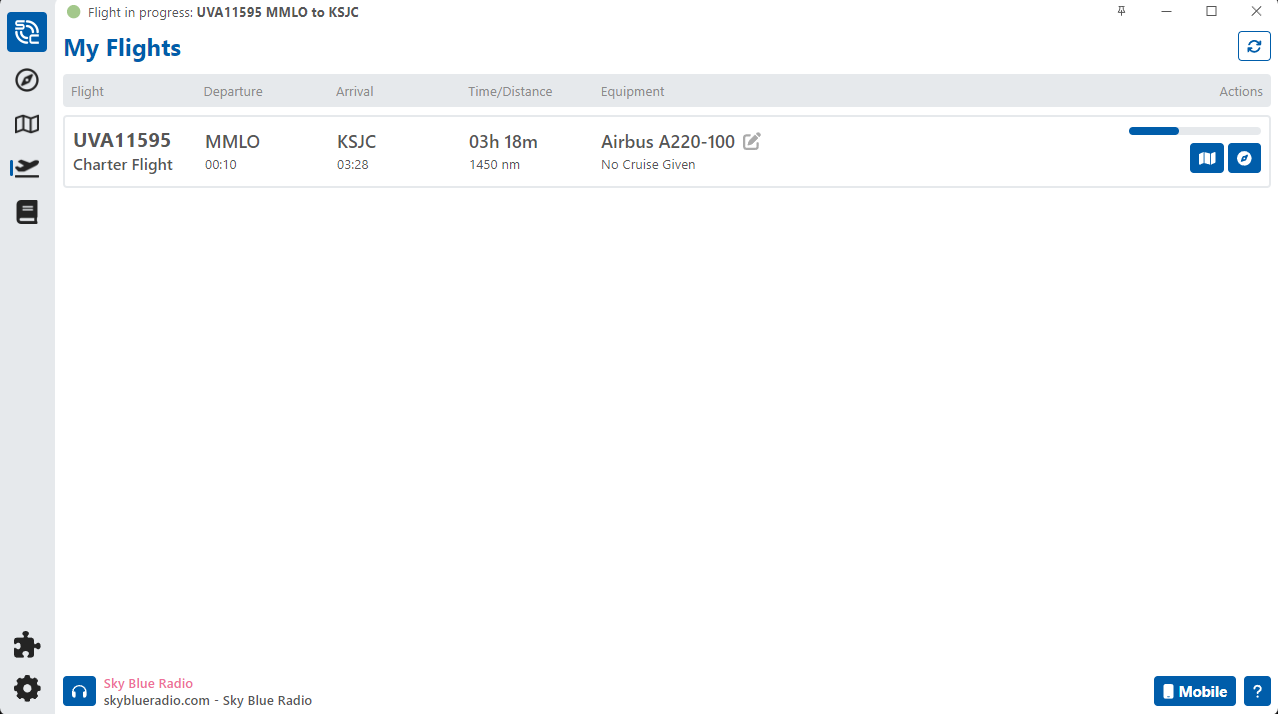](https://docs.flyuva.org/uploads/images/gallery/2025-03/c9d36bhCkdhfqpnD-image.png) **SimBrief Plugin** In order for your route to import info smartcars and reflect correctly on the VA map and pirep you will need to install the SimBrief plugin. You can do so by clicking the puzzle piece icon in the bottom left corner of the SmartCARS application and then Browse Plugins in the upper right corner. Simply select Add and then go to the settings page and enter your SimBried username to link the account. [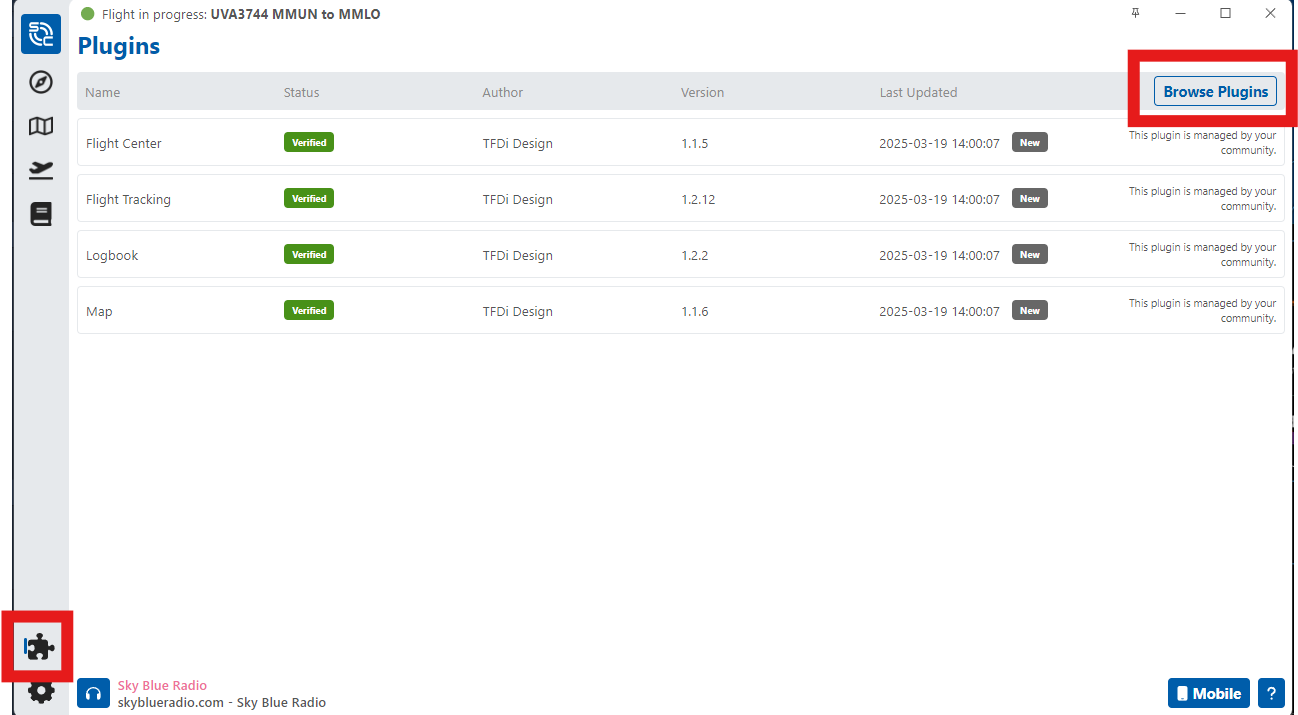](https://docs.flyuva.org/uploads/images/gallery/2025-03/87t5wCQYF1cPC89H-image.png) **Bid Details and Editing** Upon clicking on the flight tracking button, a box with an arrow will appear on the left side of the screen next to the toolbar. Clicking that arrow will expand your flight log where a more detailed overview is presented, offering you the option to make specific edits: [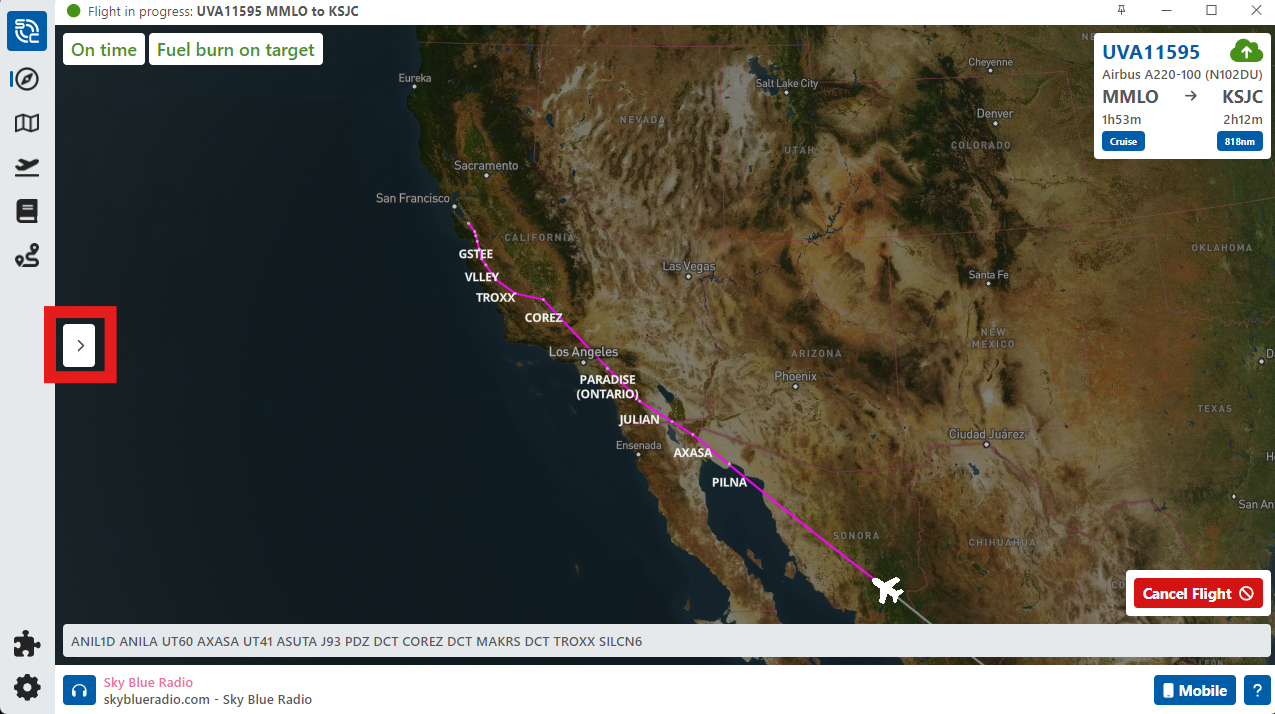](https://docs.flyuva.org/uploads/images/gallery/2025-03/yq2YHT3YH2MqsjKm-image.png) 1. **Online Network Selection:** - While not mandatory, opting for the online network selection enables accurate representation on the map under the appropriate ATC network. ### **Flight Tracking** Upon initiating the 'Fly' option in the preceding window, an alert window will appear in the bottom-right corner of the application, indicating successful connection to your simulator and the commencement of flight tracking. Transitioning to the flight tracking page provides a comprehensive display of your current flight information, accompanied by real-time updates to the flight log as it is actively generated. This feature allows you to monitor and review crucial details throughout the course of your flight in an efficient and accessible manner. [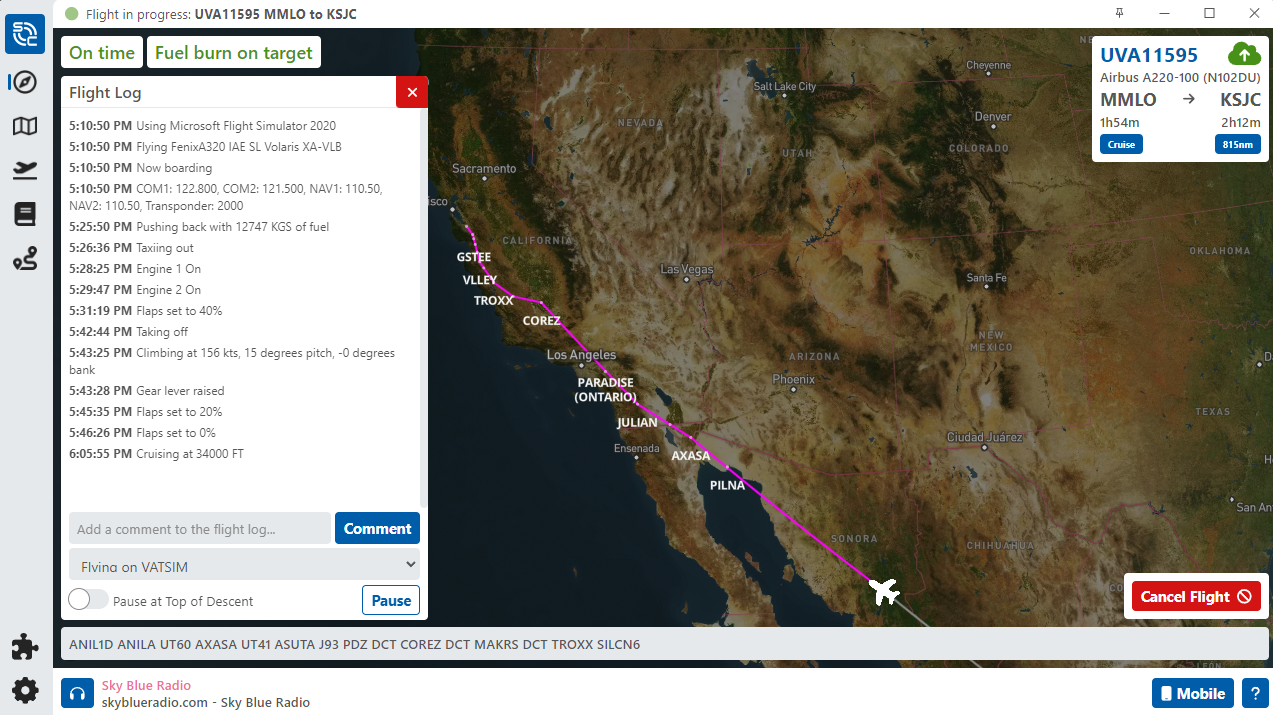](https://docs.flyuva.org/uploads/images/gallery/2025-03/fwjQ5MjBMalGPTXH-image.png) **Pause at TOD Functionality** The 'Pause at TOD' feature is now conveniently accessible as a toggle button situated on the bottom-left side of the smartCARS window.This function calculates your Top of Descent (TOD) based on the current altitude and speed settings within smartCARS. It's important to recognize that the TOD estimation provided by smartCARS may differ from the TOD estimate generated within your Flight Management System (FMS). This distinction ensures precise control over the pause event, enhancing the overall flexibility and adaptability of your flight management experience.
--- ### **Flight Completion**In smartCARS 3, concluding flights is facilitated by shutting down ALL engines. Alternatively, users may streamline the process by activating the 'Automatic PIREP submission' option in the settings, which automatically submits the PIREP once smartCARS determines engine shutdown.
In the event of an error during the PIREP submission, should smartCARS indicate an issue, it is advised to verify on the crew website that the PIREP was successfully submitted. In cases where submission did not occur, capture a screenshot of smartCARS and proceed to submit a manual PIREP through the 'Dispatch' page on the crew website. This ensures accurate recording and reporting of your flight data.
--- ### **Logbook** [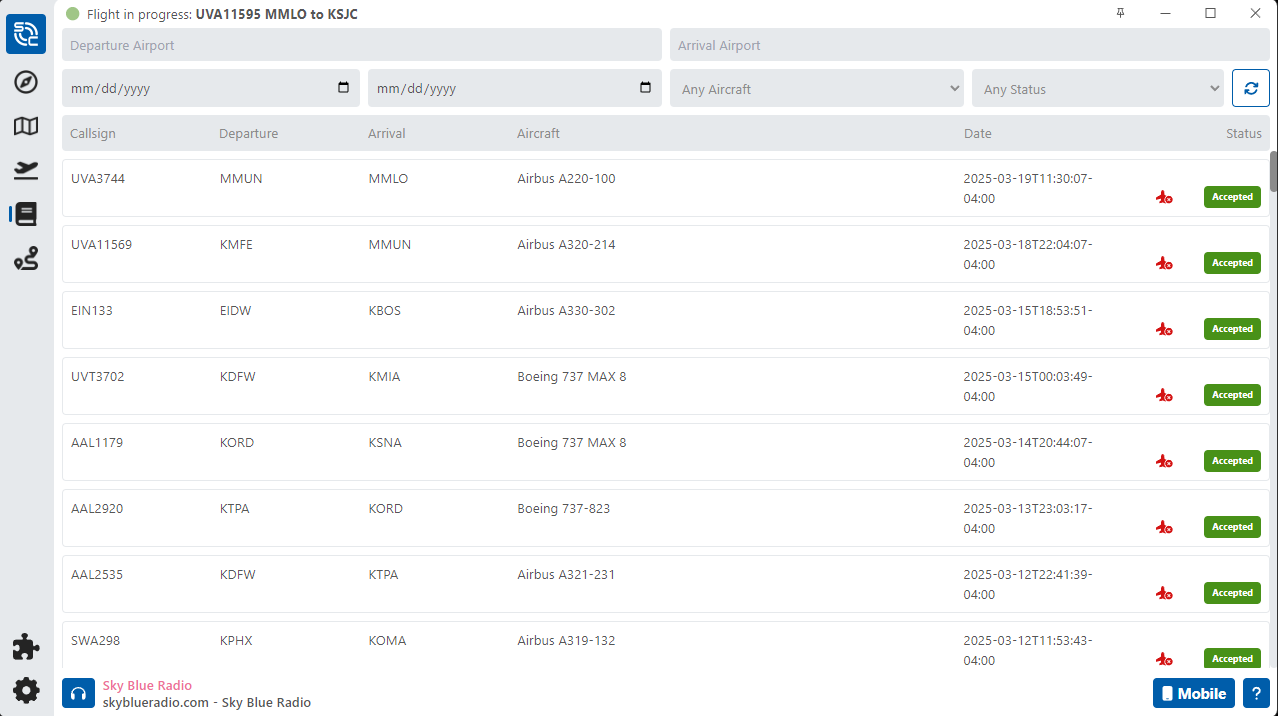](https://docs.flyuva.org/uploads/images/gallery/2025-03/7auu6d2J4Pd26Jv7-image.png) This dedicated page provides a comprehensive overview of your previously logged flights, complete with the corresponding PIREP status for each entry. To enhance user experience, utilize the search and filter options located at the top of the page, allowing for efficient retrieval of specific completed flights based on your preferences and criteria. [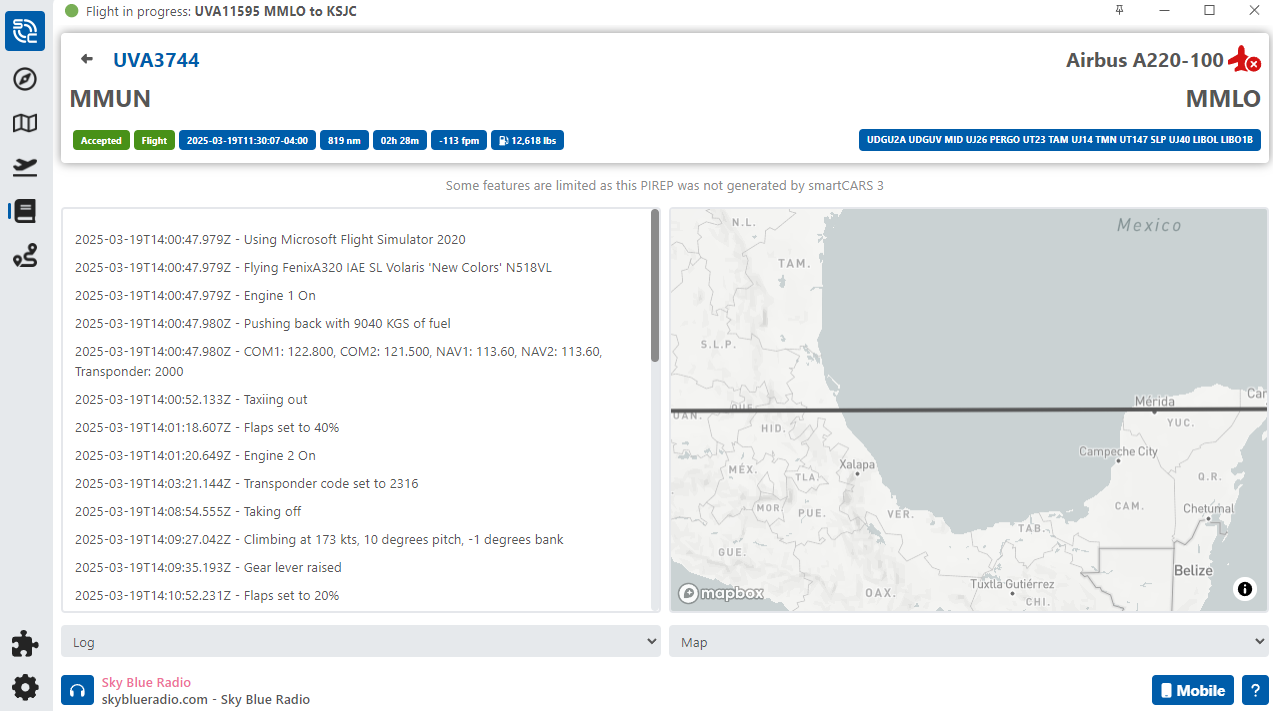](https://docs.flyuva.org/uploads/images/gallery/2025-03/Q5S6oJBRVAZg8iBV-image.png) **Detailed Flight Information** Selecting a specific flight entry within your logbook initiates an in-depth exploration, unveiling comprehensive details about the flight. This includes an intricate log of the journey and a visual representation of the flight path on the map, providing users with a thorough and insightful examination of their aviation experiences. --- ### **Map Features** The map showcased in this section diverges from the map featured on our crew center. Notably, the map in smartCARS 3 incorporates versatile display options located in the top-right corner. These options allow users to toggle between different traffic visualization settings, providing a dynamic and customizable perspective of various aerial activities during the specified flight. [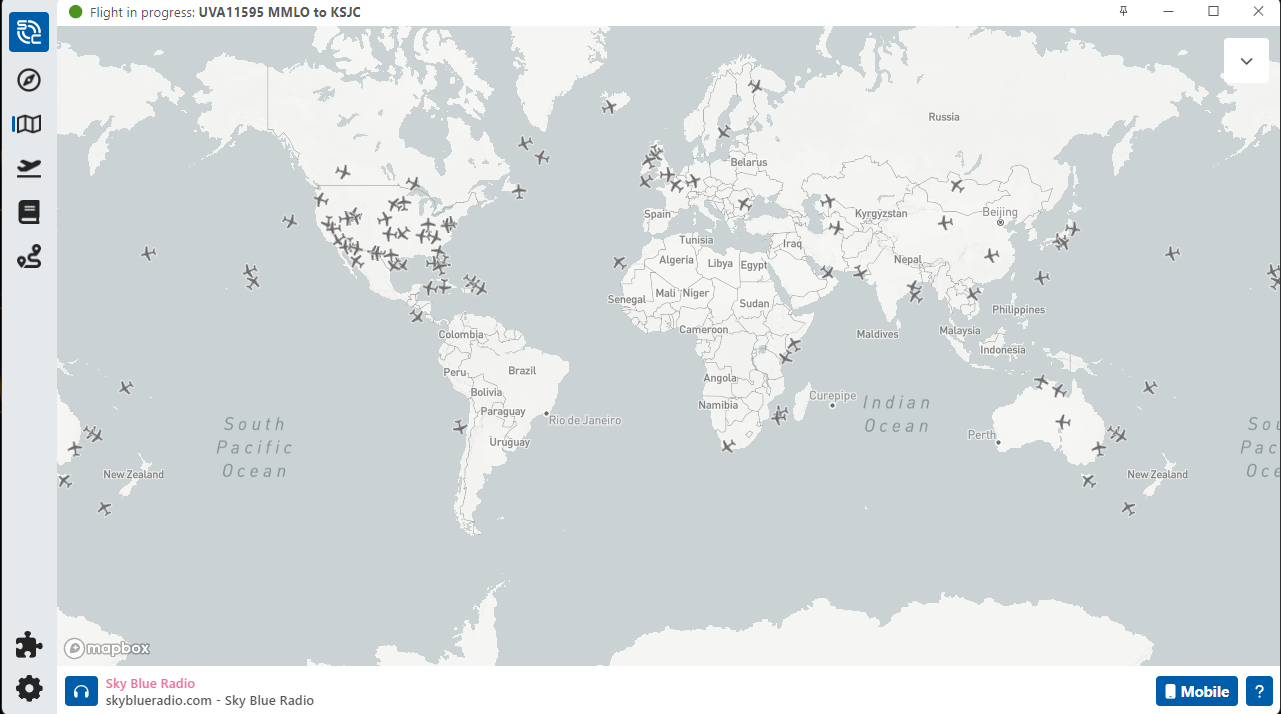](https://docs.flyuva.org/uploads/images/gallery/2025-03/iuTGHH8WazR0kJsI-image.png) --- ### **Settings** SmartCARS 3 offers a plethora of adjustable settings, providing users with the flexibility to tailor the application according to their individual needs and preferences. It's important to note that modifications to these settings do not impact your flights with United Virtual or interactions on our website, ensuring a seamless and personalized experience without compromising your virtual aviation endeavors. [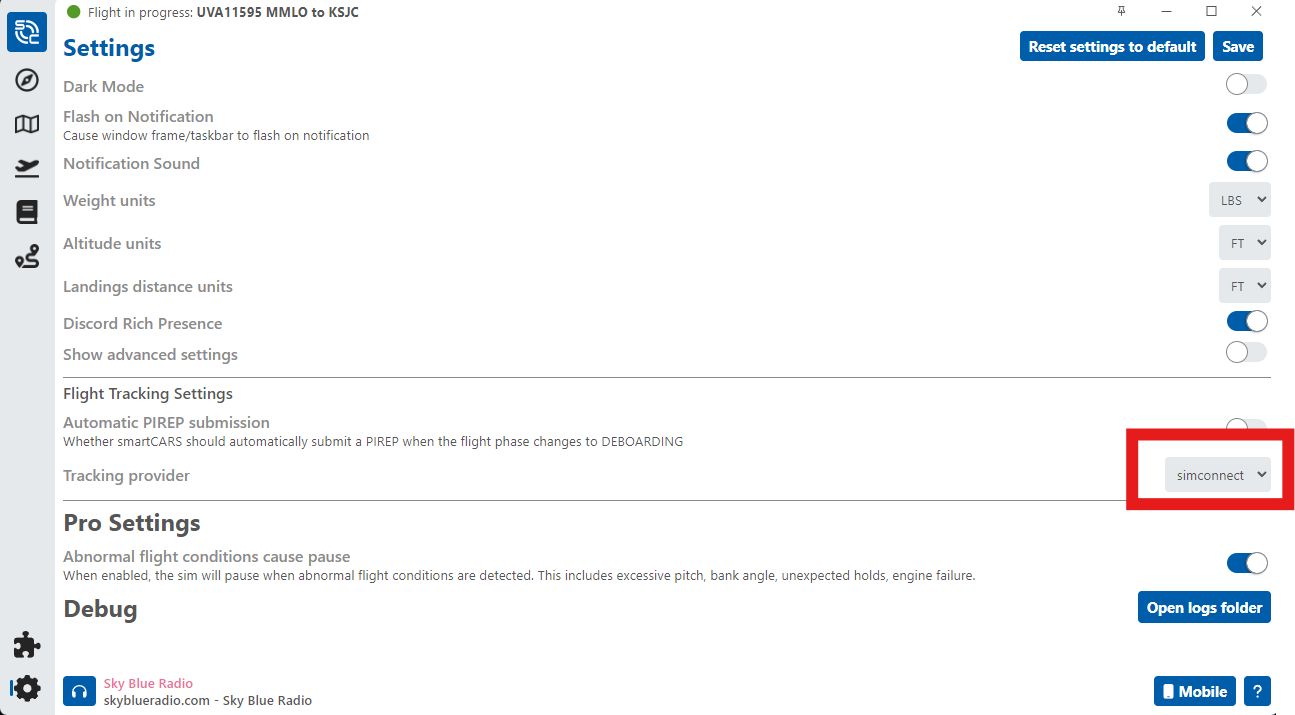](https://docs.flyuva.org/uploads/images/gallery/2025-03/Ev4rMRHoorJFDYaJ-image.png) 1. Be sure your setting are set up to record your flight data in the correct measurement units 2. Be sure SmartCARS is set up to pull the information for the correct simulator 1. Simconnect for MSFS/P3D 2. Xplane for for XP11 and XP12 3. We recommend that you turn the automatic submission feature off as this will allow you control over what pireps you want to submit and not. ---