Help (Crew Website)
Find all the answers you need!
- A Pilot's Life
- Awards
- Flight Bids
- Events
- Free Flights
- PIREPs (Pilot Reports)
- Flight Search
- Tours
- Trip Generator
- UVAcars
A Pilot's Life
What Is A Pilot’s Life v2?
A Pilot's Life v2 is a third-party career add-on developed by SimBitWorld.
It generates realistic airline schedules and career progression inside Microsoft Flight Simulator.
UVA’s APL page is an integration tool that allows pilots to import and fly their APL schedules directly through the UVA system.
How UVA’s APL Integration Works
If you are using A Pilot’s Life v2:
-
Generate your schedule inside the APL application.
-
Import or sync that schedule into UVA.
-
Fly those legs through smartCARS.
-
Submit your PIREPs normally.
This allows your flights to:
-
Count toward UVA hours
-
Be evaluated by AutoPIREP
-
Appear in your UVA flight history
-
Contribute toward awards and statistics
You are essentially flying your SimBitWorld career inside UVA.
What the APL Page Shows
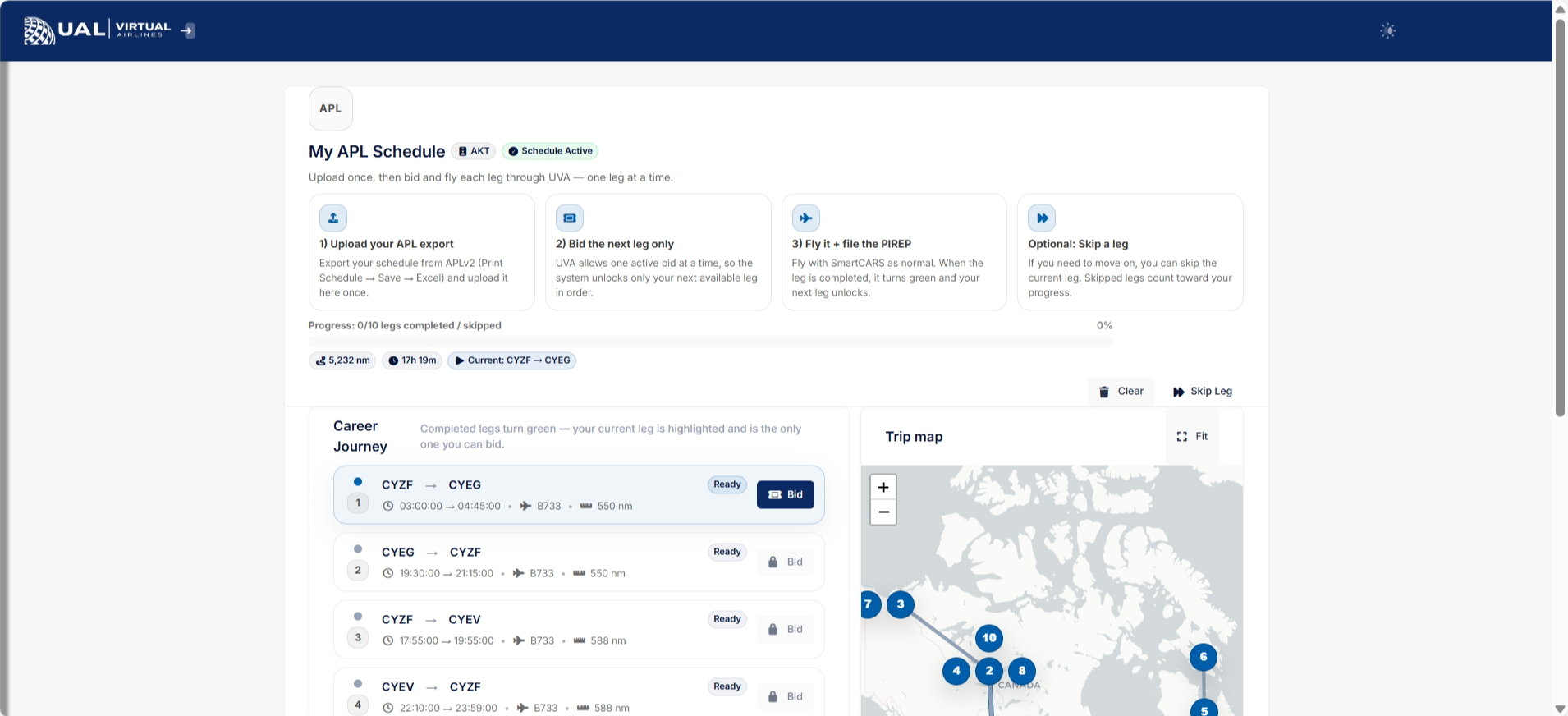
On the APL page inside UVA, you will see:
-
Your imported flight legs
-
Completion status (Completed / Current / Upcoming)
-
Route progression
-
Visual map of your journey
-
Overall progress tracking
Only your current active leg should be flown.
Important Operational Rules
When flying APL legs through UVA:
-
The route must match your imported APL schedule.
-
The correct aircraft/subfleet must be used.
-
The PIREP must be accepted.
-
AutoPIREP scoring still applies.
If a PIREP is rejected or pending, progression in UVA will not advance until resolved.
Why Use the Integration?
This integration allows you to:
-
Maintain realism in A Pilot’s Life v2
-
Log flights inside UVA
-
Use smartCARS tracking
-
Benefit from UVA’s grading and point system
-
Keep all your flying centralized
It bridges your single-player career experience with the UVA community ecosystem.
What UVA Does Not Do
UVA does not:
-
Generate APL schedules
-
Modify APL career logic
-
Override APL progression rules
All career structure remains managed by the A Pilot’s Life v2 application itself.
UVA simply provides a way to fly and track those schedules within our operational system.
Awards
Our esteemed recognition system offers a plethora of accolades to our pilots, acknowledging a diverse range of accomplishments. Upon successfully fulfilling the specified criteria for each award, our automated system seamlessly processes and appends the accolade to your profile. Your achievements are duly celebrated through this distinguished program.
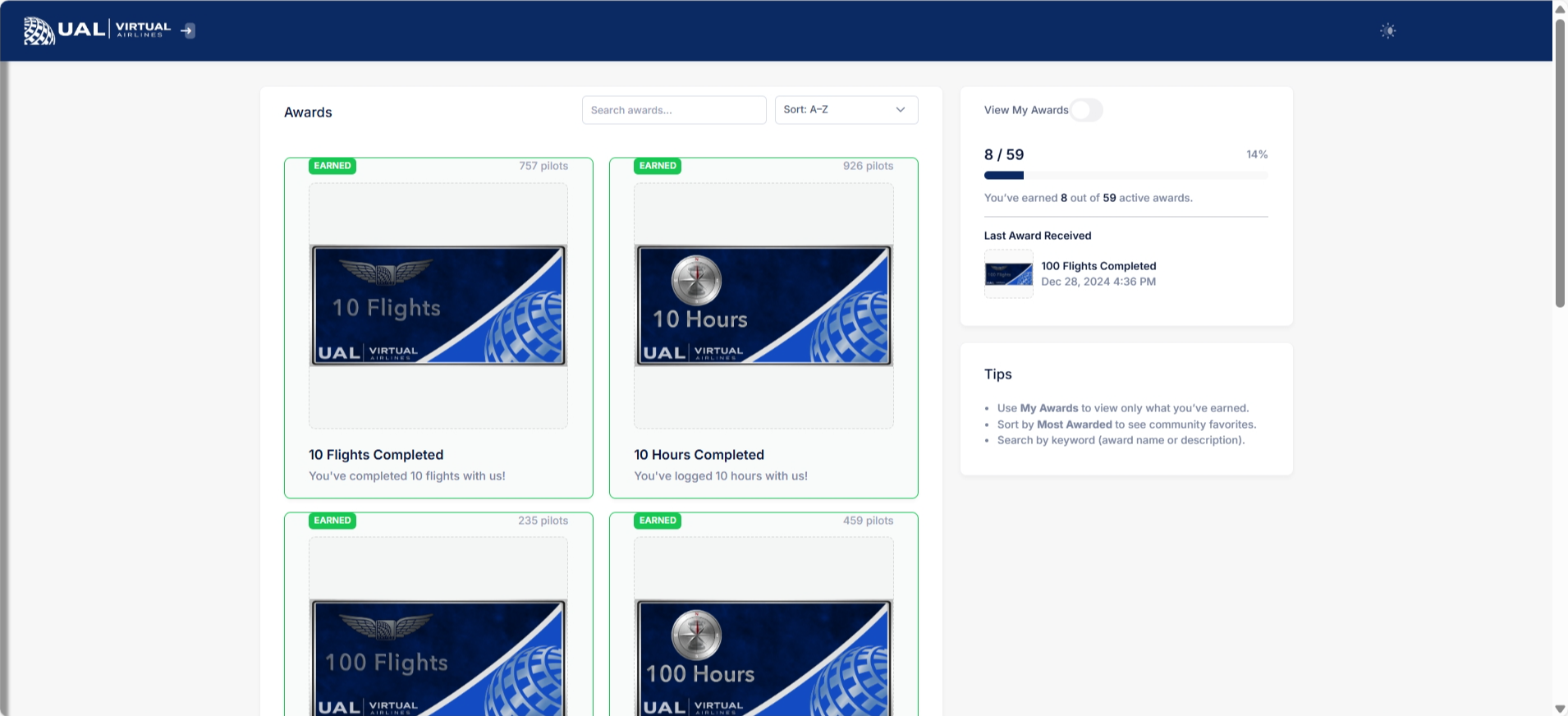
For a full list of the awards offered, please navigate to the Career Center on our website, or by clicking here.
Flight Bids
My Bids
What Is a Bid?
A bid is your reserved flight. When you bid on a schedule, you are telling the system:
“This is the flight I am planning to fly next.”
At UVA, pilots are limited to one active bid at a time, helping keep operations organized and realistic.
How This Page Works
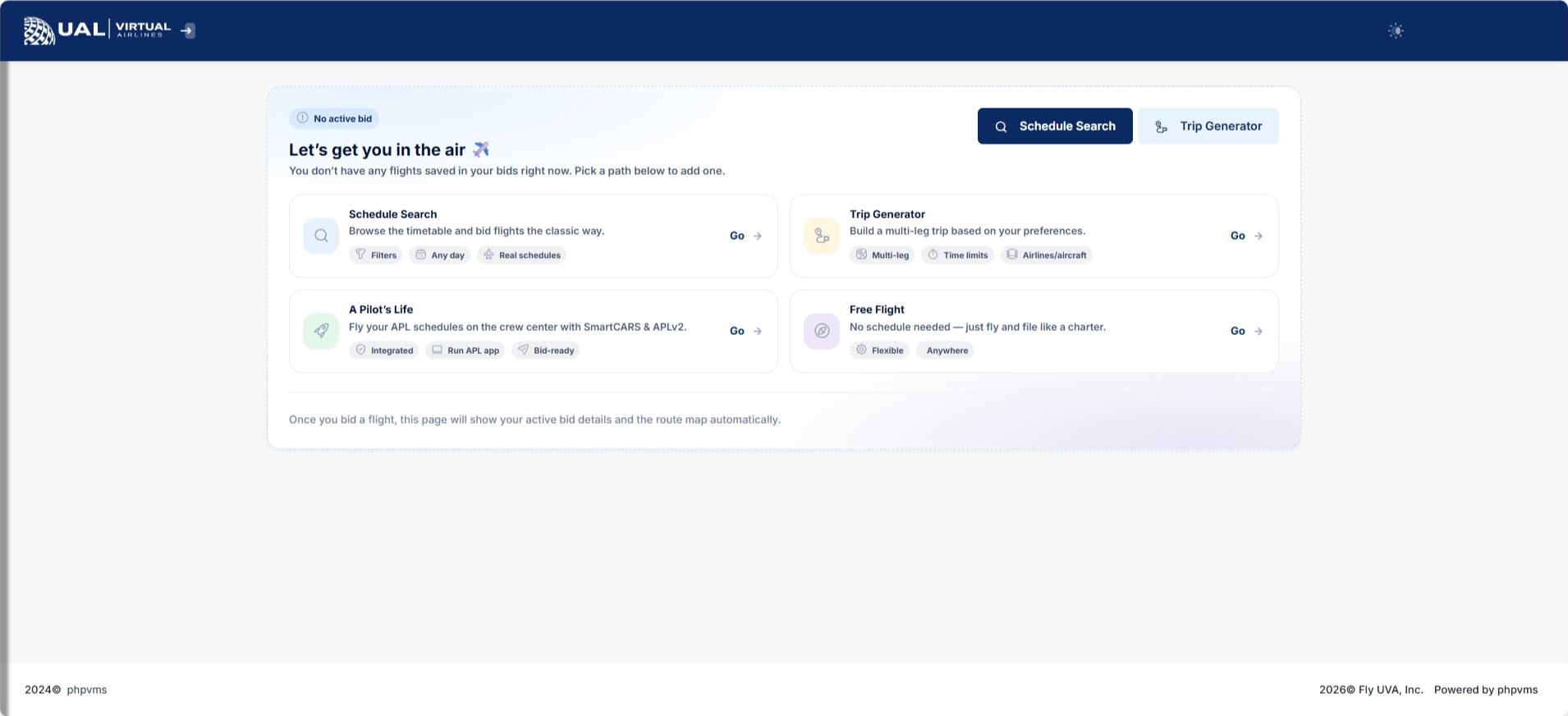
If You Have No Active Bid
You’ll see a “No Active Bid” screen with quick-access options to:
-
Browse schedules
-
Search for flights
-
Return to assignments
-
Select your next flight
You must add a bid before you can begin flying.
If You Have an Active Bid
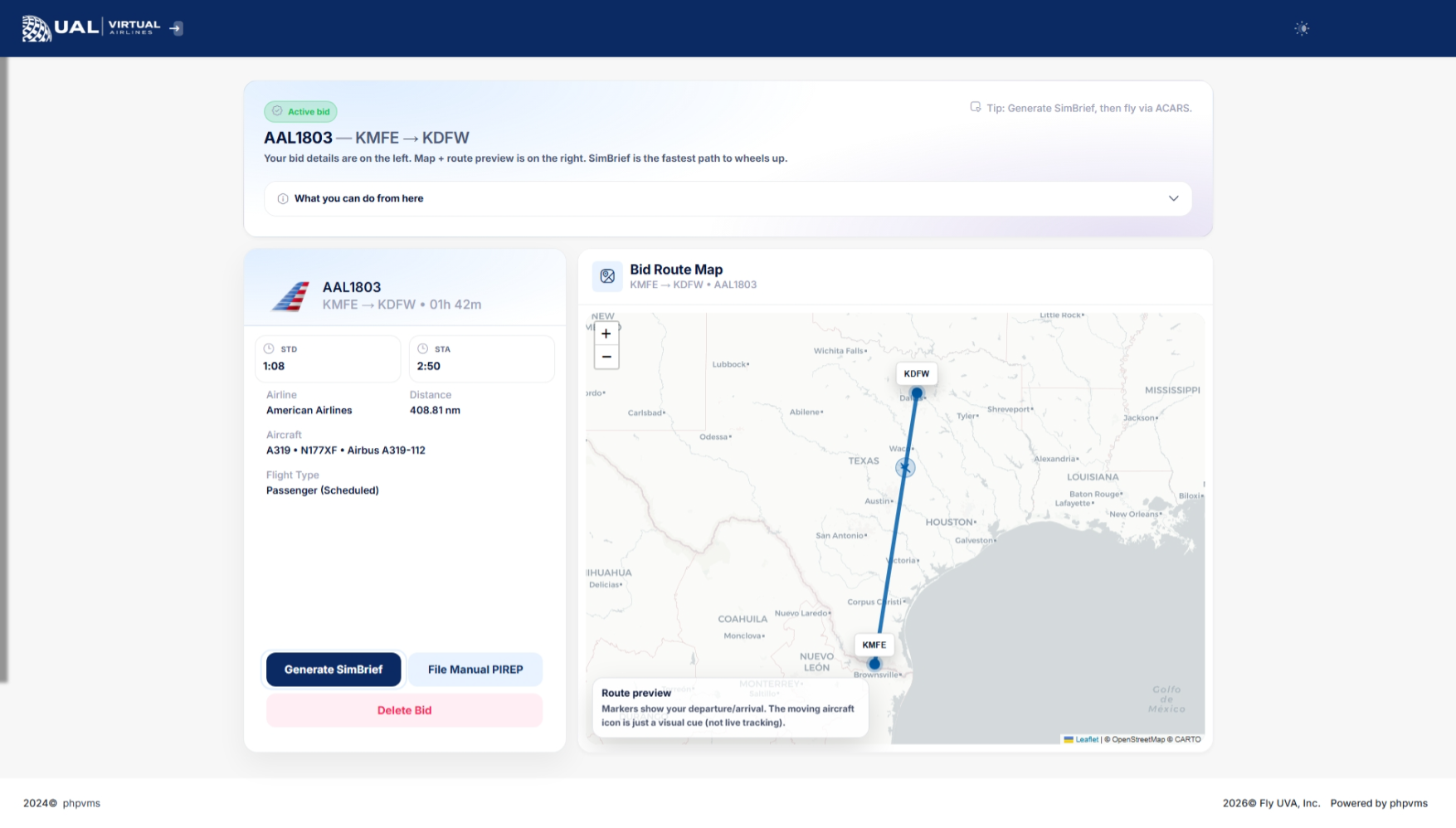
When you have a bid, this page becomes your flight planning center.
You’ll see:
-
Flight Number / Ident
-
Departure Airport
-
Arrival Airport
-
Scheduled Departure / Arrival Times (if available)
-
A live route map showing your departure and destination
This page confirms exactly what you’re scheduled to fly.
Important Rules
One Active Bid Policy
UVA allows one active bid per pilot.
If you already have a bid:
-
You cannot add another flight.
-
You must either fly and submit the PIREP
or -
Remove your current bid before selecting a new one.
This keeps the operation clean and prevents “bid stacking.”
After You Fly
Once you complete your flight and submit your PIREP:
-
Your bid will clear automatically.
-
You’ll be able to select your next flight.
If your PIREP enters pending status (for AutoPIREP review), your bid will remain until it is processed.
Events
Events on Crew Website
Events
What Are Events?
Events are organized flights hosted by UVA staff. These may include:
-
Group Flights
-
VATSIM Events
-
Community Fly-Ins / Fly-Outs
-
Special Operations Flights
-
Tour Launch Events
-
Training Sessions
Events are designed to bring pilots together and create a more immersive and social flying experience.
Events Overview Page
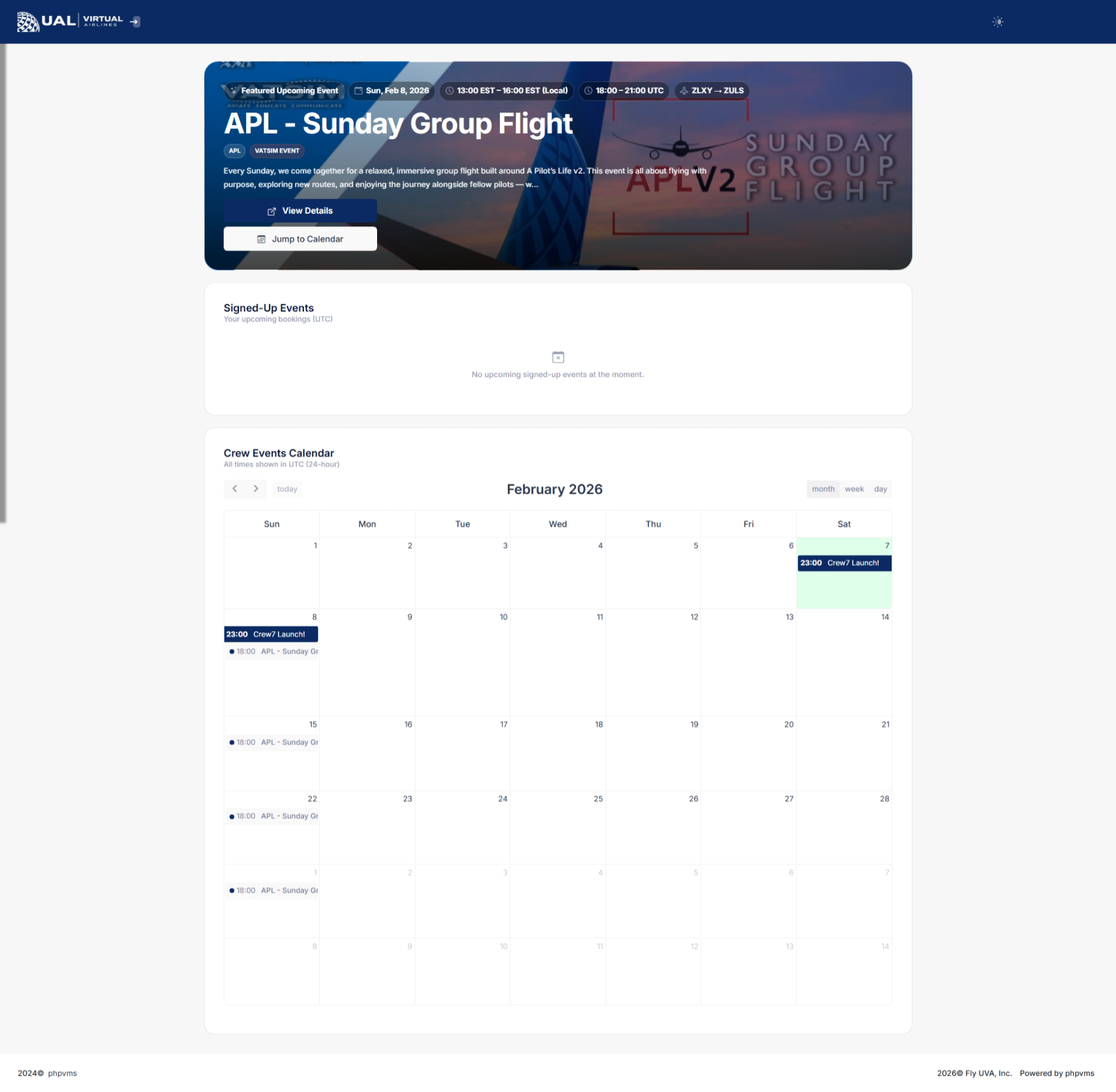
On the main Events page, you will see:
-
A list of all upcoming and active events
-
Event name and description
-
Event date and time
-
Departure and arrival airports
-
Aircraft requirements (if specified)
-
Status indicators (upcoming, active, completed)
You can select any event to view full details.
Event Details Page
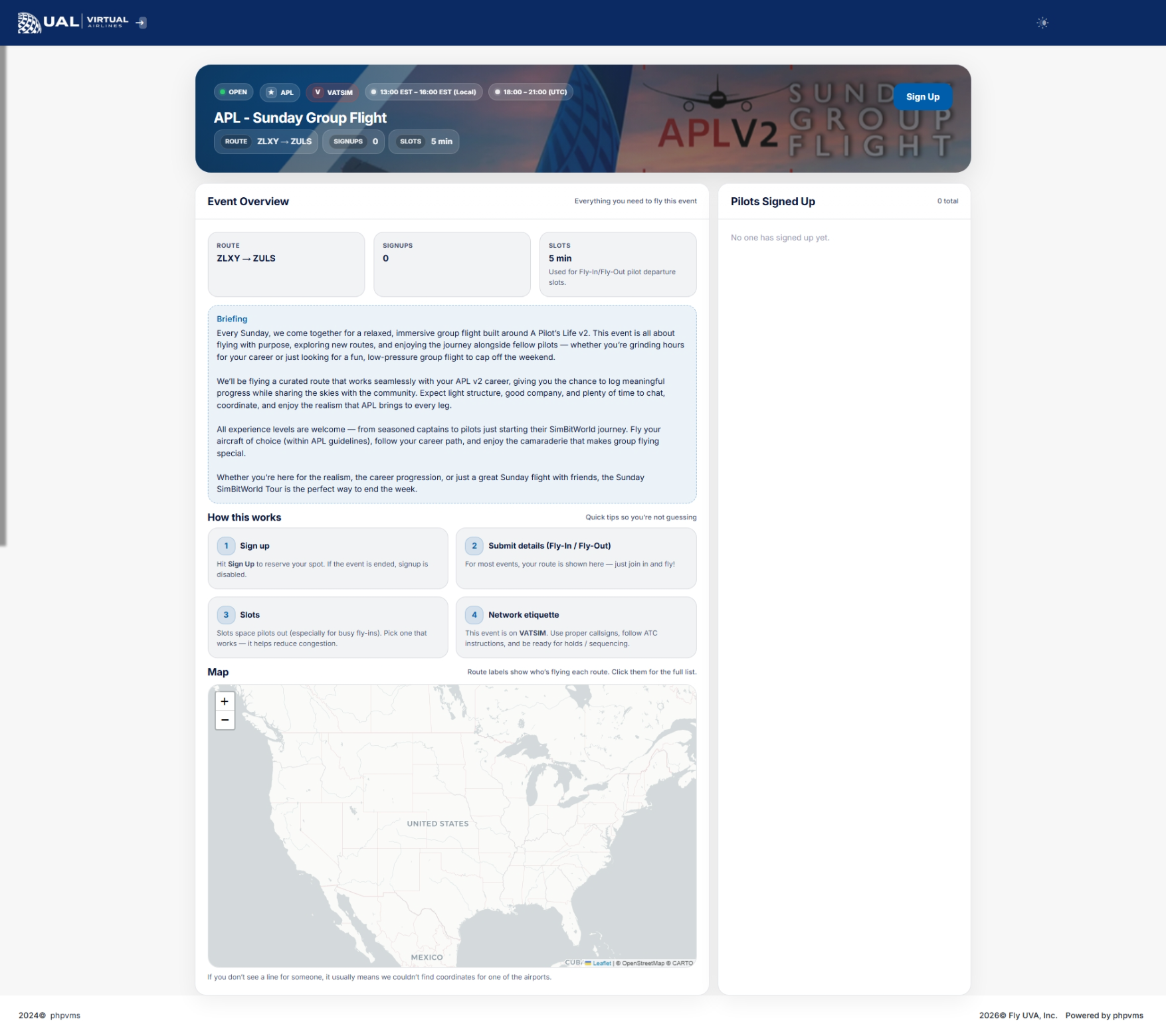
When you open an event, you’ll see:
-
Full event description
-
Scheduled departure time
-
Route information
-
Approved aircraft (if restricted)
-
Any special instructions or briefing notes
-
Participation options
This page serves as your event briefing.
Be sure to review all instructions carefully before flying.
How Participation Works
Depending on the event structure:
-
You may be required to bid the associated flight.
-
You may need to fly a specific aircraft or subfleet.
-
Some events may require VATSIM participation.
-
Certain events may tie into tours, awards, or bonus points.
If an event has special participation rules, they will be clearly listed on the event page.
Event Completion
To receive credit for an event:
-
Fly the correct route.
-
Submit your PIREP.
-
Ensure it meets all listed event requirements.
If the event includes awards or bonus points, those are typically processed after flight review.
Why Participate?
Events provide:
-
Community engagement
-
Structured group flying
-
Real-world simulation experiences
-
Potential awards or recognition
-
Opportunities to fly unique routes
They are one of the best ways to connect with other UVA pilots and staff.
Events on Discord
Join Our Discord Community
If you're not already part of our vibrant Discord community, you can join directly through the Crew Center. Simply click the gear icon next to your name and select Join Discord to get connected with fellow pilots and stay up to date on all the latest UVA news, events, and announcements.
Discord membership is mandatory for event participation.
Events Channel Navigation
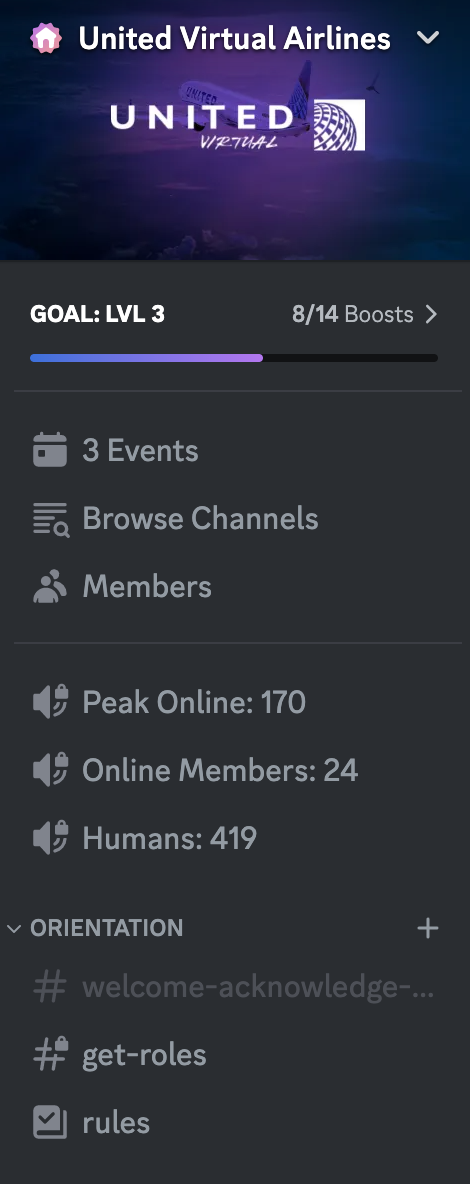 |
Within the Discord server's sidebar, locate the channel prominently displaying the number of planned events at the top. In this example, it reads "3 Events." Clicking on this channel reveals a pop-up window containing detailed information about our upcoming events.
|
Insight into Events Details
 Delve deeper into event specifics by exploring the detailed information provided. Event Date, Time, and Description are readily available. The event time automatically adjusts based on your system clock, ensuring convenience. The event's designated voice channel is also highlighted at the bottom.
The event time listed automatically adjusts to whatever time-zone you're in based on your system clock.
Express your interest in an event by clicking the "Interested" button. This action notifies the staff of your intent without imposing any obligatory attendance. To share the event with friends on other Discord servers, use the "Share" button.
Clicking on a specific event within the pop-up window opens up a comprehensive overview, offering a deeper understanding of the event's nature and requirements.
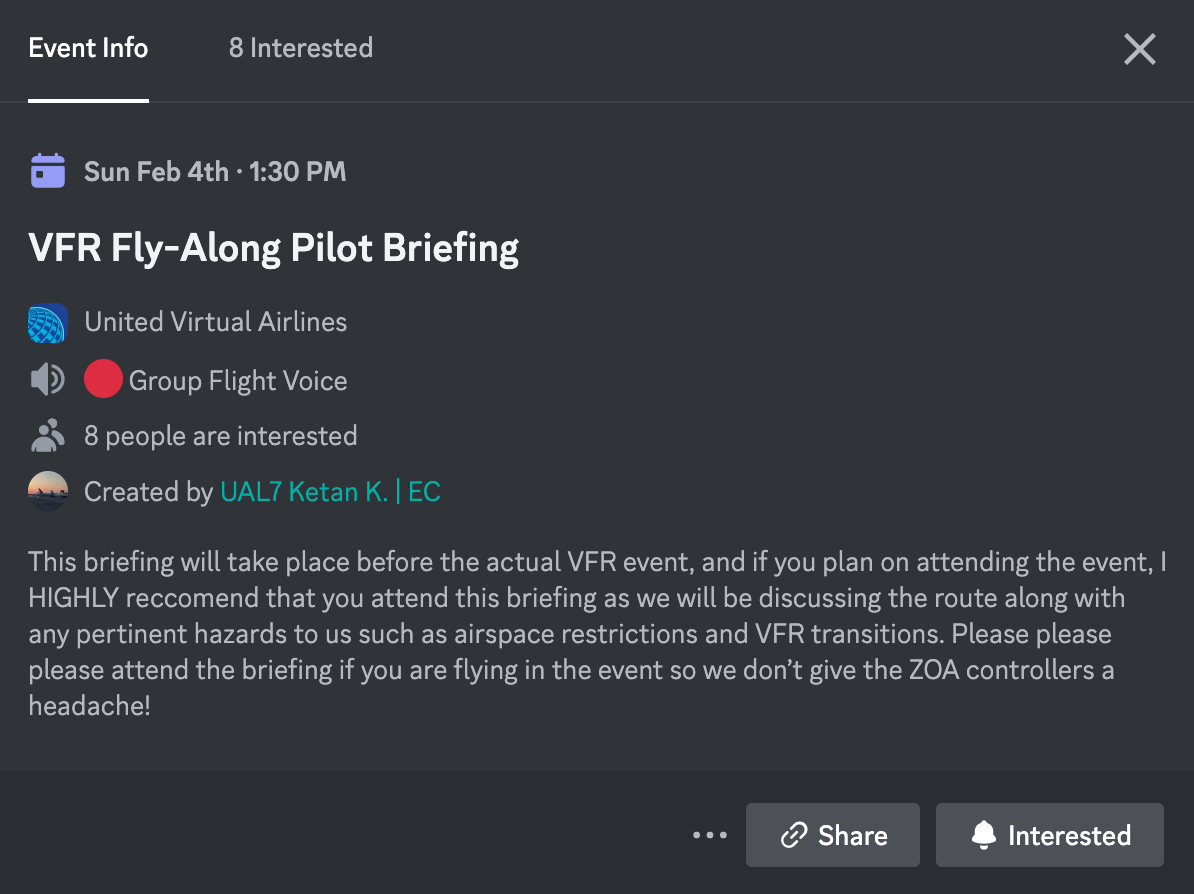
Our events primarily take place on the VATSIM network, yet flying online isn't a mandatory prerequisite. If you prefer participating in events or group flights offline, you are more than welcome to do so. Join our dedicated Group Flight Voice channel on Discord to stay connected.
If you're intrigued by the VATSIM experience and wish to join, you can become a member at VATSIM. This opens up additional avenues for interactive and immersive flying engagements.
United Virtual Airlines embraces a collaborative and inclusive approach to events, ensuring an enjoyable experience for all members. Join us on Discord, express your interest, and embark on exciting flying adventures together!
Free Flights
What Are Free Flights?
Free Flights allow you to create and fly a custom route that is not part of the published schedule.
This feature gives you flexibility while still operating within UVA’s structure and tracking system.
If you want to fly something different from the schedule — this is where you do it.
When Should You Use Free Flights?
Use Free Flights when:
-
You want to fly between two airports not connected by a published schedule.
-
You are repositioning an aircraft.
-
You want to simulate a charter-style route.
-
You are flying a training or personal practice flight.
-
You want more flexibility than the schedule provides.
How It Works
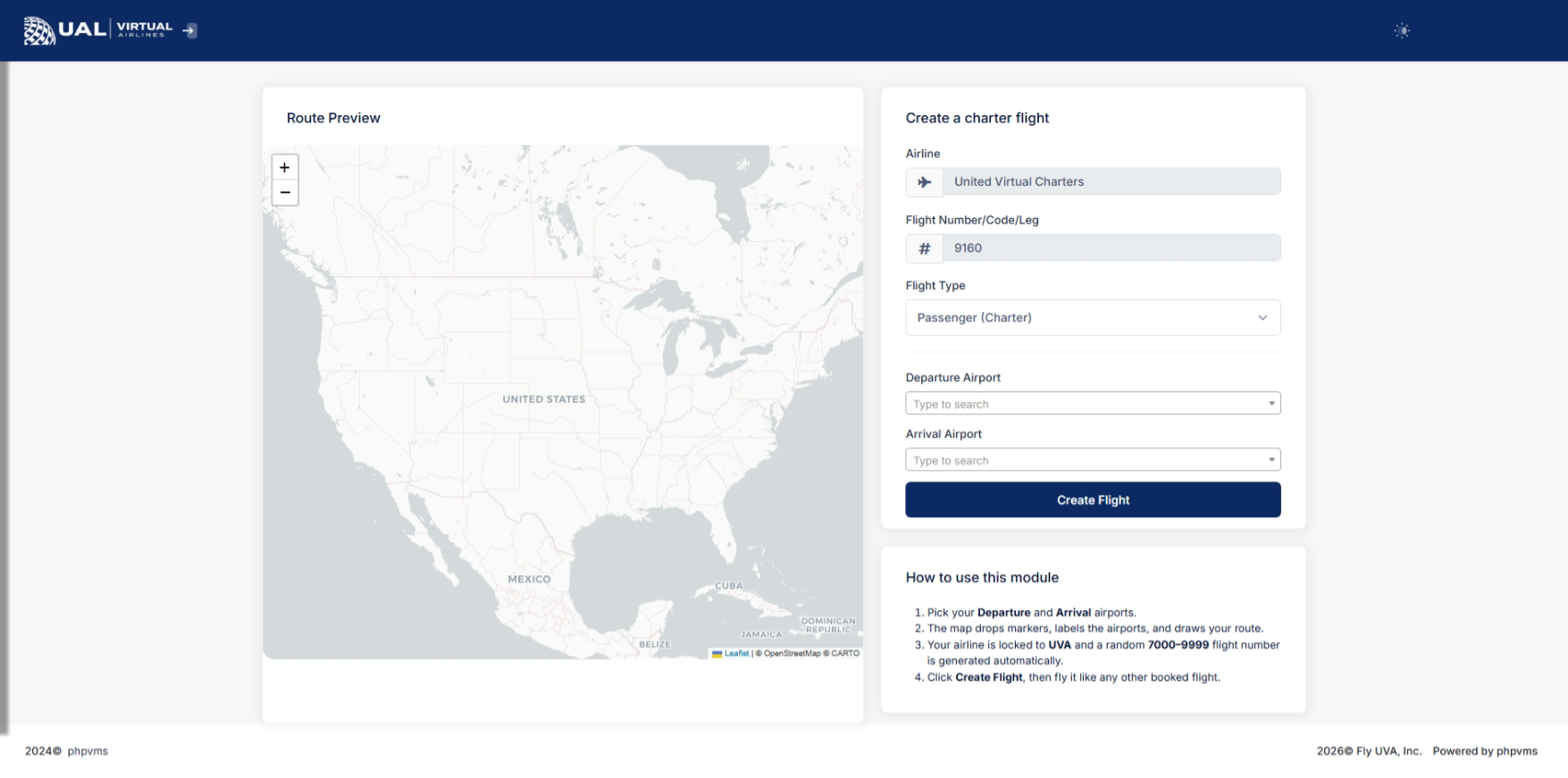
On the Free Flight page, you will:
-
Enter a Departure Airport (ICAO)
-
Enter an Arrival Airport (ICAO)
Once created, the flight becomes your active bid.
From there, the process is the same as a scheduled flight:
-
Fly the route
-
Log the flight through ACARS
-
Submit your PIREP
Important Operational Notes
Free Flights must still:
-
Use aircraft that exist in the UVA fleet.
-
Follow realistic routing and operational standards.
-
Comply with all PIREP grading and AutoPIREP criteria.
Free Flights do not override operational policies.
Free Flights vs Scheduled Flights
Scheduled Flights:
-
Pulled directly from UVA’s published schedule.
-
Used for structured route realism.
-
May tie into Tours or Events.
Free Flights:
-
Fully customizable within system limits.
-
Designed for flexibility and pilot preference.
-
Ideal for exploration or repositioning.
Both are tracked and graded through the same system.
After You Create a Free Flight
Once created:
-
It becomes your active bid.
-
You cannot create another flight until it is completed or removed.
-
You will fly and submit your PIREP normally.
If your PIREP is placed into pending status, your bid will remain active until processed.
PIREPs (Pilot Reports)
A PIREP is a Pilot Report. It contains the information about the flight you flew and submitted via our ACARS software.
View My PIREPs
What Is a PIREP?
A PIREP (Pilot Report) is your official flight record.
After completing a flight and submitting it through ACARS, your PIREP becomes a permanent log of that operation.
This page allows you to review your flight in detail.
What You’ll See on the PIREP Page
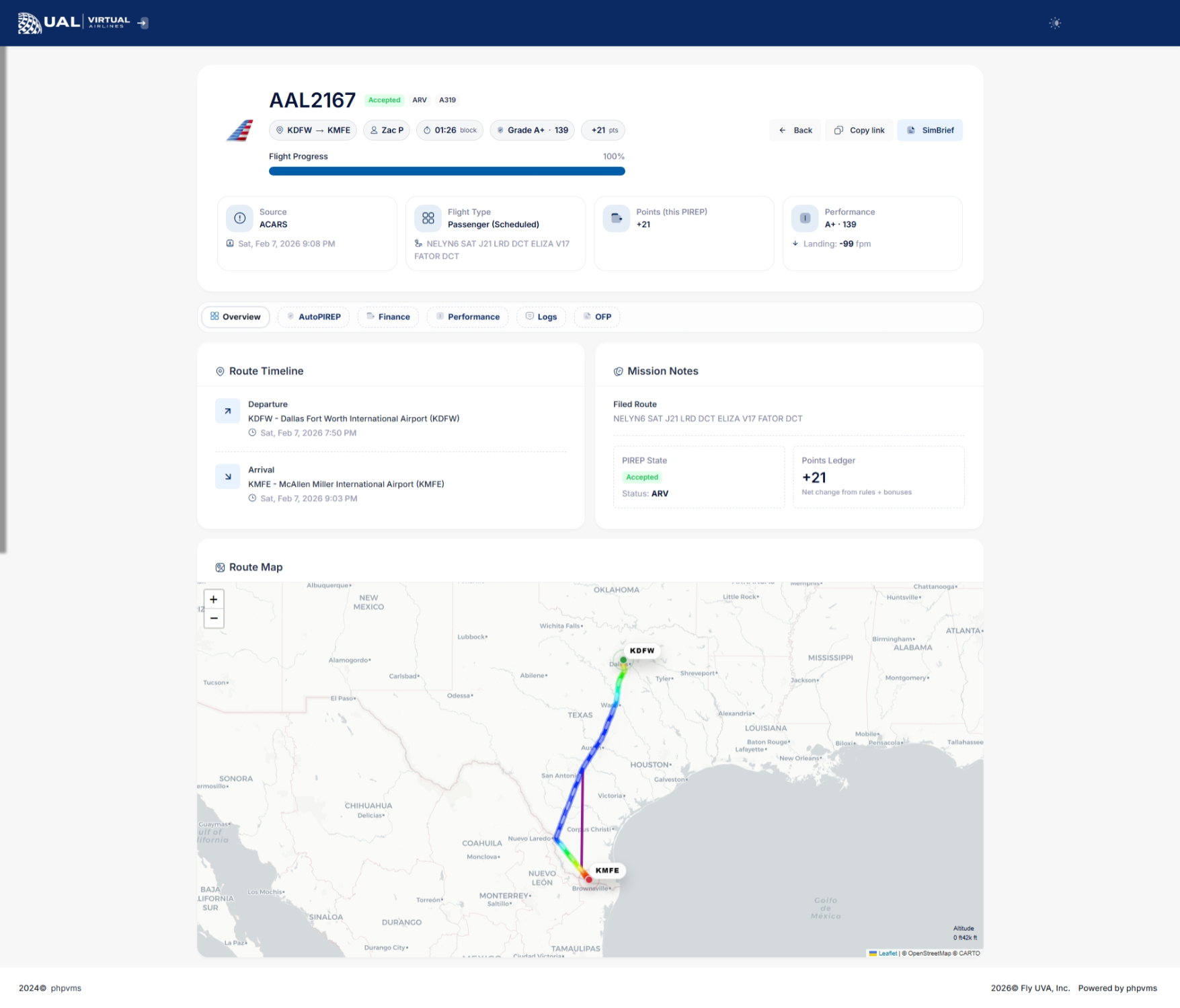
Your PIREP page includes a full breakdown of your flight performance and operational data.
Flight Summary
At the top of the page, you’ll see:
-
Airline and Flight Number
-
Aircraft and Subfleet
-
Departure and Arrival Airports
-
Block Time
-
Route information
-
Submission time
This confirms the basic details of your flight.
Performance Overview
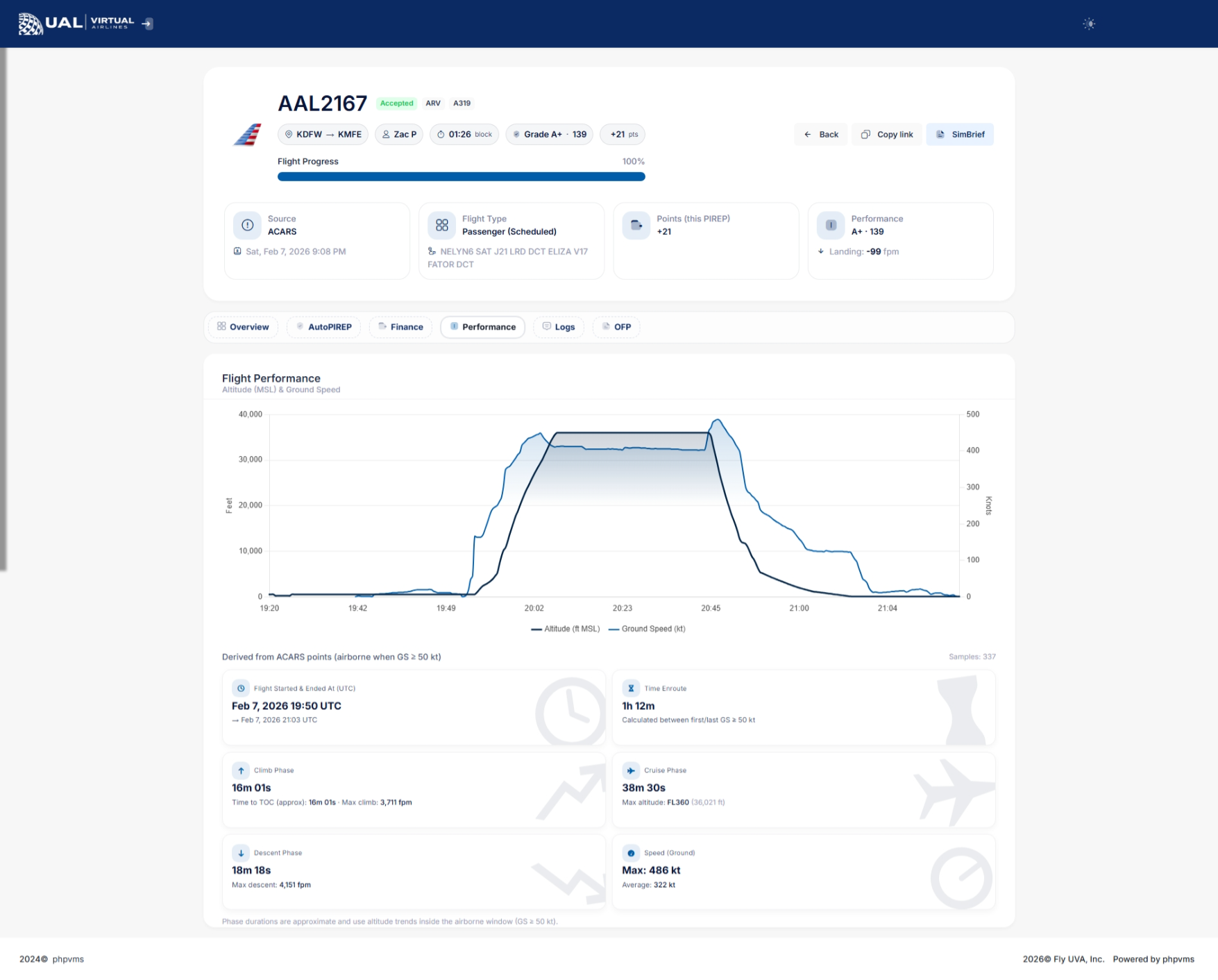
The performance section provides a detailed breakdown of how your flight was evaluated.
Depending on the flight data recorded, you may see:
-
Landing Rate (FPM)
-
Touchdown G-Force
-
Sim Rate Usage
-
Stall Detection
-
Overspeed Monitoring
-
Phase tracking (Climb / Cruise / Descent)
-
Maximum and Average Ground Speed
-
Maximum Altitude (shown as Flight Level)
-
Climb and Descent Rates
-
Time Enroute
This gives you insight into how your flight was scored.
AutoPIREP Grade
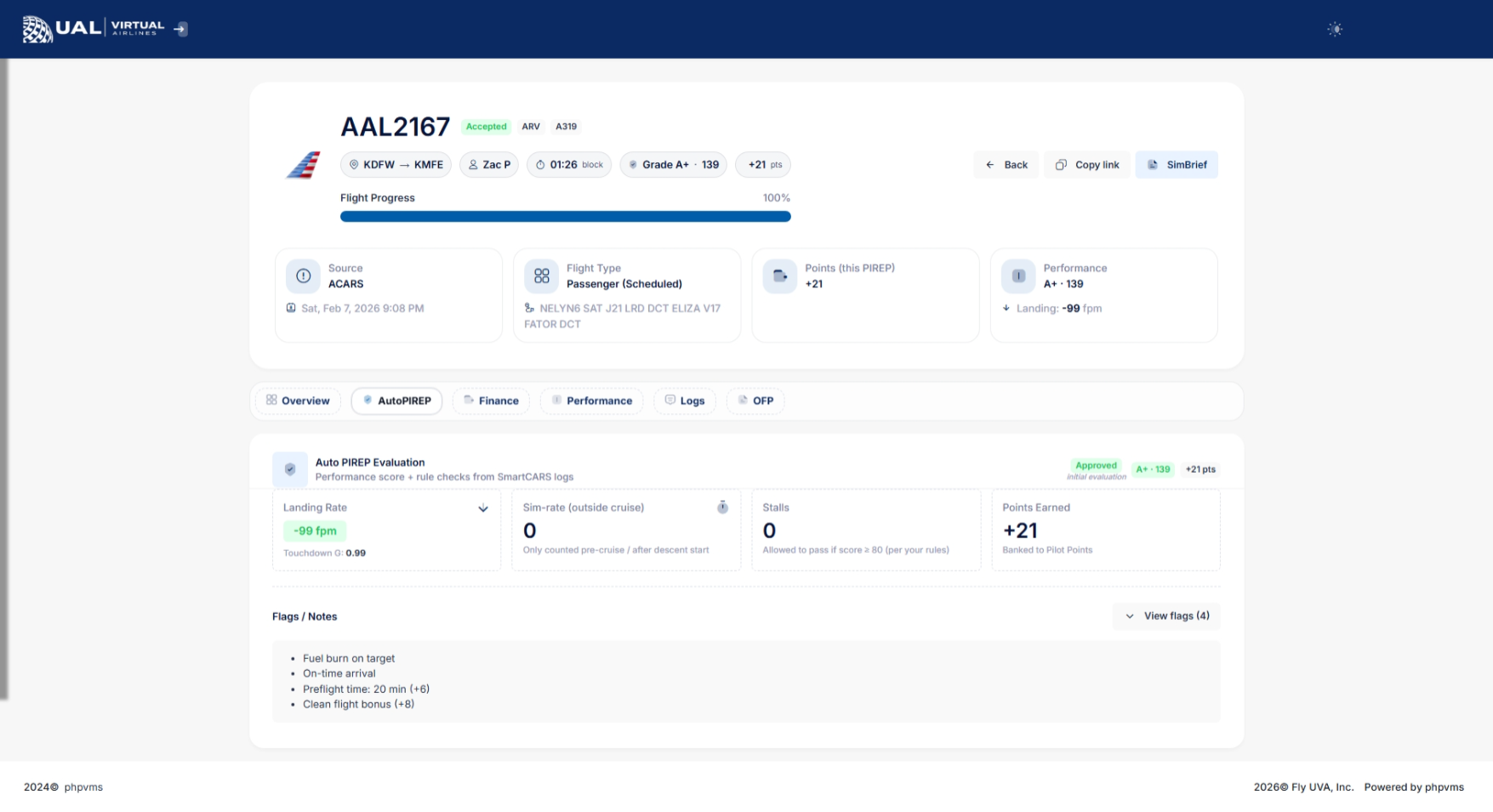
If AutoPIREP grading is enabled, your PIREP will display:
-
Numerical score
-
Letter grade
-
Decision status (Accepted, Pending, or Rejected)
-
Points earned
Flights that meet grading criteria are automatically accepted.
Flights that do not meet criteria may enter Pending Review.
Pending Status & Banked Points
If your PIREP enters pending status:
-
It is temporarily locked for review.
-
Staff cannot immediately modify it.
-
You may have the option to use Banked Points to force-accept the flight.
If available, you’ll see a button allowing you to use 150 banked points to accept the PIREP.
This system gives pilots flexibility while maintaining operational standards.
Flight Phases & Data Tracking
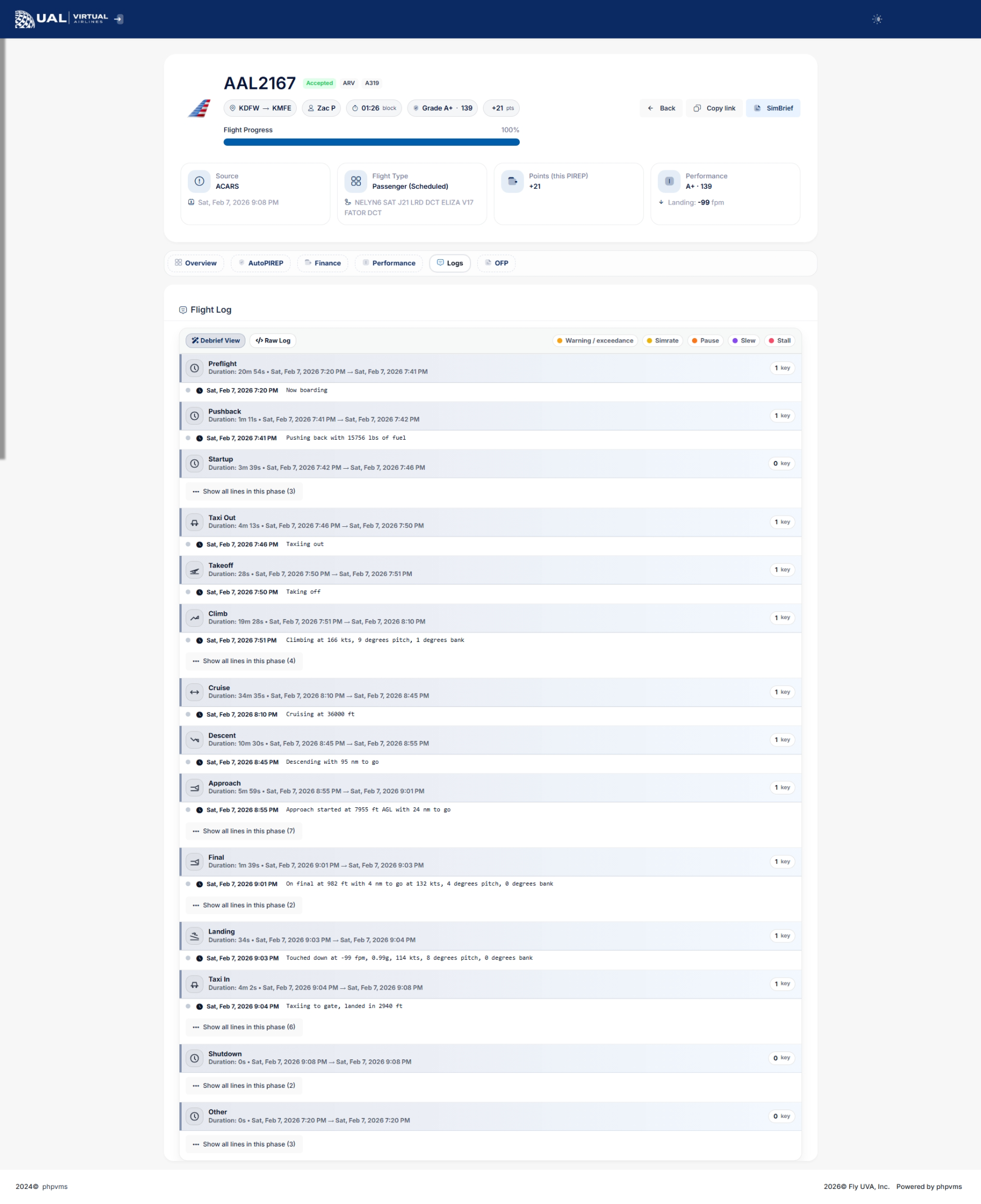
Your PIREP includes detailed phase tracking:
-
Climb phase begins once ground speed exceeds operational thresholds.
-
Cruise phase tracks maximum altitude achieved.
-
Descent phase tracks descent rates until ground speed drops below taxi thresholds.
This ensures realistic phase reporting and accurate performance metrics.
Status Indicators
Each PIREP will display one of the following statuses:
-
Accepted
-
Pending
-
Rejected
-
Cancelled
Status determines whether the flight counts toward hours, awards, tours, and career progression.
Why This Page Matters
Your PIREP page is more than just a record — it is your performance dashboard.
It allows you to:
-
Monitor your flying quality
-
Track landing consistency
-
Improve operational realism
-
Build toward awards, career levels, and achievements
Every flight contributes to your long-term record.
AutoPIREP
What Is AutoPIREP?
AutoPIREP is UVA’s automated flight evaluation system.
After you submit a PIREP, the system immediately analyzes your flight data and determines whether it:
-
Meets operational standards
-
Requires staff review
-
Should be rejected
This ensures fairness, consistency, and realism across all pilots.
What AutoPIREP Evaluates
AutoPIREP analyzes multiple performance factors from your flight data, including:
-
Landing Rate (FPM)
-
Touchdown G-Force
-
Sim Rate Usage
-
Stall Detection
-
Flight Phase Tracking
-
Time Enroute
-
Ground Speed Monitoring
Each metric contributes to your overall score.
Scoring & Grades
Each flight receives:
-
A numerical score
-
A letter grade
-
A system decision
The decision will be one of the following:
Accepted
Your flight met all required criteria and is automatically approved.
Pending
Your flight did not meet one or more standards and requires review.
Rejected
The flight significantly violated operational limits and was declined.
Pending Status Explained
When a flight enters Pending:
-
It is temporarily locked.
-
Staff cannot immediately modify it.
-
A waiting period is applied to allow pilot review.
This window exists to give pilots control over their own outcome.
Banked Points & Force Accept
If your PIREP is placed into Pending status, you may see the option to:
Use 150 Banked Points to Force Accept the Flight
Banked points are earned through normal flight activity.
Using points allows you to:
-
Accept a flight that narrowly missed criteria.
-
Avoid rejection.
-
Maintain continuity in tours, events, or career progression.
This system balances realism with flexibility.
Why AutoPIREP Exists
AutoPIREP ensures:
-
Consistent grading across all pilots
-
Reduced manual workload for staff
-
Transparent evaluation standards
-
Operational realism
-
Performance accountability
Every pilot is evaluated using the same system logic.
How It Impacts You
AutoPIREP affects:
-
PIREP acceptance
-
Logged flight hours
-
Awards eligibility
-
Career Mode progression
-
Event credit
-
Leaderboards and statistics
Flying within operational standards will almost always result in automatic acceptance.
Operational Expectations
To maintain high scores:
-
Avoid excessive sim rate usage
-
Monitor landing rate and touchdown control
-
Avoid stall conditions
-
Follow realistic climb and descent profiles
-
Maintain proper cruise altitude
AutoPIREP rewards smooth, realistic flying.
Manual PIREP
What Is a Manual PIREP?
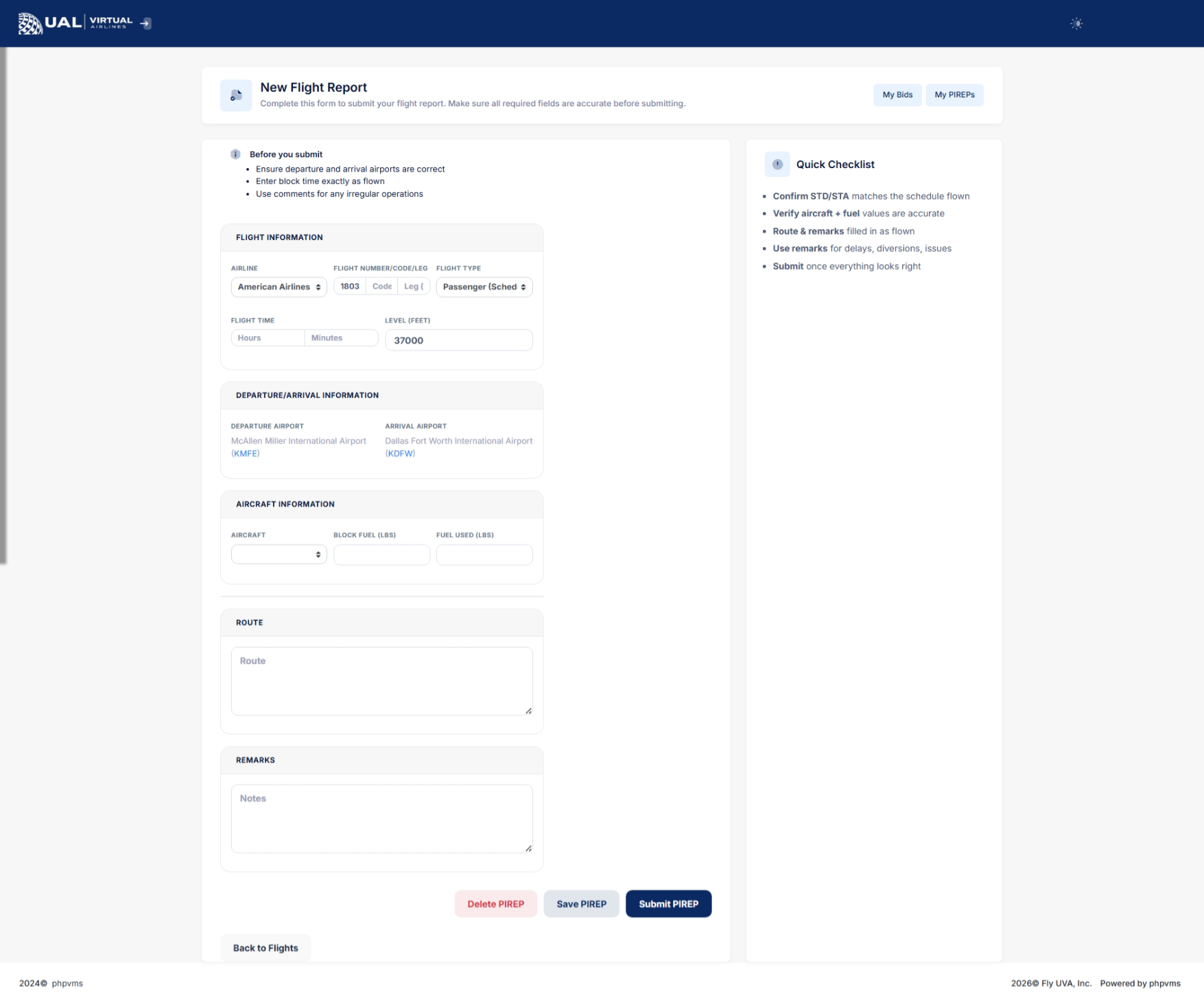
A Manual PIREP is a flight report submitted without using smartCARS.
At UVA, manual PIREPs are not the standard method of tracking flights. They exist strictly as a backup option when technical issues prevent smartCARS from functioning properly.
When Manual PIREPs Are Allowed
Manual PIREPs may only be submitted when:
-
smartCARS fails to connect
-
smartCARS crashes during the flight
-
A technical issue prevents ACARS tracking
-
A system outage occurs
Manual PIREPs are not to be used for convenience or preference.
If smartCARS is functioning properly, it must be used for all flight tracking.
Required Proof of Flight
If you submit a Manual PIREP, you must provide verifiable proof of the flight.
Accepted proof includes:
-
A direct link to your flight on VATSIM
-
A link to another recognized flight tracking network
-
Valid ACARS log evidence
-
Screenshot evidence showing full flight completion data
If proof is not provided, the Manual PIREP will be rejected.
Why Proof Is Required
Manual submissions do not contain the full telemetry data that smartCARS provides.
Requiring proof ensures:
-
Fairness across all pilots
-
Integrity of logged hours
-
Accurate tracking of flight performance
-
Protection against inaccurate reporting
How to file a manual PIREP
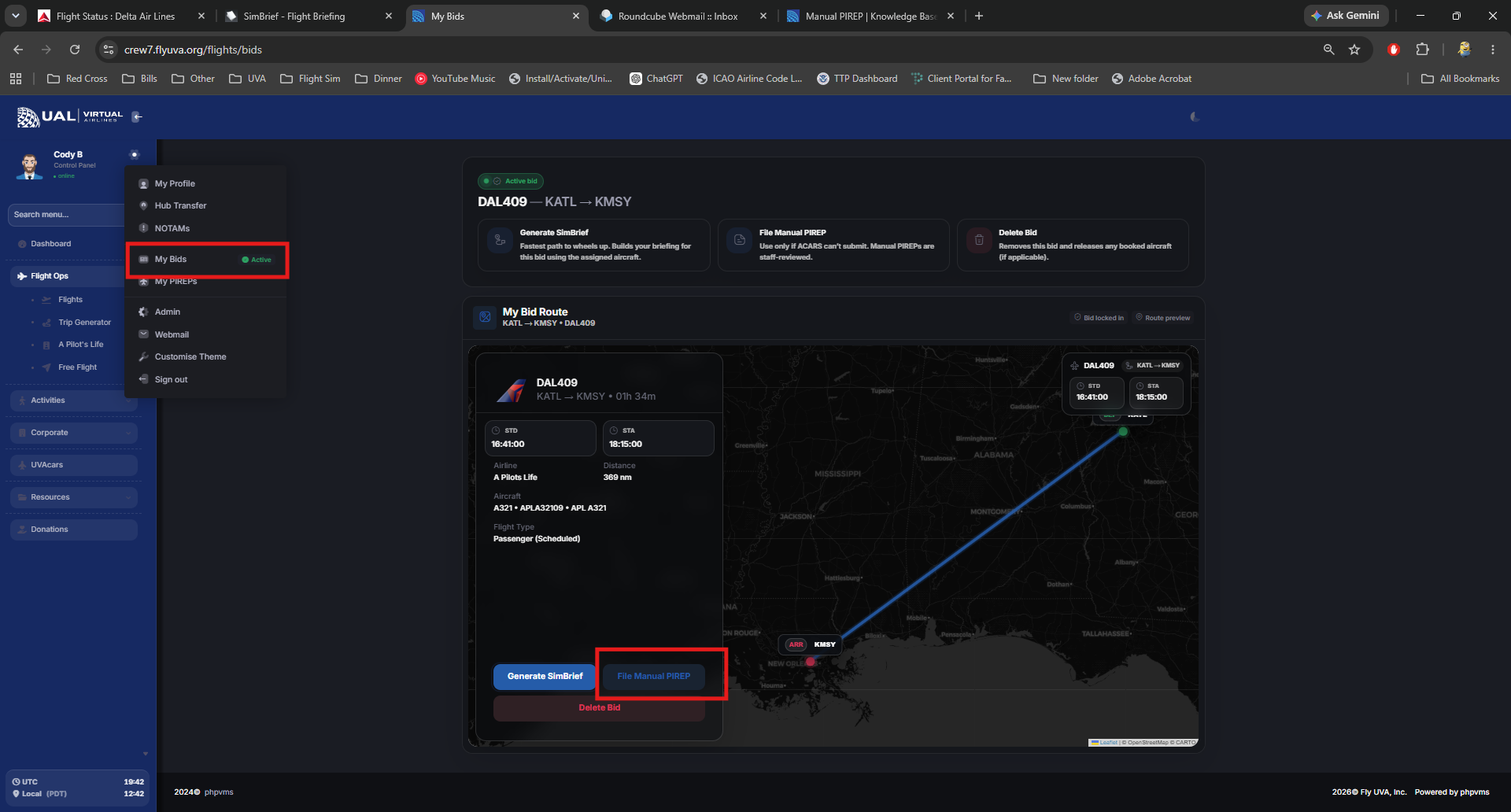
- From the the crew center click the cogwheel on the sidebar next to your profile image
- Select my bids
- Select File Manual Pirep
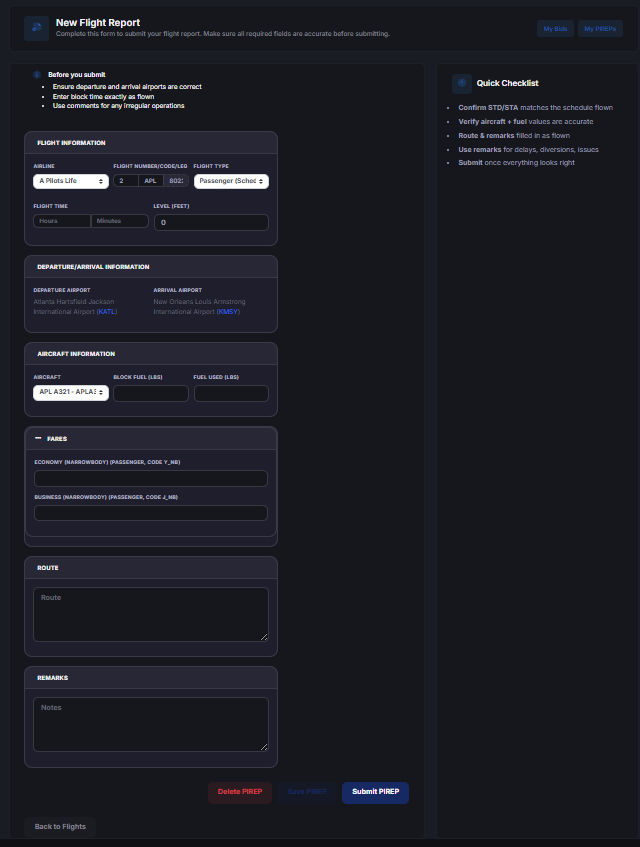
- Fill in all of the information needed and attach your proof of flight. The priep will not file if you do not fill out all of the needed information.
Manual PIREP Review Process
All Manual PIREPs are:
-
Reviewed by staff
-
Verified against provided proof
-
Subject to acceptance or rejection
Manual PIREPs are never automatically accepted.
Important Policy Reminder
UVAcars is the official and required flight tracking system at UVA.
Manual PIREPs are a contingency option — not a primary method of logging flights.
Repeated misuse of Manual PIREPs may result in rejection or further review.
AutoPIREP Approval Criteria
How the Scoring System Works
Every PIREP submitted through smartCARS is evaluated using UVA’s AutoPIREP scoring engine.
Each flight begins with a base score.
As the system analyzes your flight data, points are:
-
Deducted for operational violations
-
Maintained for compliant behavior
-
Awarded toward your final earned points
Your final score determines:
-
Numerical grade
-
Letter grade
-
System decision (Accepted / Pending / Rejected)
-
Points earned
Starting Score
Each flight begins with a base score of 100 points.
This represents a perfect operational flight.
Deductions are applied based on performance metrics recorded during the flight.
Performance Categories & Point Adjustments
1. Landing Rate (FPM)
Landing rate is one of the most significant scoring factors.
Typical evaluation tiers:
-
-1 to -200 FPM → No penalty
-
-201 to -400 FPM → Minor deduction
-
-401 to -600 FPM → Moderate deduction
-
Greater than -600 FPM → Major deduction
Excessively hard landings significantly reduce your score.
2. Touchdown G-Force
High G-force touchdowns result in additional deductions.
Smooth landings preserve your score.
3. Sim Rate Monitoring
AutoPIREP monitors sim rate usage.
-
Standard 1x rate → No penalty
-
Moderate increase → Minor deduction
-
Excessive sim rate usage → Larger deduction
Sim rate abuse directly impacts realism scoring.
4. Stall Detection
Each recorded stall event reduces your score.
Multiple stall detections may result in automatic Pending or Rejection status depending on severity.
5. Overspeed / Flight Envelope Violations
If the aircraft exceeds safe operational limits:
-
Point deductions apply
-
Severe violations may trigger Pending review
6. Phase Integrity
Your flight is analyzed across:
-
Climb phase
-
Cruise phase
-
Descent phase
Unrealistic profiles (extreme climb rates, unrealistic descent rates, abnormal cruise behavior) may result in deductions.
Grade Calculation
Once all deductions are applied:
Your final numerical score is calculated.
The system then assigns:
-
A Letter Grade (A, B, C, etc.)
-
A Decision Status
Higher scores result in automatic acceptance.
Lower scores may trigger Pending status.
Severely low scores may result in rejection.
Decision Thresholds
While exact internal thresholds may be adjusted over time, general logic is:
-
High Score → Automatically Accepted
-
Mid-Range Score → Pending Review
-
Low Score → Rejected
Flights that enter Pending status allow the pilot to review their performance before final determination.
Points Earned
In addition to scoring, flights may award operational points.
Points earned are based on:
-
Successful completion
-
Grade achieved
-
Compliance with system rules
These points contribute to:
-
Banked Points
-
Awards eligibility
-
Career progression
-
Leaderboards
Pending Status & Force Acceptance
If your score places you into Pending:
-
The flight is temporarily locked
-
Staff cannot immediately override it
-
You may use 150 Banked Points to force accept the PIREP
This system provides flexibility while maintaining standards.
What Causes Rejection
Flights may be rejected if:
-
Severe landing violations occur
-
Multiple stall events are recorded
-
Excessive sim rate abuse is detected
-
Unrealistic or invalid flight data is submitted
-
Required operational criteria are not met
Rejection removes the flight from accepted hours.
Why We Publish This
Transparency matters.
AutoPIREP exists to ensure:
-
Fair evaluation across all pilots
-
Consistent operational standards
-
Objective grading
-
Realistic flight behavior
Every pilot is evaluated using the same scoring logic.
Flight Search
What Is the Flight Search Page?
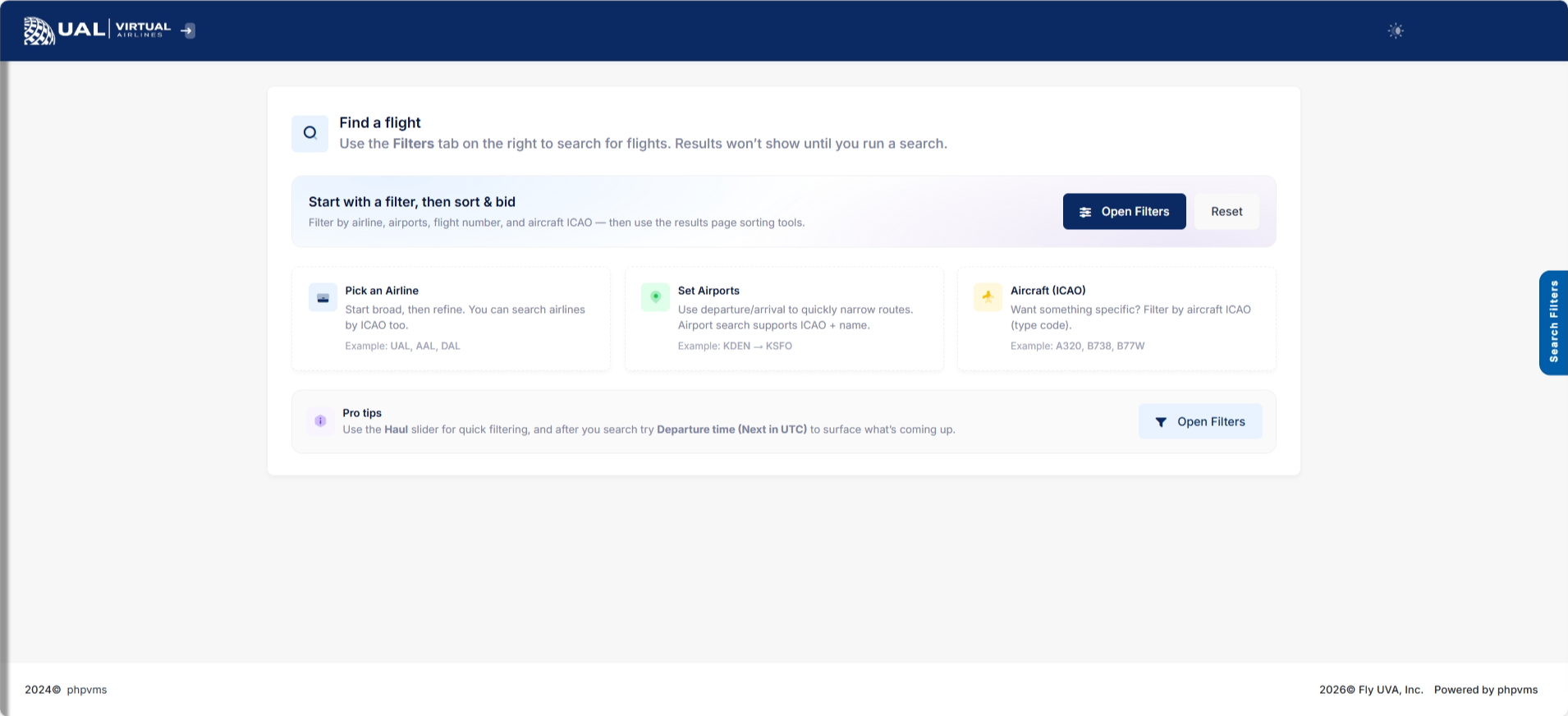
The Flight Search page allows you to browse and filter UVA’s published schedules.
This is where you select your next operational flight.
All scheduled flights listed here are part of the official UVA route structure.
Using the Search Filters
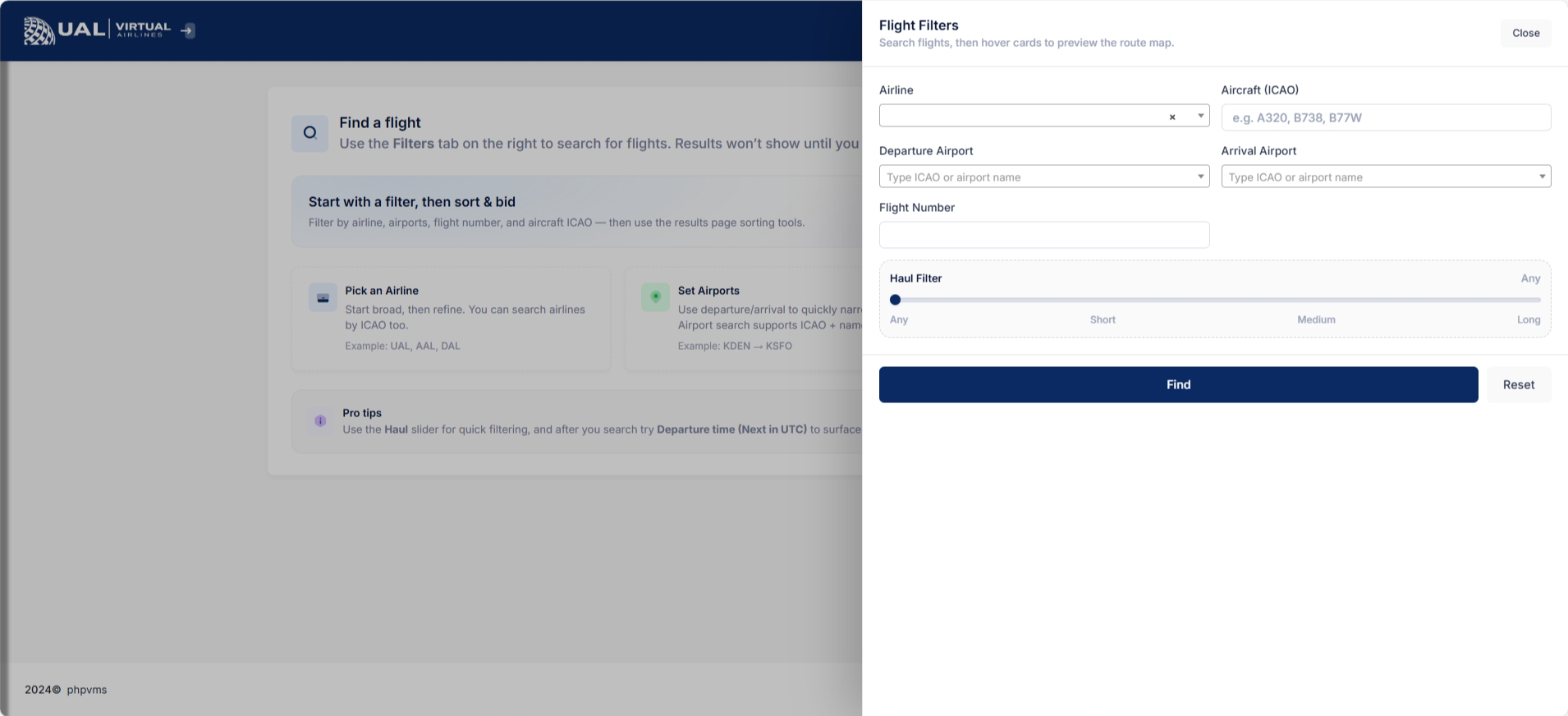
At the top of the page, you can narrow down results using search filters such as:
-
Airline
-
Aircraft / Subfleet
-
Departure Airport
-
Arrival Airport
-
Flight Number
-
Additional operational filters (if applicable)
Filters allow you to quickly locate routes that match your aircraft, hub, or preference.
You may use one or multiple filters at the same time.
Understanding the Results Table
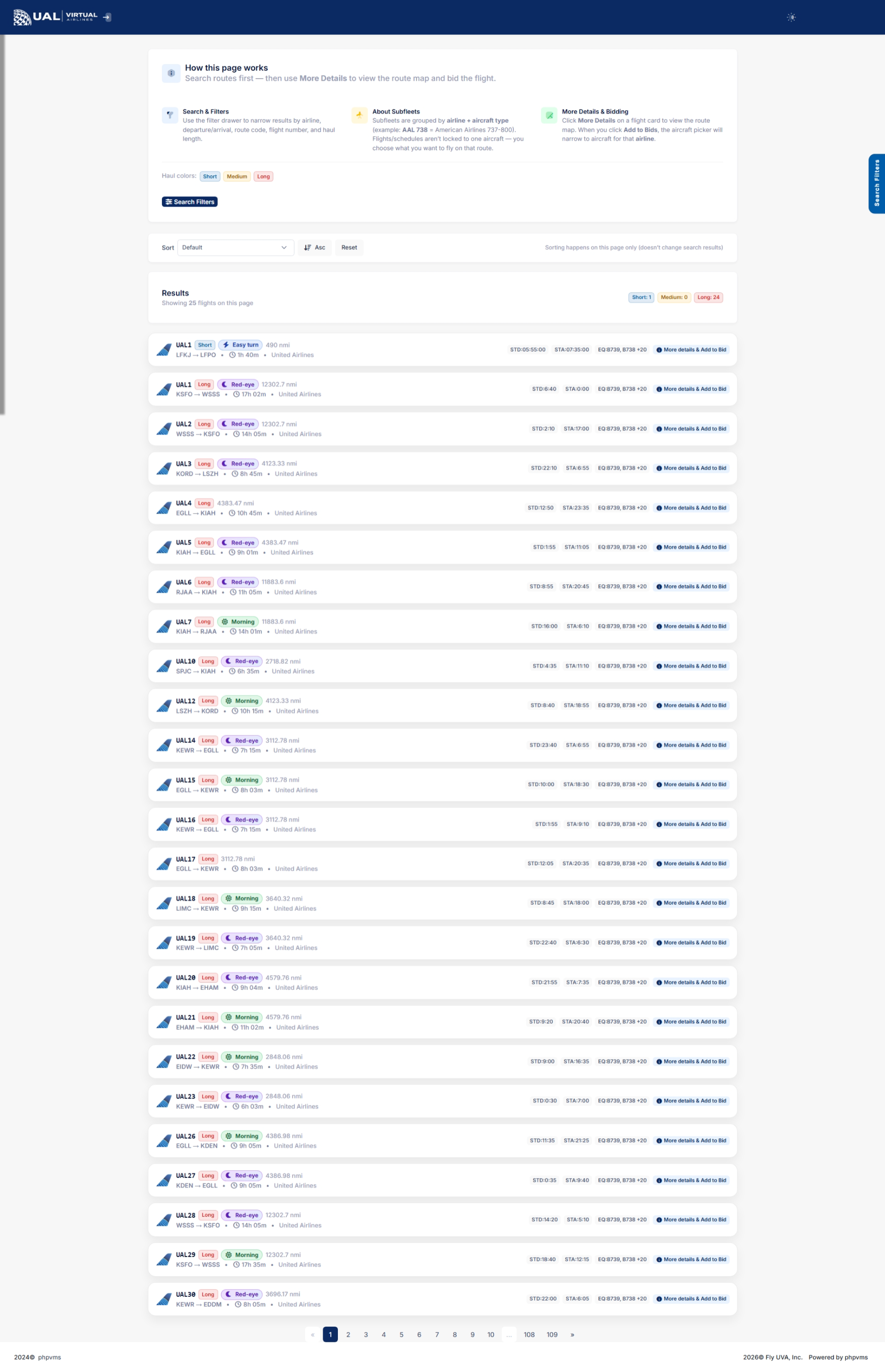
Search results display scheduled flights in a structured table.
Each row typically includes:
-
Airline
-
Flight Number
-
Departure Airport
-
Arrival Airport
-
Scheduled Departure / Arrival Time
-
Aircraft Type
-
Flight Time / Block Time
-
Additional operational details
These are real UVA schedule entries — not dynamically generated routes.
Viewing Flight Details
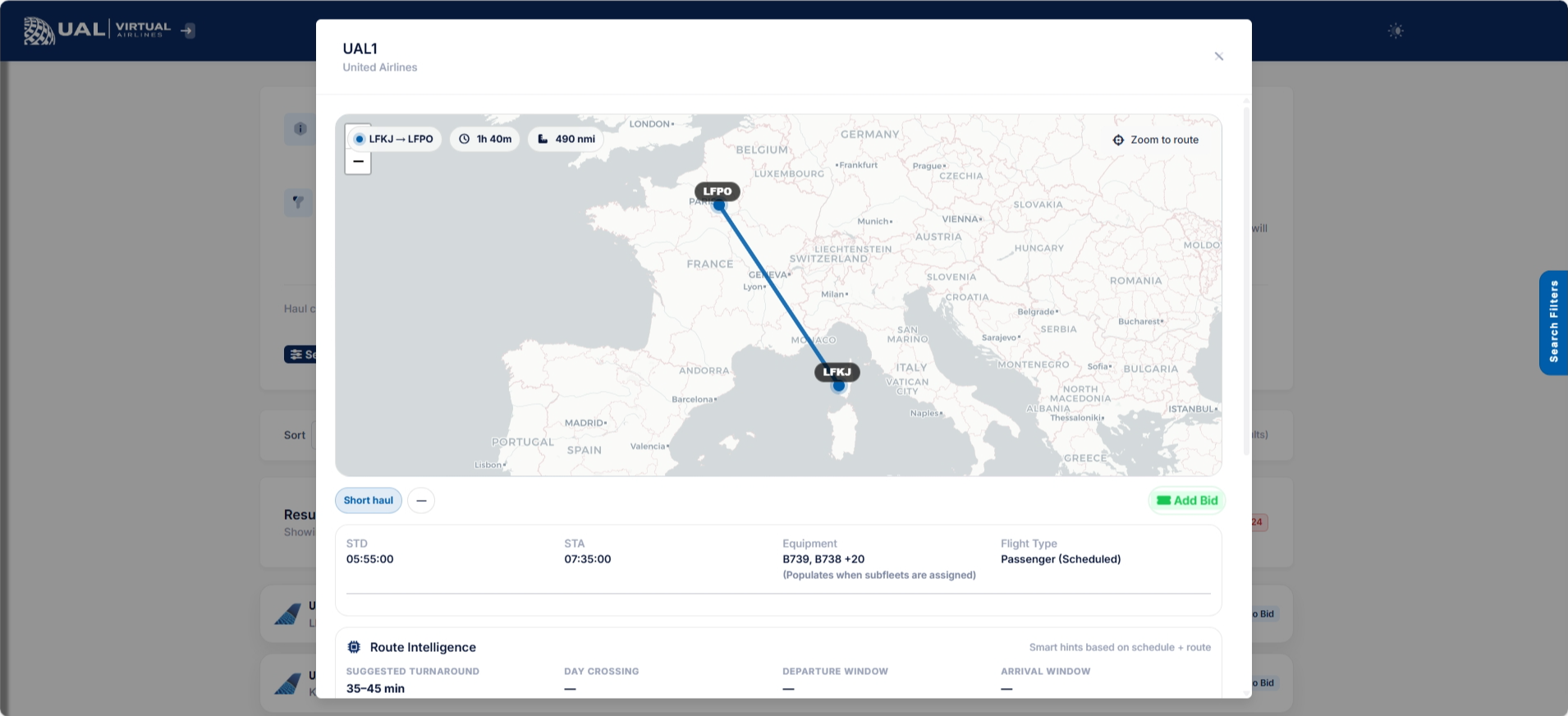
Selecting a flight opens the detailed Flight page.
On the Flight Details page, you will see:
-
Full route information
-
Aircraft assignment
-
Departure and arrival airports
-
Operational notes (if applicable)
-
Route map visualization
-
Dispatch options
This page confirms exactly what you are bidding.
Bidding a Flight
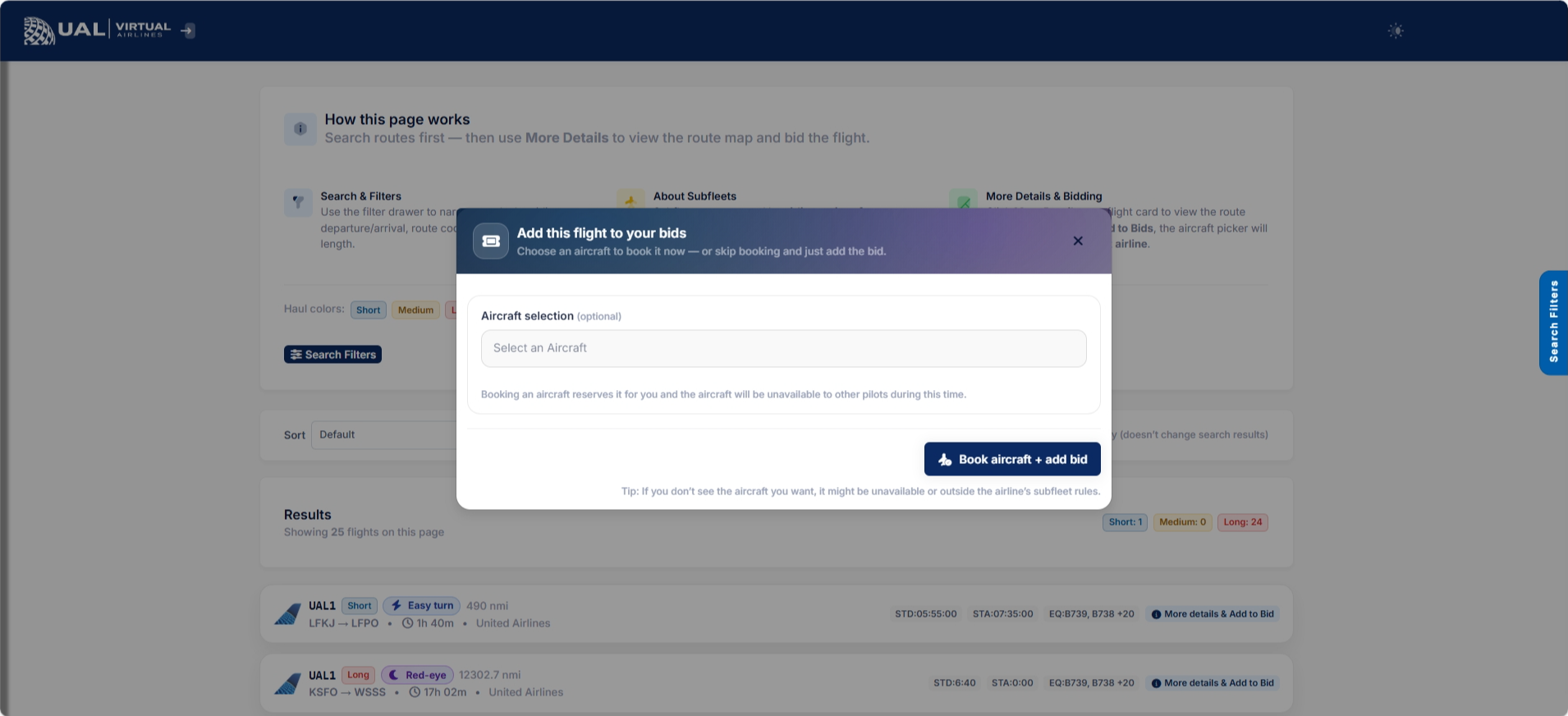
When you select a flight:
-
You may add it to your bids.
-
It becomes your active flight.
-
You cannot add another bid until the current one is completed or removed.
UVA enforces a one-active-bid policy.
If you already have a bid, you must remove it before selecting a new flight.
Route Map
The schedule system includes route mapping.
Maps display:
-
Departure airport
-
Arrival airport
-
Route visualization
This provides a visual overview of the flight before dispatch.
Operational Expectations
When selecting a scheduled flight:
-
Ensure you are flying the correct aircraft/subfleet.
-
Follow realistic routing procedures.
-
Comply with all AutoPIREP standards.
Scheduled flights are structured to reflect realistic airline operations.
After You Bid
Once a flight is added:
-
It appears on your My Bids page.
-
You may dispatch and fly it.
-
Submit your PIREP through smartCARS.
-
AutoPIREP will evaluate your flight.
Upon acceptance, your bid clears automatically.
Scheduled Flights vs Free Flights
Scheduled Flights:
-
Part of UVA’s official network.
-
Structured, realistic routes.
-
Often tied to Tours, Events, and Career Mode.
Free Flights:
-
Custom-created routes.
-
Designed for flexibility.
-
Not part of the published schedule network.
Tours
What Is UVTours?
UVTours is UVA’s structured tour system.
A tour is a multi-leg flight experience designed around a specific theme, region, aircraft type, or operational objective.
Each tour consists of sequential flight legs that must be completed in order.
How Tours Work
Every tour includes:
-
A defined list of flight legs
-
Specific departure and arrival airports
-
Aircraft restrictions (if applicable)
-
Sequential progression requirements
You must complete each leg before advancing to the next.
Skipping ahead is not permitted unless explicitly allowed by the tour design.
Tours Overview Page
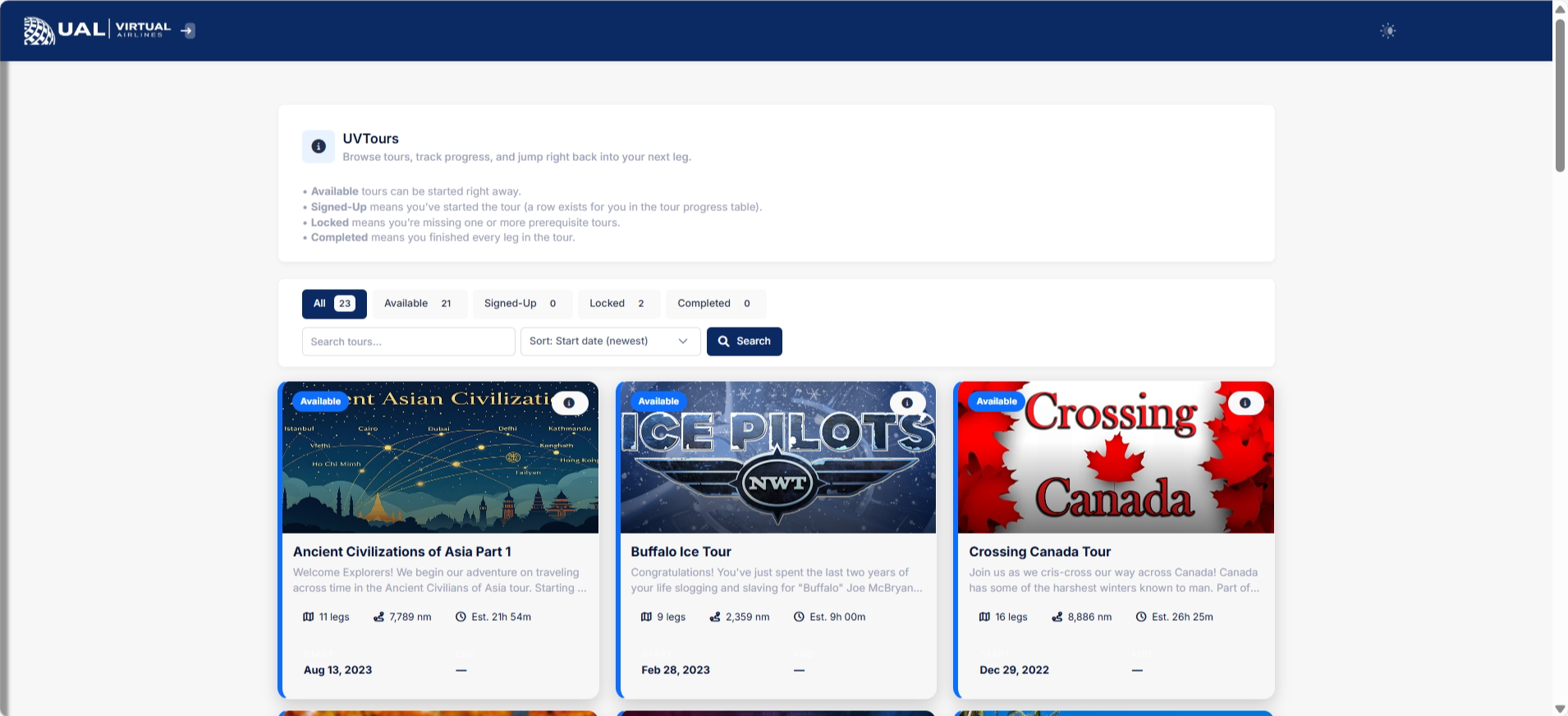
On the UVTours page, you will see:
-
Active Tours
-
Completed Tours
-
Tour descriptions
-
Progress indicators
-
Status badges
This page shows where you currently stand across all available tours.
Tour Details Page
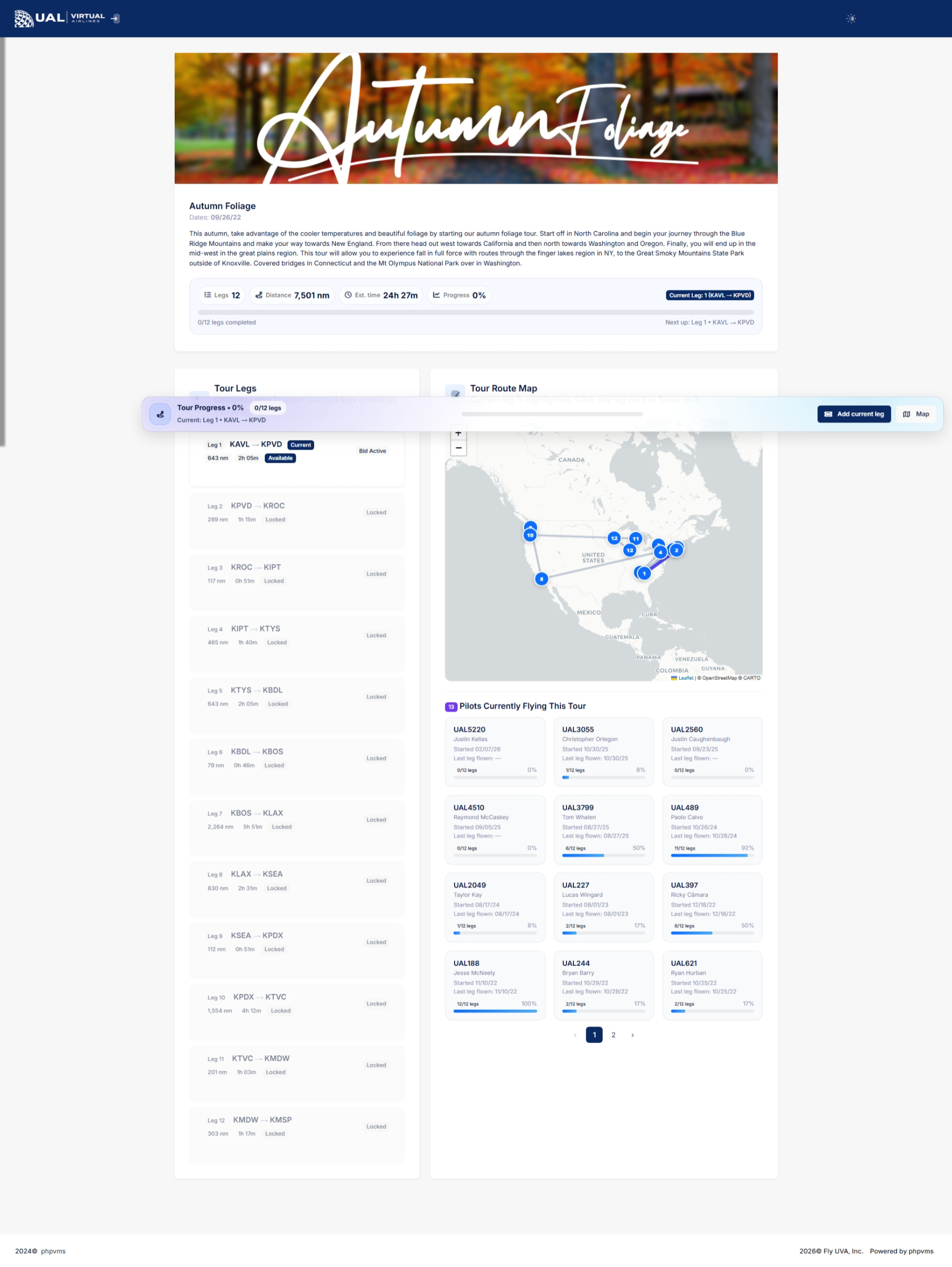
When you open a specific tour, you’ll see:
-
Full tour description
-
Total number of legs
-
Your current progress
-
Leg-by-leg breakdown
-
Status indicators for each leg
Leg statuses may include:
-
Completed
-
Current / Up Next
-
Locked
Only the current leg is eligible to be flown.
Completing a Tour Leg
To complete a leg:
-
Bid the correct scheduled flight.
-
Fly the exact route listed.
-
Submit your PIREP.
-
Ensure it is accepted.
Once accepted, the system advances you to the next leg.
Tour Progression Rules
-
Legs must be flown in order.
-
The flight must match the leg’s route.
-
The PIREP must be accepted.
-
Aircraft restrictions must be followed if specified.
If a PIREP is rejected, the leg does not count.
If the PIREP is pending, the tour will not advance until it is finalized.
Tour Completion
When all legs are completed:
-
The tour is marked complete.
-
Awards (if configured) are issued.
-
Your completion status is recorded permanently.
Completed tours remain visible in your history.
Why Participate in Tours?
UVTours provide:
-
Structured flight progression
-
Themed operational experiences
-
Long-term flying goals
-
Award eligibility
-
Recognition within the community
Important Notes
-
Tours require accepted PIREPs.
-
Manual PIREPs must meet validation standards.
-
AutoPIREP scoring still applies.
-
Only one active bid is allowed at a time.
-
Tour legs must be completed in sequence.
Trip Generator
What Is the Trip Generator?
The Trip Generator allows you to automatically build a multi-leg trip based on your selected criteria.
Instead of manually searching for individual flights, the system creates a connected sequence of scheduled routes for you.
It is designed to simulate realistic daily aircraft routing.
How It Works
The Trip Generator builds trips using UVA’s published schedules and applies operational rules to ensure:
-
Each leg connects properly
-
The arrival airport of one leg matches the departure airport of the next
-
Minimum ground time is respected
-
The final leg returns to your starting airport
The result is a complete round-trip routing.
Setting Your Criteria
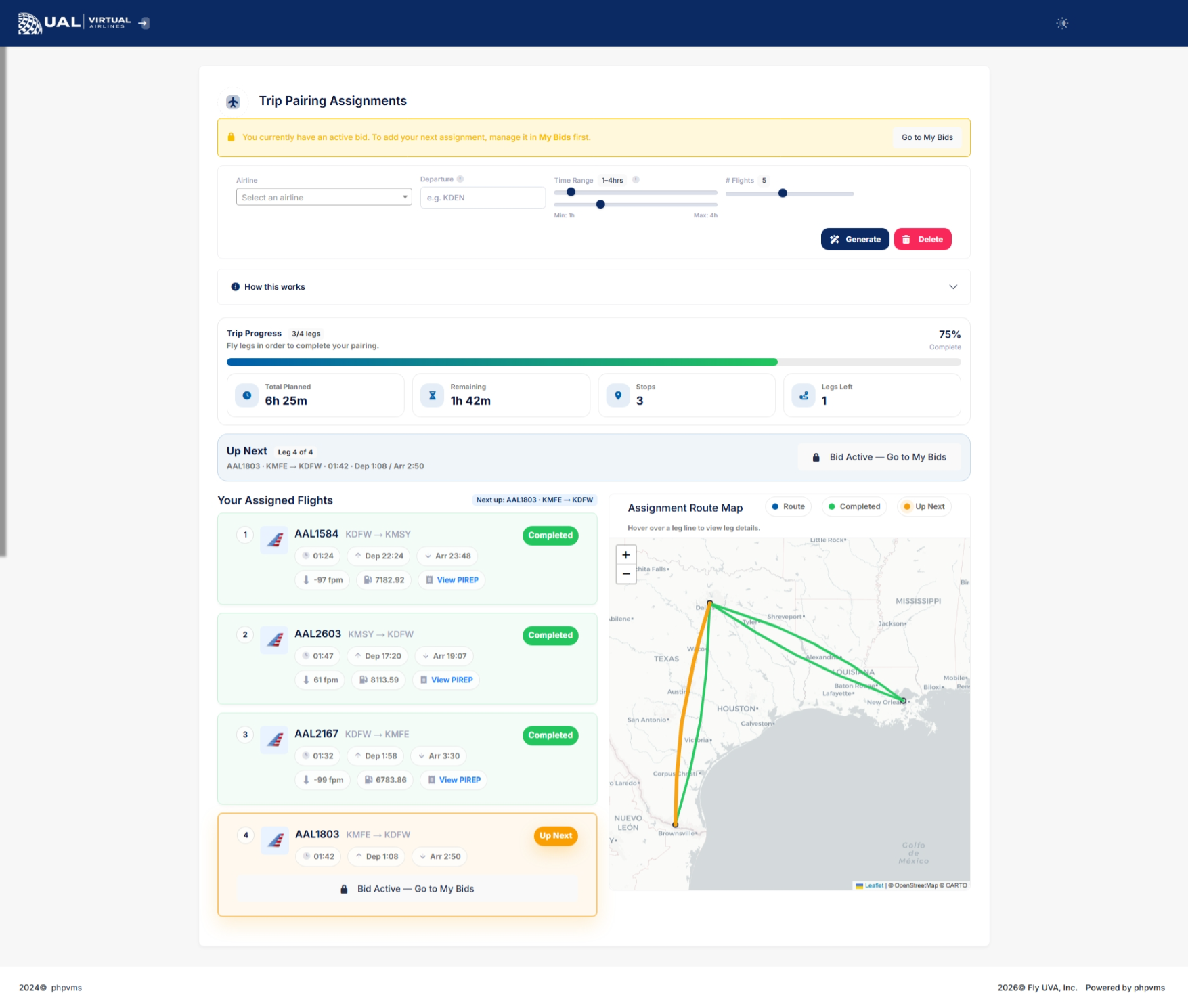
Before generating a trip, you can define:
-
Airline selection
-
Aircraft or subfleet
-
Departure airport
-
Minimum flight time
-
Maximum flight time
These filters allow you to tailor the trip to your aircraft type, available time, and operational goals.
Sequential Routing Logic
Trips are generated using strict sequencing:
-
Leg 1 departs from your chosen origin
-
Leg 2 departs from Leg 1’s arrival airport
-
Each subsequent leg continues the chain
-
Final leg returns to the starting airport
A minimum ground time buffer is enforced between legs to maintain realism.
This ensures your generated trip reflects real-world scheduling logic.
Viewing Generated Trips
Once generated, your trip appears in a structured table showing:
-
Airline
-
Flight number
-
Departure airport
-
Arrival airport
-
Departure time
-
Arrival time
A route map displays the full sequence visually.
Adding Flights to Your Bids
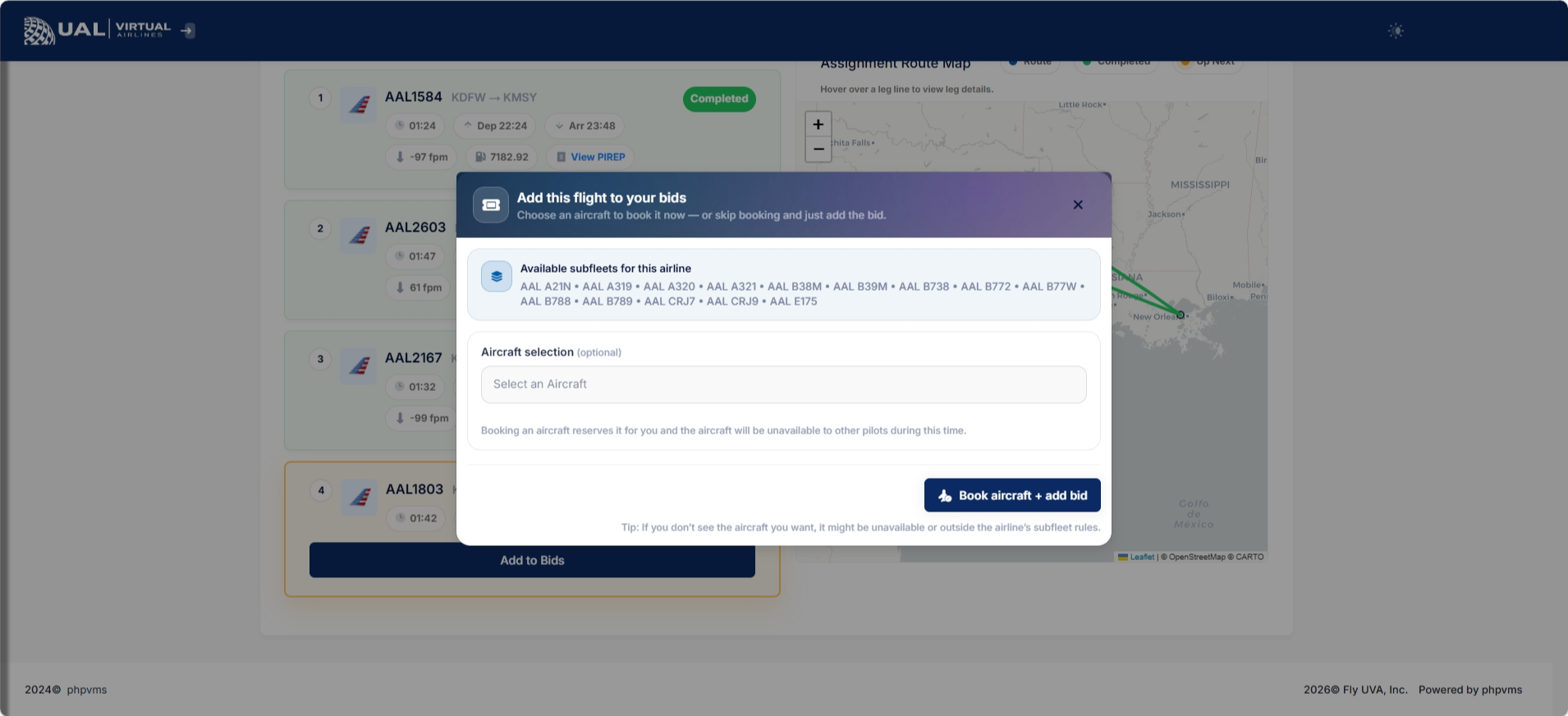
From the generated results, you may:
-
Add individual legs to your bids
-
Remove specific legs
-
Add the full trip to your bids
Because UVA allows only one active bid at a time, you must complete each leg sequentially.
Operational Requirements
Generated trips must still comply with:
-
Aircraft restrictions
-
AutoPIREP grading standards
-
One-active-bid policy
The Trip Generator does not override operational policies.
Why Use Trip Generator?
Trip Generator is ideal when you:
-
Want a realistic multi-leg day of flying
-
Prefer structured aircraft routing
-
Want to simulate airline-style daily rotations
-
Don’t want to manually search each leg
It blends automation with operational realism.
After Completing a Leg
Once a leg is flown and accepted:
-
Your bid clears
-
You may proceed to the next leg in the sequence
If a PIREP enters Pending status, the trip progression pauses until resolved.
UVAcars
Find a flight, plan it, fly it, and file your report — the complete guide to flying with UVAcars.